Parental control app for families

    Parental Control App for Safer Phones and Stronger Family Habits

    Bring location, screen time, app activity, calls and online safety guidance into one clear place. Explore what each feature can do, check device compatibility and choose the right level of parental monitoring for your family.

    Designed for lawful parental and guardian use. Feature availability varies by device, operating system, permissions and plan.

    Parent reviewing family phone safety information

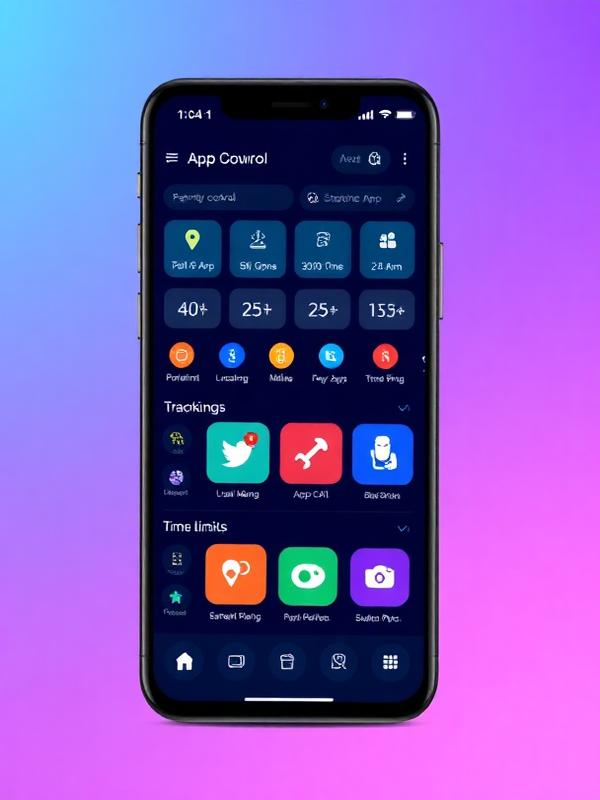
    Family safety overview

    Location, screen time and online activity

    A clearer way to parent online

    One phone can open the door to a lot of questions.

    A child’s phone is a map, classroom, camera, game console and social space in one device. That makes it useful, but it can also make ordinary parenting questions harder to answer. Is late-night screen time affecting sleep? Is an unfamiliar contact becoming a problem? Did the phone arrive at the expected place? A parental control app can organize supported information so you know where a conversation may be needed.

    The purpose is not to watch every tap. It is to notice patterns, set boundaries and give children a safer way to build digital independence. Ultimate Phone Spy helps families explore phone monitoring, location tracking, screen time and online-safety tools while making compatibility and responsible use part of the decision.

    No app replaces conversation. Parental control software can surface useful signals, but it cannot judge context, understand friendships or teach good decisions on its own. Treat it as one input that supports your parenting, alongside clear expectations and regular check-ins, rather than a system that keeps a child safe automatically.

    Location

    Understand supported location and route information.

    Screen time

    See how device habits fit school, sleep and family life.

    Online activity

    Review available app, web and communication signals.

    One dashboard, focused answers

    Parental control features for everyday family decisions

    Choose features around the problem you need to solve. Each tool below has its own compatibility requirements and a dedicated page with more detail.

    01

    Family location and phone tracker tools

    Location information can help answer practical questions: Has a child arrived at school? Did the device leave an expected area? Is a lost phone still moving? Explore GPS location tools, route information and device-status options, then confirm which updates are available for your device and plan.

    Explore location tracking
    02

    Screen time and app activity

    A screen time app is most useful when it supports a family conversation. Review usage patterns, understand which apps take up the day and set age-appropriate expectations for homework, bedtime and offline time. Controls and reports differ by operating system, so compatibility should be checked first.

    Review parental control features
    03

    Social media and messaging awareness

    Parents often want context when cyberbullying, unsafe contacts or inappropriate sharing becomes a concern. Compare available options for WhatsApp, Instagram, Snapchat and other communication platforms. Access depends on the phone, permissions, app version and the features included in the selected plan.

    See messaging options
    04

    Calls, contacts and communication patterns

    Call and contact information can help a parent recognize unfamiliar numbers or repeated communication patterns. Use this information as a prompt for a calm conversation, not as a substitute for trust. Recording and detailed call features may be restricted by device or local law.

    Explore call tracking
    05

    Web history and installed-app review

    Online safety is broader than a single social network. Reviewing browser history and installed apps can reveal risky downloads, age-inappropriate sites or services a parent has not discussed with their child. The goal is to spot patterns early and respond with clear family rules.

    Review web activity features
    06

    A practical family-safety dashboard

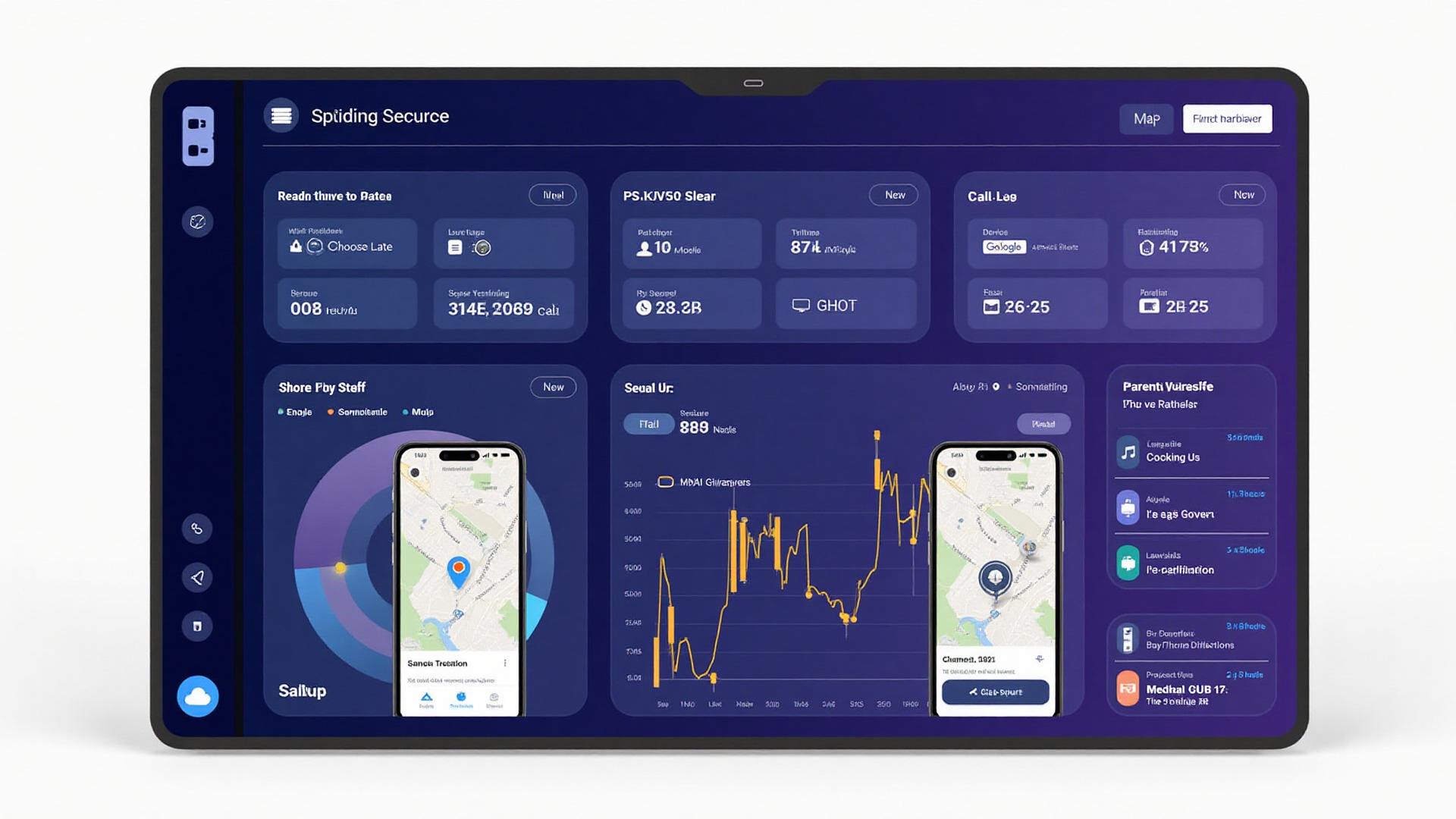
    A parental monitoring app should make important information easier to understand. Bring supported location, communication and device-activity information into one dashboard, then focus on the signals that matter to your household rather than checking every minor action.

    View the product demo

    How it works

    From concern to a practical family plan

    Good parental monitoring starts before installation. Define the need, check the device and agree on how the information will be used.

    Parental control dashboard preview
    1. 01

      Choose the family-safety features you need

      Start with the problem you are trying to solve: location check-ins, screen time, risky contacts, social apps or a lost device. This keeps the setup focused and helps you avoid paying for features your family will not use.

    2. 02

      Check the phone, operating system and permissions

      Android and iPhone do not provide identical access. Review the current system requirements, installation method and permissions for the device before choosing a plan. Some features also depend on the version of a third-party app.

    3. 03

      Set expectations and review the dashboard

      Explain the family rules, complete the authorized setup and use the dashboard to look for meaningful patterns. Combine technical controls with regular conversations about privacy, online behavior and what to do when something feels wrong.

    From dashboard to conversation

    Turn everyday signals into a calmer family talk

    A dashboard is only useful when it helps you decide what to do next. Instead of scrolling through every notification, look for the few signals that suggest a conversation is worth having, then follow up in person rather than through the device.

    • A late arrival home

      A missing check-in can be a scheduling mix-up rather than a problem. Ask how the afternoon went before assuming the worst.

    • A jump in late-night screen time

      Use the pattern to revisit bedtime routines together, not to hand out an immediate penalty.

    • An unfamiliar contact or app

      Treat it as a prompt to talk about who a child is speaking to and why, and to agree on what feels safe.

    Illustrative parental control dashboard showing location, screen time and activity summaries
    Illustrative dashboard preview — actual views vary by device and plan
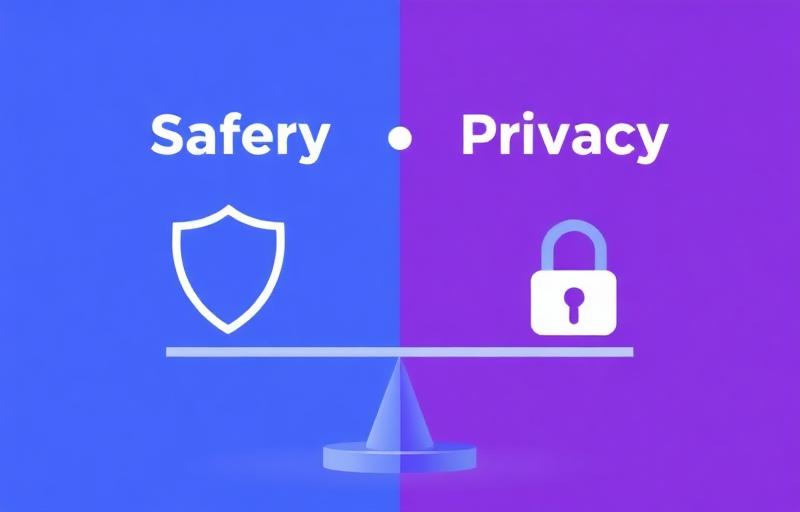
    Family discussing online safety and privacy

    Android, iPhone and changing app versions

    Check compatibility before you choose a plan

    A parental control app does not work exactly the same way on every phone. Android and iPhone use different permission systems, and operating-system updates can change what a third-party tool can access. Features for location, calls, messages or social apps may also require a particular installation method.

    Confirm the exact phone model, operating-system version, physical or account access requirements and supported features before purchasing. If a specific function is essential, check its feature page and ask support rather than assuming that a general compatibility label covers it.

    Choose with a checklist

    How to compare parental control apps

    “Best” depends on the child, device and family rules. Use these five questions to compare a phone monitoring app without being distracted by a long marketing list.

    Compare available plans
    01

    Your main reason for using it

    Choose a product around a specific need instead of a long feature count. Location, screen time and social-app awareness require different tools.

    02

    Device compatibility

    Confirm the operating system, device ownership, installation access and feature limitations before purchase. Android and iPhone support can differ.

    03

    Clear, usable reporting

    Look for a dashboard that makes important events easy to find. More data is not automatically more useful for a busy parent.

    04

    Privacy and legal use

    Use parental control software only on a device you own or are legally authorized to manage, and obtain consent wherever the law requires it.

    05

    Support and current documentation

    Installation guidance, compatibility notes and responsive support matter because phone and social-app updates can change how features work.

    Responsible use and privacy

    Monitor with authority, consent and care

    Parental controls work best when they are transparent. Use them to protect the children you are responsible for, keep the information private, and treat the law as a starting point rather than an afterthought.

    Use it on authorized devices

    Install parental control software only on a phone you own or are legally authorized to supervise, such as a device used by your minor child.

    Ask for consent where required

    Many regions expect you to inform the people affected. Monitoring another adult, an employee or a partner without permission can be unlawful.

    Be age-appropriately open

    Where it is safe to do so, tell children what is being reviewed and why. Transparency usually builds more trust than secret oversight.

    Check your local laws

    Rules on recording calls, reading messages and tracking location differ by country and state. When you are unsure, seek qualified legal advice.

    Questions parents ask before choosing

    Parental control app FAQ

    Clear answers about phone tracking, screen time, compatibility, social apps, pricing and lawful use.

    Real questions. Practical answers.

    Ask other parents and follow the family-safety discussion

    The Ultimate Phone Spy community covers parental controls, phone safety, app questions and responsible ways to manage family technology.

    Visit the community

    Latest from Our Blog

    Expert tips and guides on parental control app usage and digital safety

    Learn the reliable signs you are blocked on iMessage, what each sign really means, and what to try next without guessing, drama, or privacy mistakes. Updated 2026.

    Recover deleted Messenger chats with a truth-first process: archived chats, Facebook data download, backups, what cannot be restored, and prevention steps for parents in 2026.

    11 min
    Read More

    LMK meaning explained with examples, origins, and parent-friendly context—plus related acronyms, reply ideas, and messaging etiquette for teens, updated 2026.

    Start with the feature your family needs most

    Explore the parental control dashboard, confirm compatibility and compare available plans before making a decision.