It’s a scene playing out in millions of homes: a child, head bowed, eyes glued to a small screen, scrolling through an endless stream of YouTube videos. What starts as a few minutes of entertainment can quickly spiral into hours of passive consumption, exposing them to everything from inappropriate content and dangerous challenges to sophisticated targeted advertising. As a parent, it’s frustrating and worrying. You’ve asked them to stop, you’ve set timers, but the pull of the platform is simply too strong,
The truth is, willpower is often no match for an algorithm designed for maximum engagement. If you’ve reached the point where limiting YouTube isn't enough, and removing access entirely is the only sane option, you are not alone. The good news is that you have more power than you think. This guide will provide you with clear, step-by-step instructions on how to block youtube on kids phone using everything from free, built-in tools to powerful dedicated software. You can reclaim your child’s attention and your family’s peace of mind.
Why Blocking YouTube Might Be the Right Choice for Your Family
Before we get to the "how," it's important to address the "why." Blocking a platform as ubiquitous as YouTube may seem extreme, but there are compelling reasons parents make this choice.
Inappropriate Content: Despite YouTube Kids and Restricted Mode, disturbing and age-inappropriate videos can slip through the cracks. The algorithm can lead a child from a harmless unboxing video to something violent or sexually suggestive in just a few clicks.
Screen Time Addiction: YouTube’s autoplay feature and endless scroll are specifically engineered to keep viewers watching. This can lead to significant battles over screen time and disrupt sleep, homework, and real-world social interaction.
Mental Health Concerns: Studies have linked heavy social media and video consumption to increased rates of anxiety and depression in young people. The constant comparison to curated lives and exposure to negative content can take a toll.
Data Privacy: Children are vulnerable to the sophisticated data collection and advertising practices that fuel these free platforms.
Understanding these risks reinforces that learning how to block youtube on kids phone is a valid and proactive parenting strategy.
Your First Line of Defense: Built-In Phone Settings
The simplest and most cost-effective methods are the parental controls built directly into your phone's operating system. You should always start here.
How to Block YouTube on Android Phones
For Android devices, the most robust tool is Google Family Link. This free app from Google allows you to create a supervised account for your child and manage their device remotely.
Download the Google Family Link app on your phone and your child's phone.
Follow the setup instructions to link the two devices.
Once set up, select your child’s device and go to "Manage settings" > "Google Play Store" > "Content restrictions."
Here, you can set the maturity level for apps, but to block a specific app, go to the "App activity" section in the main dashboard.
Find the YouTube app in the list and tap on it.
Select "Block app." This will prevent the app from being opened on the child's device.
Important Note: This blocks the YouTube app but not necessarily the YouTube website through a mobile browser. For complete blocking, you may need to take additional steps with a dedicated app.
How to Block YouTube on iPhones (iOS)
Apple’s Screen Time feature offers powerful controls to block apps and websites.
On your child's iPhone, go to Settings > Screen Time.
If you haven’t already, tap "Turn On Screen Time" and follow the prompts. For the strongest control, select "This is My Child's iPhone."
Tap "Content & Privacy Restrictions" and toggle it on.
Tap "Allowed Apps" and simply toggle off the YouTube switch. The app icon will disappear from the home screen, making it inaccessible.
For an extra layer of security, go to "Content Restrictions" > "Web Content" and select "Limit Adult Websites." You can also add "youtube.com" to the "Never Allow" list to block access via web browsers like Safari or Chrome.
This method is very effective for blocking the app and the website directly on the iPhone.
The Limitations of Built-In Controls and the Need for a Stronger Solution
While built-in settings are a great starting point, they have significant limitations. A tech-savvy child can sometimes find workarounds, especially on Android devices. Furthermore, these controls often only work on the specific device you’ve configured. They don’t provide you with detailed reports or alerts if your child tries to bypass the block.
This is where a multi-layered approach becomes essential. Built-in controls are your first fence, but to truly secure the digital perimeter, you need a dedicated solution that offers more comprehensive oversight and enforcement.
The Ultimate Solution: Dedicated Parental Control Apps
For parents who need absolute certainty and a wider range of features, third-party parental control applications are the most reliable answer. These tools provide device-wide management, making them the most effective way to learn how to block youtube on kids phone permanently. They also offer monitoring features that give you insight into your child's other digital activities.
Let's examine three leading options that can give you total control.
1. mSpy: For Comprehensive Monitoring and App Blocking
mSpy is a well-established name in the parental control space, known for its extensive feature set that provides a deep level of insight into your child's device.

Key Features for Blocking YouTube:
App Blocker: Remotely block the YouTube app (and any other app) with a single click from your parent dashboard.
Website Blocker: Block access to the YouTube website and any other specific URLs you define, preventing browser-based workarounds.
Screen Time Management: Set strict schedules for when the phone can be used, effectively blocking access to all apps, including YouTube, during homework or bedtime.
Keylogger & Social Media Monitoring: See what your child is typing and doing on other platforms, providing context for their online behavior.
mSpy is an excellent choice for parents who want detailed information and powerful, remote blocking capabilities.
2. Eyezy: For Stealthy and Robust Control
Eyezy offers a powerful suite of monitoring tools that operate seamlessly in the background, providing a clear and honest window into your child's phone usage.

Key Features for Blocking YouTube:
App Blocker & Scheduler: Instantly block the YouTube app or set a schedule for when it can and cannot be used.
Invisible Shield: Runs in stealth mode, preventing the app from being detected or tampered with by your child.
Screen Recording: See exactly what is happening on the phone's screen in real-time, allowing you to confirm that YouTube is blocked and monitor other activity.
Keystroke Capture: Records search terms and messages, which can alert you if your child is trying to find alternative video platforms.
Eyezy is ideal for parents who need a powerful, behind-the-scenes tool to enforce rules and understand their child's digital habits.
3. Spynger: For User-Friendly Management
Spynger provides a straightforward and intuitive approach to parental controls, making it easy to manage your child's device without a complex setup.
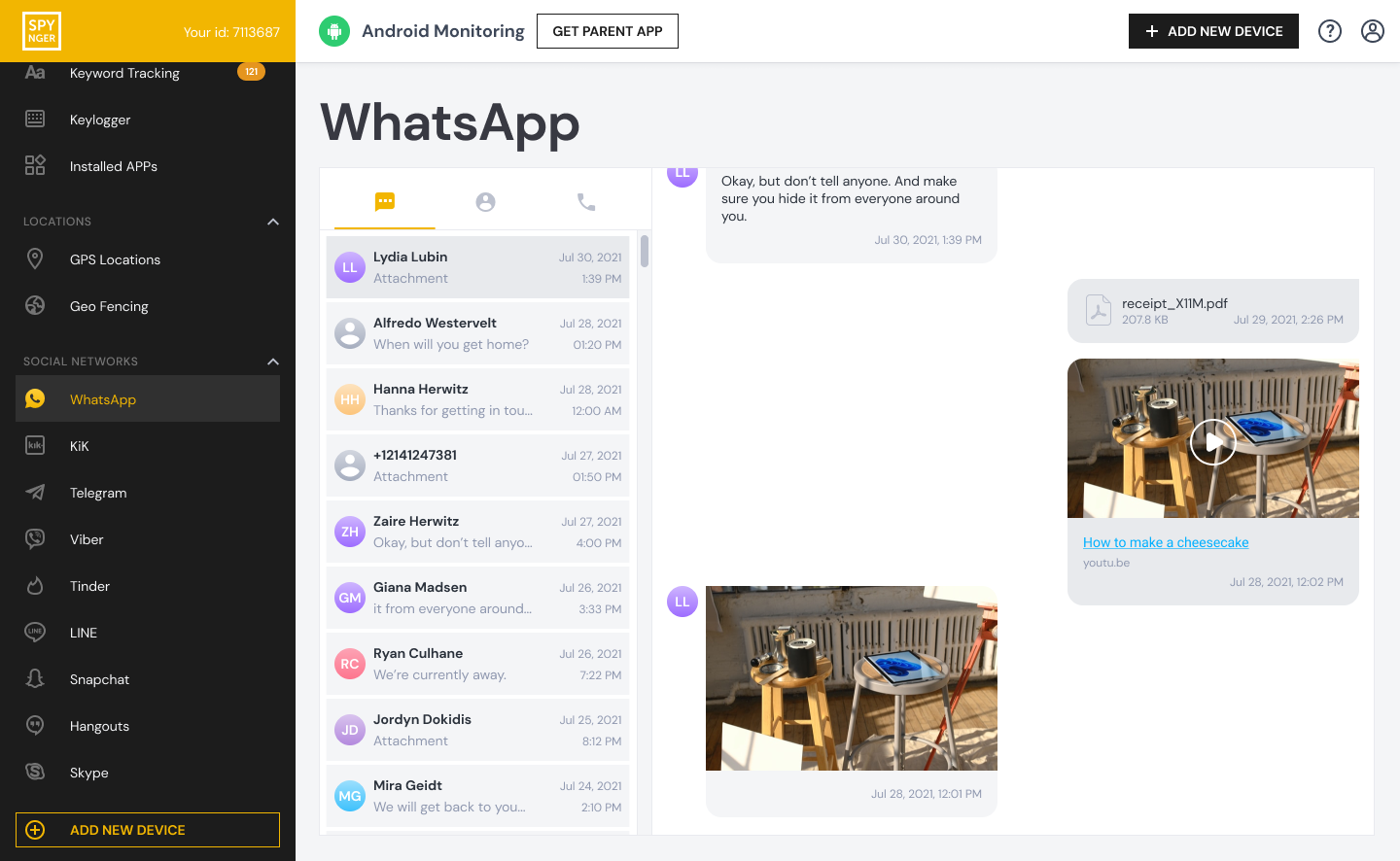
Key Features for Blocking YouTube:
One-Tap App Blocking: Easily find YouTube in the list of installed apps and block it instantly from your control panel.
Web Filtering: Block inappropriate websites, including YouTube.com, across all mobile browsers.
Location Tracking & Geofencing: While not directly related to YouTube, this adds a layer of overall safety management.
Simple Dashboard: A clean, user-friendly interface that lets you manage all features from a single screen.
Spynger is a great option for parents who want an effective, no-fuss solution to block apps and manage screen time without advanced features they may not need.
The Human Element: Communicating the Change
Technology can enforce a rule, but it can't teach the lesson. Simply blocking YouTube without context can lead to resentment and secretive behavior. Sit down with your child and explain your reasons. Talk about the concerns you have regarding screen time, content, or their well-being. Frame it as a health and safety decision, not a punishment. Offer alternative activities—books, board games, sports, or even curated movie nights—to fill the void left by YouTube.
Taking Back Control: Your Path Forward
Your child's digital well-being is too important to leave to chance. Start by implementing the built-in controls on their device today—it’s a free and immediate step. If you find you need more robust, tamper-proof management, seriously consider a dedicated parental control app like mSpy, Eyezy, or Spynger. These tools provide the certainty and peace of mind that built-in settings alone cannot offer.
You have the right and the responsibility to shape your child's digital environment. By taking these proactive steps, you are not just blocking an app; you are opening the door to more balanced, present, and healthy childhood.
Frequently Asked Questions (FAQs)
1. My child uninstalled the parental control app. What can I do?
Many premium apps, including those mentioned above, have stealth features that hide the app icon from the phone's launcher, making it very difficult for a child to find and uninstall. Additionally, on iPhones using Screen Time, you can set a passcode that prevents them from re-installing apps without your permission.
2. If I block the YouTube app, can my child still watch videos through other means?
Yes, this is a key reason why dedicated parental control apps are more effective. A child might use a different browser, a third-party video app, or even a VPN to access YouTube. A comprehensive app blocker can target these other applications, and a web filter can block the YouTube website across all browsers.
3. Is it better to just use YouTube Kids instead of blocking YouTube entirely?
YouTube Kids is a safer alternative for younger children as it has more stringent content filters. However, it is not perfect, and some inappropriate content has been known to slip through. It also doesn't address the core issue of screen time addiction. For many parents, using YouTube Kids with strict time limits is a good middle ground. For others, a full block is the right solution.


