You pick up your Android phone with a purpose—to check an email, look up a recipe, or send a quick text. But then, a notification from a social platform catches your eye. You tap it "just for a second," and suddenly, thirty minutes have vanished into the void of endless scrolling. This isn't a lack of willpower; it's a design feature of the apps you're using. They are engineered to capture and hold your attention. As a digital wellness specialist with a decade of experience helping people navigate the challenges of constant connectivity, I can tell you that the solution isn't just to "try harder." The most effective strategy is to change your environment.
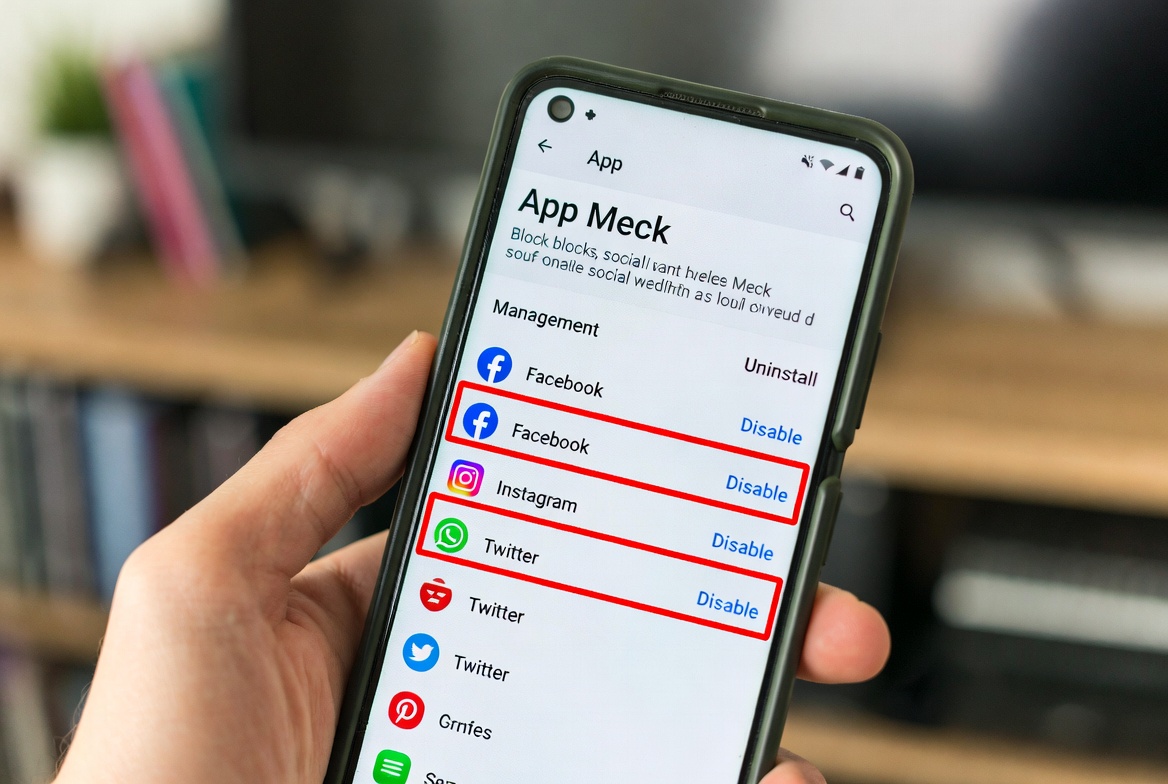
This guide is your practical manual for doing exactly that. We will explore the most effective methods for how to block social media apps on android, from the built-in tools that come with your device to powerful third-party applications that offer a more robust defense. You will learn not only the step-by-step processes but also the strategy behind creating a phone that supports your focus, rather than sabotaging it.
Your Built-in Ally: Mastering Android's Digital Wellbeing
Most modern Android devices come with a suite of tools called Digital Wellbeing (or similar, depending on your manufacturer). This is your first and most accessible line of defense. It’s designed to give you insight into your habits and provide basic controls to manage them. Think of it as the foundation of your digital declutter. Before investing in other solutions, it's crucial to understand and utilize what you already have.
Step-by-Step: Using Focus Mode to Block Distractions
The most direct tool within Digital Wellbeing for our purpose is Focus Mode. This feature allows you to temporarily pause specific apps, rendering them unusable for a set period. The icons typically turn gray, providing a visual cue that they are off-limits.
Here is how to set it up:
Open your Settings app.
Scroll down and tap on Digital Wellbeing & parental controls.
Under "Your goals," find and select Focus Mode.
You will be presented with a list of your installed apps. Select all the social media apps you find distracting (e.g., Facebook, Instagram, TikTok, Twitter/X).
You can now turn on Focus Mode instantly by tapping the "Turn on now" button. For a more sustainable habit, tap Set a schedule to create recurring focus sessions, such as during your work hours from 9 AM to 5 PM.
While Focus Mode is active, attempting to open a paused app will display a message reminding you that the app is unavailable. This moment of friction is often enough to break the autopilot impulse to scroll.
Going Deeper with App Timers
Another powerful feature within Digital Wellbeing is App Timers. This allows you to set a daily time limit for specific apps or categories. Once you've reached your limit, the app will be paused for the rest of the day.
To configure App Timers:
Navigate to Settings > Digital Wellbeing & parental controls.
Tap on Dashboard. Here, you'll see a list of your most-used apps.
Tap on the hourglass icon next to any app (e.g., Instagram).
Set a daily time limit (e.g., 30 minutes) and tap OK.
This method is excellent for creating a "budget" for your social media use, encouraging more mindful consumption rather than outright blocking.
The Limitations of Native Tools and When to Seek a stronger Solution
Digital Wellbeing is an excellent starting point, but it has significant limitations. The most notable one is that the blocks are often easy to bypass. A single tap can dismiss the "app paused" notification, allowing you to use the app anyway. Furthermore, these features do not typically block access to social media through mobile web browsers like Chrome, leaving a major loophole in your defenses.
If you find yourself consistently overriding your own Digital Wellbeing settings, or if you need a solution for a family member (like a child) that is more difficult to circumvent, it is time to consider a dedicated third-party application. These apps are built specifically to overcome the shortcomings of built-in tools.
Powerful Third-Party Applications for Unbreakable Discipline
For those who need a more rigorous solution, dedicated blocking apps offer advanced features like website blocking, stricter enforcement, and cross-device synchronization. They make the process of bypassing a block intentionally difficult, which is exactly what many of us need.
1. mSpy: For Comprehensive Monitoring and Control
mSpy is widely recognized in the parental control and productivity space for its powerful and extensive feature set. While it serves as a monitoring tool, its application blocking capabilities are exceptionally effective for anyone seeking serious, non-negotiable discipline on an Android device.

Key Features for Blocking Social Media:
App Blocking: Remotely block any social media application on the target Android device instantly.
Website Filtering: Crucially, this blocks access to social media sites through all web browsers, closing the Chrome loophole.
Schedule Blocking: Set a detailed schedule for when apps are blocked (e.g., during work or school hours).
Stealth Mode: Operates discreetly, removing the visual temptation to tamper with the settings.
Best For: Individuals who need a powerful, top-down control system and parents who want to manage their child's social media access effectively.
How to Get Started with mSpy:
If you require a high level of control and monitoring, mSpy is a premier choice.
TRY NOW
2. Eyezy: The All-in-One Digital Wellness Suite
Eyezy offers a comprehensive suite of features that blends powerful social media blocking with extensive monitoring and insight tools. It’s designed for the user who wants total visibility into their digital habits to make informed, lasting changes.
Key Features for Blocking Social Media:
Social Media & App Blocker: Precisely control which apps and platforms can be accessed and when.
Screen Time Management: Get detailed reports and set hard limits on your daily usage.
Keylogger & Magic Alerts: Provides insights into device usage patterns and can notify you of specific activities.
Geofencing: Can automatically enable blocking features when you arrive at a specific location, like your office.
Best For: Data-driven individuals and parents who want to not only block apps but also understand usage patterns to foster healthier long-term digital habits.
How to Get Started with Eyezy:
For deep insights alongside powerful blocking capabilities, consider Eyezy.
BUY NOW
3. Spynger: Streamlined and Effective Blocking
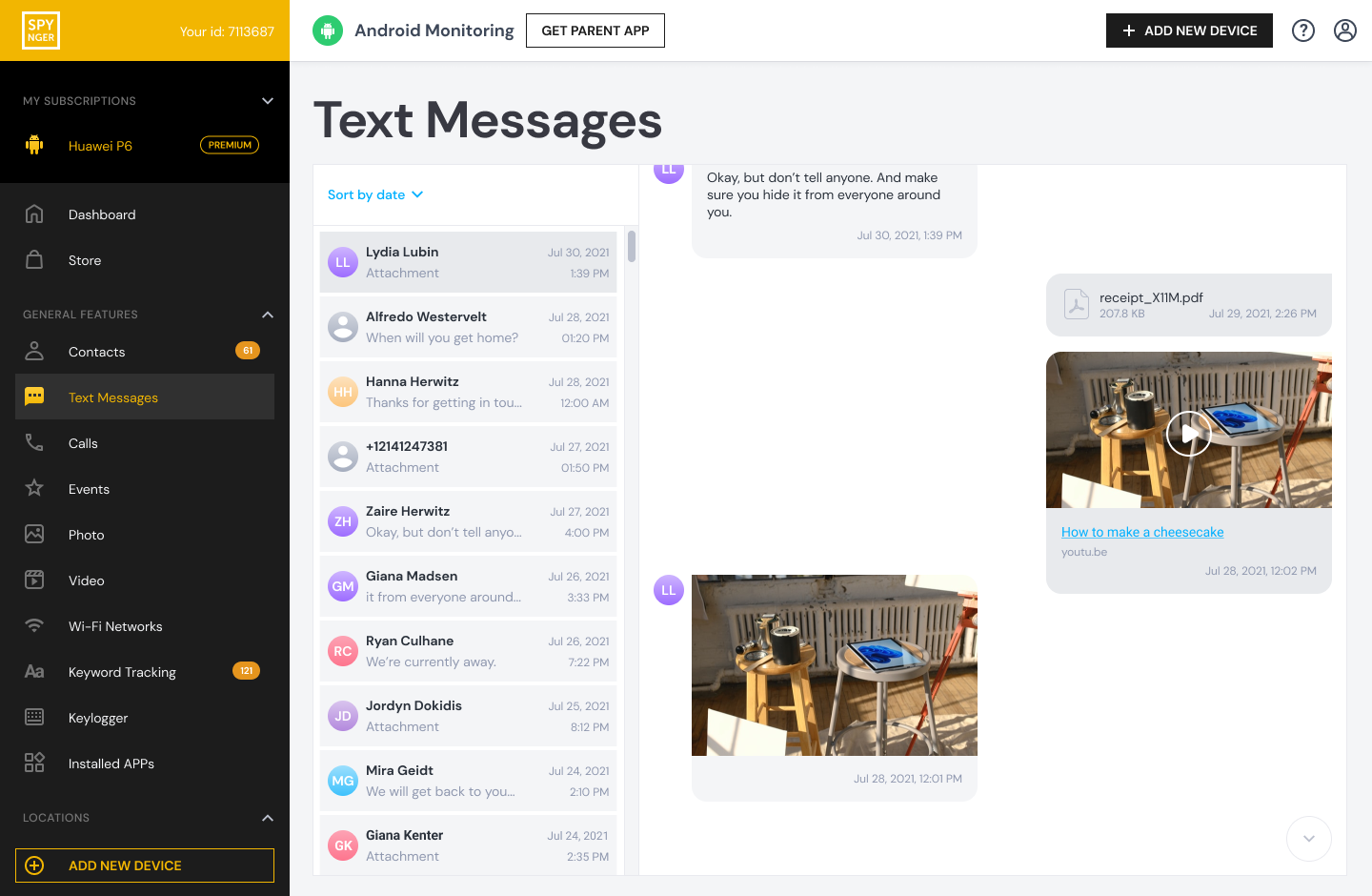
Spynger provides a robust set of monitoring and blocking features with a focus on effectiveness and user-friendliness. It offers the essential tools needed to create a distraction-free Android environment without unnecessary complexity.
Key Features for Blocking Social Media:
App Blocker: Easily select and block distracting social media and gaming apps.
Website Blocker: Filter and block specific websites or categories of sites.
Location Tracking & Geofencing: Set up location-based rules to automatically trigger app blocking.
Simple Dashboard: An intuitive interface that makes managing restrictions straightforward.
Best For: Users who want a straightforward, effective tool to manage device usage with a strong emphasis on blocking and filtering.
How to Get Started with Spynger:
For a user-friendly yet powerful blocking experience, Spynger is a fantastic option.
BUY NOW
Building a Sustainable, Focused Lifestyle
Knowing how to block social media apps on android is a technical skill, but the real victory is in the behavioral change it enables. I advise clients to use these tools not as a punishment, but as a way to create space for better activities. Start by blocking your biggest distractions during your most important two-hour work block. Use that uninterrupted time to complete a project you've been putting off.
Pair your technical blocks with environmental changes. Designate your bedroom as a phone-free zone. Charge your device in another room overnight. The goal is to make distraction difficult and focus easy. Reclaim the time you save and invest it in reading, learning a new skill, or connecting with people face-to-face.
Conclusion
The constant pull of social media on your Android device is a powerful force, but it is not an invincible one. You now possess the knowledge to fight back effectively. You can start with the built-in power of Digital Wellbeing, or you can upgrade to a dedicated, robust solution like mSpy, Eyezy, or Spynger for a defense that is much harder to break.
The information on how to block social media apps on android is only as valuable as the action you take with it. Don't let another week slip away in a blur of meaningless scrolling. Choose one method from this guide and implement it today. Your time, your attention, and your peace of mind are worth protecting.
Frequently Asked Questions (FAQs)
1. Can I just uninstall the social media apps instead?
Yes, uninstalling is always an option. However, for many, this is an all-or-nothing approach that isn't practical. You might need Messenger for communication or Facebook for managing a business page. Blocking allows you to restrict distracting usage patterns while maintaining the ability to access the app for necessary functions at appropriate times.
2. Do these methods work for blocking browsers like Chrome?
Android's native Digital Wellbeing does not block specific websites within browsers. This is a major advantage of third-party apps like mSpy, Eyezy, and Spynger. They include website filtering features that allow you to block social media sites on Chrome and other browsers, effectively closing a significant loophole.
3. Is it possible for someone to uninstall these blocking apps?
This depends on the app and the setup. For personal use, many apps have anti-tamper features. For parental controls, the most effective method is to use a separate parental control profile on the Android device or to use an app that requires a secure password to be uninstalled. The third-party apps listed are designed to be difficult to remove without authorization, making them a more permanent solution than native tools.