It’s a scene that plays out in classrooms and homes every day: a student’s phone lights up with a Snapchat notification, and their focus shatters. As an education technology consultant for the past decade, I’ve seen the direct correlation between unrestricted phone access and declining academic performance. A recent study from the Center for Democracy and Technology found that over half of high school students report being distracted by their phones in class.
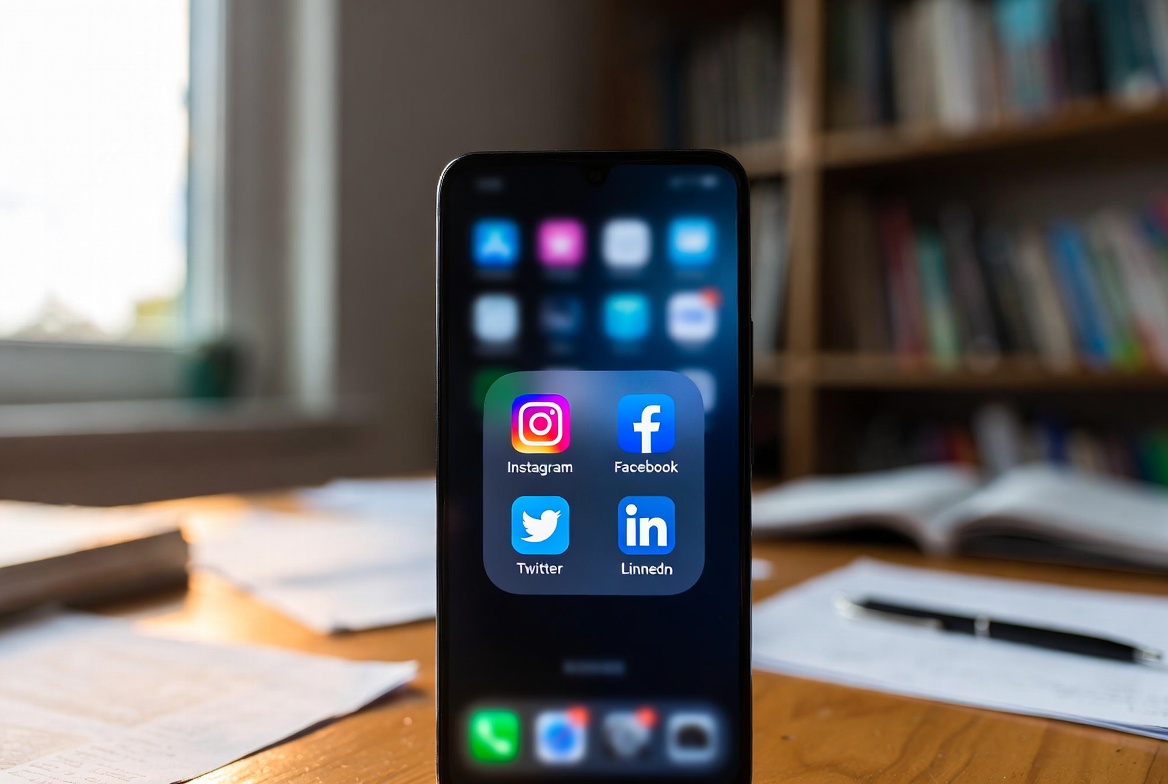
The constant pull of social media isn't just an annoyance; it actively undermines learning. The good news is that you are not powerless. With the right strategy, you can effectively block social media apps during school hours, creating a structured environment that promotes concentration and academic success. This guide will provide you with a clear, actionable plan, from built-in phone settings to powerful third-party solutions.
The High Cost of Digital Distraction in the Classroom
Why is it so crucial to address this issue? The problem goes beyond a single missed instruction. When a student switches between a textbook and TikTok, their brain undergoes "task-switching," which cognitive scientists have shown reduces learning efficiency and increases errors. The fragmented attention prevents deep engagement with the material, leading to poorer information retention and lower grades.
Furthermore, the social pressure to be constantly available can create significant anxiety. By creating phone-free zones during learning time, you are not just removing a distraction; you are giving your child the gift of focused, undivided attention, which is a cornerstone of academic achievement. Learning how to block social media apps during school hours is a critical step in safeguarding their education.
Method 1: Leveraging Built-in Phone Features (Free & Simple)
Your first line of defense is already on the device. Both iOS and Android have robust, free tools designed for this exact purpose.
For iPhones: Using Screen Time
Apple’s Screen Time is a powerful built-in solution. Here’s how to set it up:
Go to Settings > Screen Time.
Tap "Turn On Screen Time" if it's your first time, then tap "Continue."
Select "This is My Child's iPhone" to set up parental controls.
Tap "Downtime" to set a schedule. You can set this for the entire school day (e.g., 8:00 AM to 3:00 PM). During Downtime, only apps you explicitly allow and phone calls will be available.
Next, go to "App Limits". Tap "Add Limit" and select "Social Networking." You can set this limit for the same school hours. Even if Downtime is off, this specific category will be blocked.
Most importantly, go to "Content & Privacy Restrictions" and turn them on. Then, scroll down to "iTunes & App Store Purchases" and select "Don't Allow" for Installing Apps and Deleting Apps. This prevents your child from simply deleting and re-downloading an app to bypass limits.
For Android Phones: Using Digital Wellbeing & Family Link
For newer Android devices, Digital Wellbeing is the native option, but Google’s Family Link app provides more robust parental control.
Using Digital Wellbeing: Go to Settings > Digital Wellbeing & parental controls. You can set a "Focus mode" that pauses selected social media apps during your scheduled school hours.
Using Family Link (Recommended): Download the Google Family Link app on your phone and install it on your child’s device. From your parent device, you can:
Set a daily time limit for specific apps.
Create a "Bedtime" schedule that you can repurpose for school hours, locking the device entirely.
Remotely lock the child's device when you need them to focus.
The Limitations of Built-in Controls and the Need for a Stronger Solution
While built-in features are a great starting point, they have significant weaknesses that tech-savvy children can exploit.
They Can Be Bypassed: A student can manually change the time on their device to circumvent a schedule, or use a web browser to access social media sites instead of the apps.
Lack of Accountability: Built-in tools block access but don’t show you attempts to access. You don’t know if your child spent 20 minutes trying to get onto Instagram.
No Content Monitoring: Blocking an app doesn't let you see what was happening on that app beforehand. If a cyberbullying situation started the night before, you would have no insight.
This is where dedicated parental control applications provide a far more robust and insightful solution. They don't just block; they monitor, report, and enforce rules more effectively.
Method 2: Using Dedicated Parental Control Apps for Unbreakable Focus
For parents who need a guaranteed, comprehensive solution, third-party apps are the answer. They are specifically designed to be resilient and provide a deeper level of management. Let’s examine three of the most effective tools to block social media apps during school hours.
mSpy: The Powerful All-in-One Enforcer
When you need a solution that leaves nothing to chance, mSpy is a top contender. It’s known for its powerful and versatile feature set that goes far beyond simple app blocking.
Key Features for School Hours:
App Blocking: Remotely block any social media app instantly or on a custom schedule.
Website Blocker: Prevent access to social media sites through the phone’s browser, closing a major loophole.
Screen Time Management: Set strict limits for overall device or specific app usage.
Keylogger & Social Media Monitoring: See what your child is typing and what is happening on their social accounts, providing context for their online behavior.
Who it's for: Parents who need a powerful, multi-layered approach to enforcement and want detailed insights into their child's digital activity.
Eyezy: The User-Friendly and Insightful Manager
Eyezy excels at making powerful controls simple and understandable. Its clean interface is perfect for parents who want to set up boundaries quickly and see the results at a glance.
Key Features for School Hours:
App Blocker & Scheduler: Easily create a schedule to block social media apps during school hours with just a few taps.
Screen Time Scheduler: Plan exactly when the phone can and cannot be used, making it easy to replicate the school timetable.
Magic Alerts: Get notified if your child uses specific keywords or visits certain websites, giving you an alert if they try to circumvent the rules.
Who it's for: Parents who want an effective, straightforward tool that is easy to set up and manage without a technical headache.
Parentaler: The Balanced and Trust-Focused Solution
Parentaler takes a thoughtful approach, combining strong technical controls with features designed to foster communication about digital habits.
Key Features for School Hours:
App Blocking: Reliably block access to distracting applications on a set schedule.
Location-Based Rules: A unique feature that can automatically block apps when the device is located at school (using geofencing).
Usage Reports: View detailed reports showing which apps were used and for how long, providing accountability after school.
Who it's for: Parents who want to enforce focus during school hours while using the data to have constructive conversations about responsible technology use.
Creating a Family Media Plan for School Success
Technology is a tool, but it works best within a framework of clear expectations. Sit down with your child and create a Family Media Plan.
Involve Your Child: Explain the why behind the rules. Discuss the importance of focus for learning and achieving their own goals.
Set Clear Schedules: Define school hours, homework time, and free time. Make it clear when phones will be blocked and when they are free to use them.
Establish a Charging Station: Create a central phone charging location outside the bedroom overnight to prevent late-night use and ensure the device is fully charged for the school day.
Conclusion
The ability to block social media apps during school hours is within your reach. You have a clear choice: start with the free, built-in phone settings or invest in the powerful, unbreakable focus provided by an app like mSpy, Eyezy, or Parentaler. Either path is a step in the right direction—away from distraction and toward empowered learning.
By taking action, you are not just restricting a device; you are opening the door to better grades, reduced anxiety, and stronger study habits. You are giving your child the valuable skill of managing their attention in a world full of digital noise.
Frequently Asked Questions (FAQs)
1. Can my child bypass these app blocks?
Built-in controls can sometimes be bypassed by changing settings or using web browsers. Dedicated parental control apps like mSpy, Eyezy, and Parentaler are much more robust. They are designed to resist tampering, often by using features that prevent app deletion and by blocking browser access to social media sites, making them a more reliable solution.
2. Is it legal for me to use these apps on my child's phone?
Yes, it is generally legal for a parent or legal guardian to monitor and control the smartphone use of their minor child. You own the device and are responsible for your child's well-being and education. These tools are created for this specific, legal purpose.
3. What about schoolwork that requires a phone or the internet?
The best parental control solutions allow for flexibility. You can use "Allow" lists to permit specific educational apps (like Google Classroom, a calculator, or a dictionary) to function even while social media is blocked. This ensures tools for learning remain available while distractions are eliminated.


