Monitoring-product pages often place dozens of features in one long list, but a family buys the service for two or three specific reasons. This KidsGuard Pro review separates the useful questions from the sales copy: which controls work on the child's exact phone, what setup access is required, how sensitive records are handled, and whether a less intrusive tool could solve the same problem.
The assessment uses current public documentation from ClevGuard and other published sources. It is not a claim that our team installed the software on every supported device. Feature availability and plans change, so confirm the details that matter to you before checkout.
Affiliate disclosure: The alternative-product links in this guide are sponsored. Ultimate Phone Spy may receive a commission if you purchase through them. We do not receive a commission for simply listing KidsGuard Pro.
1. Quick verdict: broad monitoring, careful verification required
KidsGuard Pro may appeal to parents who want location information, activity records, social-app coverage, screen-time tools, or device controls in one dashboard. ClevGuard's current pages describe several product variants for Android, iOS, iCloud, and child-focused control. They also note that some capabilities are Android-only or depend on a particular installation method.
That makes compatibility the first buying question. A list of “45+” or “20+” capabilities is less useful than a written answer to: “Will the three features I need work on this model, operating-system version, and account configuration?”
Our KidsGuard Pro review recommends buying only after support confirms those details and after the family has discussed what monitoring is appropriate.
2. What the current product pages describe
ClevGuard's family-safety pages describe tools in several categories:
- Current location, location history, Wi-Fi location, and geofence alerts.
- Contacts, call logs, messages, browser history, photos, and other device records, depending on platform.
- Supported social-app activity.
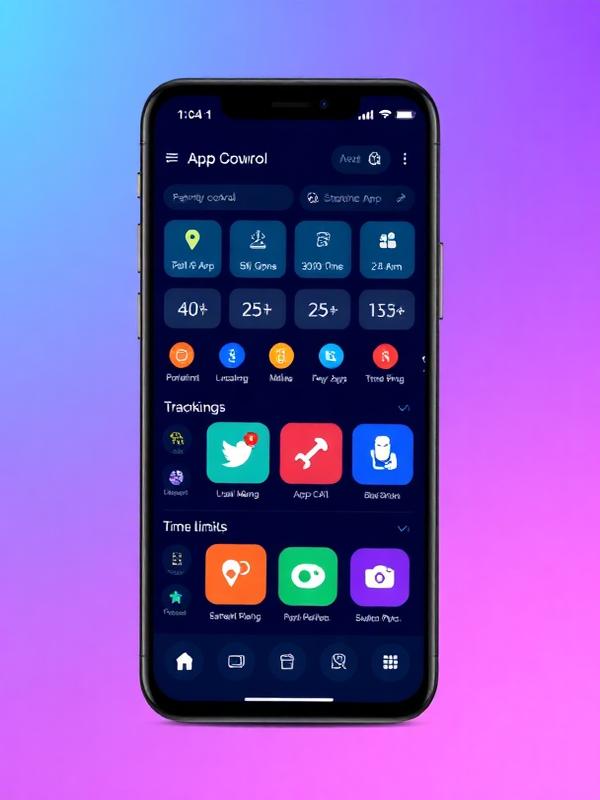
- Screen-time routines, app limits, app activity, and instant pause on current control pages.
- Website blocking and app-control functions on supported products.
- Different iPhone approaches, including local or cloud backup methods for some records.
The vendor also distinguishes between KidsGuard Pro products and KidsGuard for Children. Do not assume a feature shown anywhere on the ClevGuard site is included in the plan you are viewing. Record the product name, device, plan, and installation method in the same support conversation.
3. Setup and platform differences matter more than the headline
Android
ClevGuard's documentation describes direct installation on the target Android device for some KidsGuard Pro configurations. That can require physical access and elevated permissions. Android security warnings exist for a reason; understand every permission and obtain authorization before proceeding. Check whether operating-system updates require the app to be maintained or reconfigured.
iPhone and iCloud
The vendor describes several iPhone routes, including installation, iCloud data, or local backup access. Each route exposes different data and can be affected by two-factor authentication, backup settings, encryption, and Apple's security changes. “Supports iPhone” does not mean every Android feature is present.
Child-control products
If the goal is screen time, app limits, and visible family rules, compare the child-focused product with Apple Screen Time and Google Family Link. A broad monitoring product may be unnecessary when a simpler, visible control meets the need.
4. Privacy, consent, and security questions to ask
Any honest KidsGuard Pro review must address the sensitivity of the data. Location history, messages, photos, and browsing records can reveal far more than a typical productivity app.
Before installation, ask:
- Which data types are collected for this device and plan?
- Is data encrypted during transfer and while stored?
- Where are records stored, and for how long?
- Can the parent delete individual records or the entire account?
- Does the dashboard support multi-factor authentication?
- How can the app be fully removed from the child device?
- What happens to stored data after cancellation?
- How does the company notify users about a security incident?
Use the least invasive feature that solves the safety concern. If the issue is late-night TikTok use, a scheduled app limit is more proportionate than collecting every message and photo.
5. Three alternatives for different needs
mSpy: broad monitoring with its own compatibility matrix
mSpy's current pages describe GPS location, geofencing, browsing data, app controls, and supported communications. It is a direct category alternative, but not a shortcut around compatibility. Android and iPhone setups differ, and some routes require physical device access, sync, or account access. Confirm the exact plan and lawful authority to manage the device.
Features to verify:
- Exact device and operating-system support.
- Location, app blocking, and web filtering.
- Supported communication sources for the selected setup.
- Install, update, refund, and cancellation terms.
Eyezy: activity context with configurable alerts
Eyezy promotes location, web activity, app control, supported communication sources, and alerts. It may suit a family that wants to be notified about selected concerns rather than checking a detailed dashboard constantly. Ask whether the relevant alerts and controls work on the child's platform and whether they can be tuned to reduce false positives.
Features to verify:
- Location and geofence behavior.
- App and website controls.
- Alert categories and notification delivery.
- Data-retention and deletion options.
Compare Eyezy's current options
SPHNIX: a security-service route for an actual incident
SPHNIX is not a monitoring-app replacement. It connects customers with authorized cybersecurity professionals for services such as vulnerability assessment, incident response, secure code review, and digital forensics. Use it when the problem is evidence of compromise or a need for scoped forensic work—not to get private access to a partner's, employee's, or child's account.
Services to verify:
- Written proof of authorization and ownership.
- Defined devices, systems, and testing boundaries.
- Evidence-handling and confidentiality terms.
- Clear deliverables, remediation, and retesting.
Browse authorized SPHNIX specialists
6. How to compare value without a feature-count contest
Create a short requirement list before opening any pricing page:
- One primary outcome, such as app limits or school-arrival alerts.
- Two supporting features that would save parent time.
- Devices and operating systems that must be covered.
- Number of children and parent accounts.
- Maximum acceptable setup and maintenance time.
- Data the family is not willing to collect.
- A monthly budget and a cancellation date.
Then request a current compatibility answer from each provider. Avoid annual commitments until the service has worked through an ordinary school week, a weekend, a software update, and an offline period.
For a broader comparison, read parental-control features explained, how to compare child monitoring apps, and monitoring without breaking trust.
7. A responsible two-week trial plan
Use a test period to check the product rather than to gather as much information as possible:
- Tell the child what will be enabled and why.
- Configure one location rule and one time or content rule.
- Leave emergency contacts, maps, school, and medical apps available.
- Test a normal commute and a low-signal location.
- Record false alerts and blocked legitimate tasks.
- Check the dashboard login history and turn on stronger account security.
- Remove features that did not contribute to the stated goal.
The question after two weeks is simple: did the service help the family act on a real safety need with less friction than the native controls? If not, cancel before inertia becomes the reason you keep paying.
Conclusion: compatibility and proportionality decide the value
This KidsGuard Pro review finds a broad product family whose usefulness depends heavily on platform, installation method, and plan. Parents should not buy from the headline feature count. They should verify the exact device, choose the least intrusive controls, protect the dashboard, and agree on family rules before data collection begins.
Compare mSpy and Eyezy if they fit the same authorized family need. Use SPHNIX only for a genuine, permission-based cybersecurity engagement. For ordinary screen-time and app limits, test Apple Screen Time or Google Family Link first; the best purchase may be the one you discover you do not need.
Frequently asked questions
1. Does KidsGuard Pro have the same features on Android and iPhone?
No. ClevGuard documents different products and setup routes, and some features are Android-only. Confirm the exact phone and plan.
2. Does installation require access to the child's phone?
Some configurations require physical access or device/account setup. Ask support for the steps that apply to the exact product before purchasing.
3. Can KidsGuard Pro replace Screen Time or Family Link?
It may add monitoring features, but built-in tools can remain the simpler choice for app limits, purchase approval, and visible family supervision.
4. Is it legal to install monitoring software on any phone I pay for?
Ownership alone may not settle every consent, communication, recording, employment, or privacy rule. Use only with clear authority and check applicable law.
5. What should I do if I suspect the phone is already compromised?
Disconnect risky sessions, secure the owner's accounts through official recovery, preserve relevant evidence, and use an authorized security professional if the incident requires investigation.