A parent may want to pause games during homework, block unsuitable sites, and check that a child reached school—without reading every conversation. The Qustodio parental control app combines those everyday controls in one family dashboard, but the useful feature set depends on the child's device and the plan selected.
This review examines Qustodio's current tools, setup effort, platform limitations, privacy questions, and alternatives. It is based on current product documentation rather than a fabricated hands-on score, and it avoids promising that one product can solve every family problem.
Affiliate disclosure: This article contains sponsored affiliate links to alternative services. Ultimate Phone Spy may earn a commission at no extra cost to you. Qustodio is discussed editorially and is not an affiliate link here.
1. Quick verdict: broad family controls with platform differences
Qustodio currently promotes web and app filtering, screen-time limits, custom routines, activity reports, location tools, and selected social or communication monitoring. It can be a practical choice for families managing several devices from one parent dashboard.
Its main limitation is common across the parental-control category: not every feature works the same way on iPhone, Android, Windows, macOS, and Chromebook. Current documentation notes, for example, that its Panic Button is Android-only and that calls-and-messages setup for an iPhone involves a Windows or Mac computer.
That makes compatibility the first buying test. A long feature list has little value when the two functions a parent needs are unavailable on the child's device.
2. Review screen time, apps, and web filtering
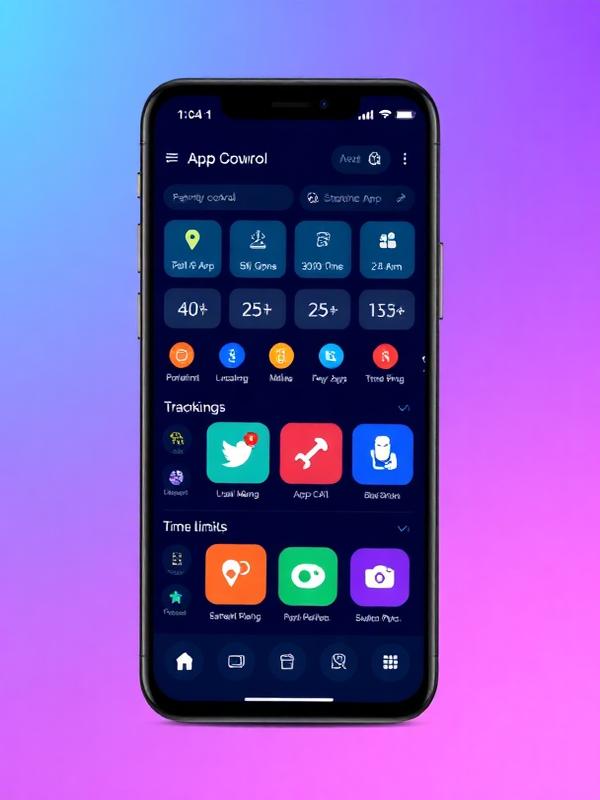
The Qustodio parental control app lets parents create daily limits and routines intended for school, homework, meals, or bedtime. App controls can block or limit selected apps, while web filtering is designed to manage site categories and activity.
Before subscribing, test how the rules affect essential tools. Keep calling, maps, school platforms, medical apps, and authenticators available when possible. A blanket pause can create a problem if the child needs a school QR code or must contact a caregiver.
Useful setup checks include:
- Create one school routine and one bedtime routine.
- Limit a single entertainment app before applying a device-wide rule.
- Test a blocked and an allowed website.
- Check behavior in private browsing and another installed browser.
- Confirm the child cannot remove supervision without a parent knowing.
Built-in Apple Screen Time or Google Family Link may already cover basic limits. Qustodio is easier to justify when its central dashboard or reports fill a specific gap.
3. Examine reports, alerts, and social features
Qustodio describes detailed activity reports and AI-supported alerts for potential concerns. Reports can help a parent notice patterns—such as late-night use or repeated attempts to access blocked categories—without checking the phone continuously.
Alerts still require judgment. A song lyric, school research, or family joke can be misread by an automated system. Treat a notification as a prompt for a calm conversation, not as proof. Adjust the rules when the same harmless activity triggers repeated alerts.
Current social-monitoring and communication features vary by platform and service configuration. Confirm the exact supported apps, whether the feature reads content or only reports activity, and what setup access is needed. Product pages can use broad headings that do not show every device-specific limitation.
4. Check location and communication setup
Qustodio offers family location features and place-related tools on supported devices. Location depends on permission, mobile data, background activity, network coverage, and the phone being powered on. Test the school route and normal pickup places before relying on an alert.
Calls and messages deserve a separate compatibility check. Current Qustodio information says iOS calls-and-messages monitoring requires a Windows or Mac computer for setup. Android behavior and operating-system restrictions can also change. Ask support to confirm the child's exact model and version in writing.
Use the least intrusive tool that solves the concern. A school arrival alert may be enough; continuous message review may not be proportionate. Our monitoring-without-breaking-trust guide offers a practical framework.
5. Understand plans, privacy, and cancellation
A Qustodio parental control app subscription should be compared by covered devices and required features rather than its headline monthly equivalent. Check whether the plan includes the number of children and devices in your household, and whether a desired tool is limited to a higher tier.
Before paying:
- Confirm each device and operating system.
- Record which features are available on each platform.
- Read renewal, cancellation, and refund terms.
- Review what child data is collected and retained.
- Check how to export or delete family data.
- Protect the parent account with a unique password and multi-factor authentication if offered.
Do not install family-monitoring software on a device you do not own or have permission to manage. Laws concerning communications, recordings, older teenagers, and employee devices vary. Review our authorized-use checklist and seek local legal advice when necessary.
6. Compare Qustodio with three alternatives
The best alternative depends on the missing capability, not the longest feature list.
mSpy: for a more detailed monitoring dashboard
mSpy advertises GPS, geofencing, browsing information, app controls, and supported communication monitoring. It may suit a parent who needs deeper activity visibility on a compatible, family-managed device.
- Confirm exact Android or iPhone support.
- Check physical-access and account requirements.
- Verify the chosen plan and installation method.
Eyezy: for configurable alerts and activity context
Eyezy presents location, web activity, app controls, and alert features. Compare it if notification-driven review is more important than a routine-focused family dashboard.
- Review platform-specific features.
- Ask how alerts are tuned and retained.
- Check renewal, cancellation, and support terms.
SPHNIX: for a genuine security investigation
SPHNIX is not parental-control software. It is a marketplace for authorized cybersecurity services such as vulnerability assessment, incident response, and digital forensics. It is relevant only when a device may be compromised and the owner authorizes a defined security engagement.
Browse authorized SPHNIX services
You can also compare the broader category in our child monitoring app guide.
7. Run a fourteen-day family test
Configure the Qustodio parental control app around two or three agreed rules instead of activating everything at once. For example, set a bedtime routine, limit one entertainment app, and test one arrival alert. Leave emergency and school functions available.
During the test, record:
- False or late alerts.
- Legitimate sites or apps that were blocked.
- Battery impact on the child's device.
- Any setup step that must be repeated after an update.
- Whether reports changed a family decision.
- Questions the child had about what the parent could see.
Review the results together. Remove controls that collect information nobody uses. Fix settings that interrupt schoolwork. Set a date to reconsider restrictions as the child becomes more independent.
Conclusion: buy only for a verified gap
Qustodio offers a broad set of routines, filtering, reports, location, and selected communication tools. Its value is strongest for a family that needs one dashboard across compatible devices and is prepared to check platform-specific setup requirements.
Start with built-in controls, identify the missing capability, and test Qustodio against that need. A clear family agreement and regular review matter as much as the software.
Frequently asked questions
1. Does Qustodio work on iPhone and Android?
Yes, Qustodio supports multiple platforms, but features and setup steps differ. Confirm each phone model, operating-system version, and required function before buying.
2. Can Qustodio block individual apps?
Qustodio provides app controls on supported devices. Operating-system rules can affect what can be limited or blocked, so test the exact app during the trial.
3. Does Qustodio read text messages on iPhone?
Current Qustodio documentation describes calls-and-messages support with an iOS setup that requires a Windows or Mac computer. Check current compatibility and limitations.
4. Is Qustodio better than Apple Screen Time?
It may offer a broader central dashboard and reports, while Screen Time handles many basic Apple limits without another subscription. Choose based on the verified gap.
5. Can a child remove Qustodio?
No parental-control product is immune to every reset or account change. Follow the provider's protection steps and review supervision after device or operating-system updates.