The unboxing of a child's first smartphone is a rite of passage in the modern world. It’s a moment filled with excitement for your child and, often, a knot of anxiety for you. As a family technology advisor for over a decade, I've seen the aftermath of a rushed setup: unexpected in-app purchases, exposure to inappropriate content, and endless battles over screen time. The truth is, the first hour you spend setting up that device is the most critical hour you will invest in your child's digital safety.
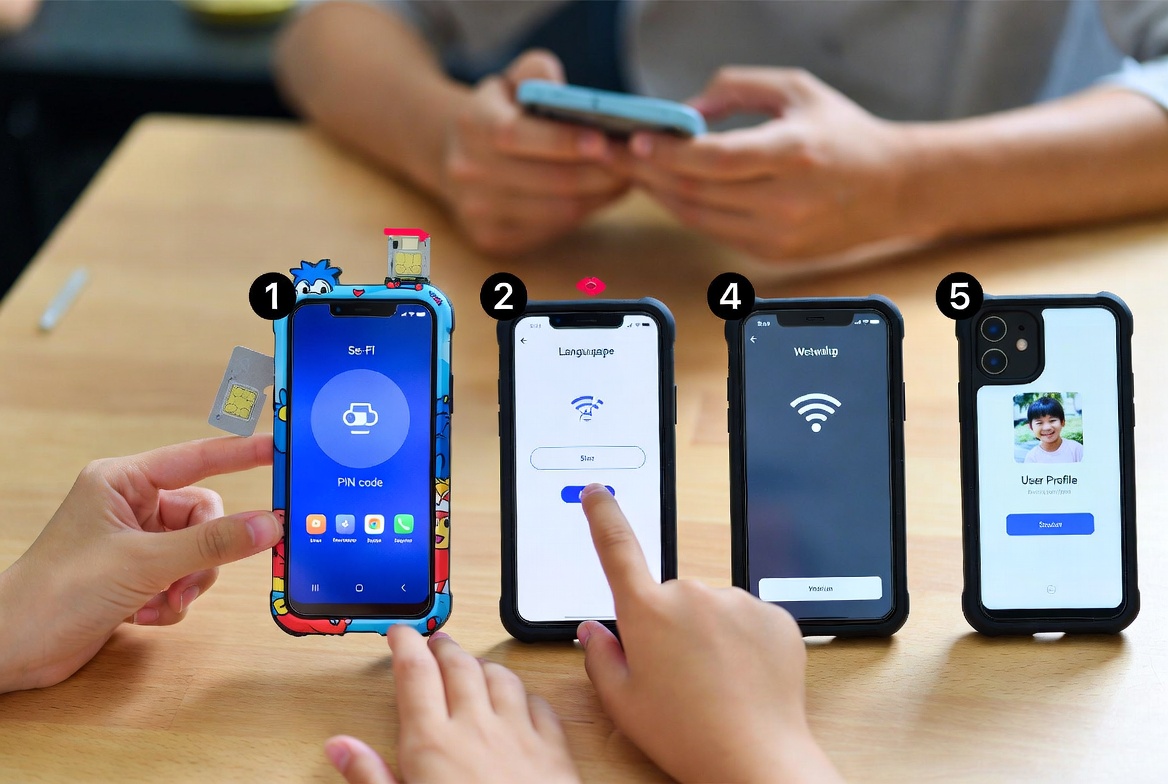
Handing over a phone without proper configuration is like giving them the keys to a car without adjusting the mirrors, fastening their seatbelt, or explaining the rules of the road. It’s not the phone itself that poses the risk, but the untamed digital world it unlocks. This guide will walk you through a meticulous, safe, and collaborative step by step phone setup for a child. By following this process, you will transform a powerful tool of potential distraction into a managed resource for learning, connection, and fun, all within the safety parameters you establish.
Before You Power On: The Foundational Conversation
Resist the urge to open the box and start tapping. The first step happens away from the device. Sit down with your child and have a "Digital Citizenship" talk. This conversation frames the phone not as a toy, but as a responsibility.
Discuss the core principles:
Ownership: Clarify that the phone is on loan from you. As the parent and owner, you will have the passwords and the right to see the phone at any time.
Purpose: Talk about why they are getting the phone—for safety, communication, and perhaps educational use—and that it is a privilege, not a right.
Safety: Set the non-negotiable rule that they must never share personal information, talk to strangers online, or engage in cyberbullying.
Consequences: Be clear about what will happen if the rules are broken, which typically involves losing phone privileges.
This foundation of understanding makes the technical setup that follows a collaborative enforcement of your family's values, not an arbitrary imposition of rules.
Step 1: Choosing the Right Ecosystem and Account Setup
The first technical decision is which ecosystem to use: Apple (iOS) or Google (Android). Both have excellent parental controls, but they function differently.
For Apple iOS:
Power on the device. During the initial setup, choose "Set Up for Child" when prompted.
You will be guided to create an Apple ID for your child. This is crucial. Use your own email address as the primary contact for the account. This ensures you receive purchase requests and security notifications.
Set up "Family Sharing." This allows you, as the parent/organizer, to approve app downloads, manage screen time, and control purchases from your own phone.
For Google Android:
Do not let your child sign in with a personal Gmail account. Instead, you will use the Google Family Link app.
On your own phone, download the Google Family Link app.
Follow the in-app instructions to create a Google Account for your child, which will be managed by your account. Then, use the Family Link app to connect and manage their new device.
This initial account creation is the bedrock of your control, governing everything from app downloads to privacy settings.
Step 2: Activating Built-In Parental Controls
Now that the accounts are linked, it's time to configure the powerful tools built directly into the operating system. This is the most important part of the step by step phone setup for a child.
On an iPhone (Using Screen Time):
On your child's phone, go to Settings > Screen Time.
Tap "Turn On Screen Time," then "Continue," and select "This is My Child's [Device]."
Set a Screen Time Passcode. Use a code different from the phone's unlock code. This prevents your child from changing these settings.
Configure the following:
Downtime: Schedule a period where only phone calls and apps you specifically allow are available (e.g., 8 PM to 7 AM).
App Limits: Set daily time limits for app categories like Social Networking, Games, and Entertainment.
Communication Limits: Restrict who your child can communicate with (via phone and FaceTime) during Downtime and always.
Content & Privacy Restrictions: This is vital. Here, you can prevent iTunes & App Store purchases, block explicit content, and restrict privacy settings for location services and contacts.
On an Android (Using Family Link):
Most of the management is done from the Family Link app on your phone.
Open the Family Link app and select your child's account.
You can:
Set daily time limits and a bedtime to lock the device.
Review and approve every app your child wants to download from the Play Store.
View their app activity to see how much time is spent on each app.
Manage privacy settings for their Google Account.
Step 3: Configuring Essential Security and Privacy Settings
With the broad controls in place, it's time to fine-tune the device's security.
Location Services: Go to the phone's location settings. For most apps, especially social media and games, disable location access. Consider enabling it only for "Find My" (iPhone) or similar tracking features for safety purposes.
Safari & Browser Restrictions (iPhone): Within Screen Time's
Content & Privacy Restrictions, you can limit adult websites in Safari or restrict the browser entirely, forcing the use of a safer, kid-friendly alternative.Google Chrome & Search (Android): In the Family Link app, you can turn on "SafeSearch" to filter out explicit results from Google Search.
Biometric Locks: Set up a secure passcode to unlock the phone. For older children, consider using Face ID or Touch ID, but ensure you also know the passcode.
Step 4: Curating the Initial App Selection
The app store is a vast, unregulated marketplace. Do not hand this over to your child on day one. Instead, curate the initial selection of apps together.
Start with the essentials: a camera, photos, messages, and a phone.
Then, add a few agreed-upon apps for fun and learning. This could include educational games, a library app, or a specific game they've been asking for.
Make a firm rule: No new apps can be downloaded without your explicit permission. This gives you the chance to research an app's privacy policy, features, and in-app purchase structure before it ever touches your child's phone.
Step 5: Implementing a Monitoring Safety Net with Dedicated Apps
Built-in controls are excellent for managing time and spending, but they offer limited insight into content. This is where third-party parental monitoring apps become invaluable. They act as a safety net, giving you a deeper understanding of how your child is using their device and who they are interacting with.
mSpy: For Comprehensive Digital Oversight
mSpy is a powerful, all-in-one monitoring solution that provides a detailed window into your child's digital activity, offering peace of mind beyond simple screen time limits.

Key Features:
Social Media Monitoring: Track messages and interactions on platforms like Instagram, Snapchat, and WhatsApp.
Location Tracking & Geofencing: View your child's real-time location and receive instant alerts if they enter or leave a designated area like school or home.
Keylogger: This feature records every keystroke made on the device, allowing you to see search terms and message drafts, which can be critical for identifying risky behaviors.
App Blocking & Usage Reports: See detailed reports on app usage and remotely block any application you deem inappropriate.
mSpy is ideal for parents who want the highest level of transparency to proactively guide and protect their child.
Scannero.io: For Location-Focused Safety
Scannero.io specializes in location-based safety features, making it a strong choice for parents whose primary concern is their child's physical whereabouts.
Key Features:
Number Tracker & Location Services: Locate a device via its number and access location history.
Geofencing: Set up virtual boundaries on a map and receive automatic notifications when the device crosses them.
SMS Tracking: Read incoming and outgoing text messages.
Scannero.io is an excellent tool for parents who want straightforward, effective location monitoring and alerting.
Moniterro: For Balanced Monitoring and Wellbeing
Moniterro offers a robust set of monitoring tools with a focus on user-friendliness, providing a balanced approach to digital safety.
Key Features:
Social Media & Message Tracking: Monitor conversations across a wide range of popular platforms.
Web History & Bookmark Monitoring: See what your child is searching for and viewing online.
Remote Device Control: Block apps or lock the device remotely directly from your control panel.
Notification Monitoring: See all incoming notifications to understand what is vying for your child's attention.
Moniterro is a great solution for parents seeking a comprehensive yet manageable overview of their child's phone activity.
Conclusion
Completing this thorough step by step phone setup for a child is the single most effective action you can take to ensure a positive and safe introduction to the digital world. You have moved from a position of anxiety to one of empowered oversight. You have built a foundation of trust with your child, established clear boundaries using technology, and implemented safety nets to catch the risks that slip through the cracks.
This process doesn't end here. Continue to have open conversations about online experiences. Revisit the settings as your child matures. The goal is to gradually shift from strict control to guided independence, helping them build the judgment they need to navigate the digital world on their own.
Frequently Asked Questions (FAQs)
1. My child is tech-savvy and might try to disable these controls. What can I do?
This is a common challenge. Using a unique, strong Screen Time passcode (on iPhone) or keeping your Family Link account secure (on Android) is your first defense. Many third-party apps like mSpy and Moniterro are designed to run discreetly. Furthermore, maintaining an open dialogue about why these controls are in place—for their safety, not to spy—is crucial. Frame it as a condition of having the phone.
2. What's the main difference between built-in controls (Screen Time) and an app like mSpy?
Built-in controls are fantastic for managing time (screen time limits, downtime) and spending (blocking in-app purchases). They are your first line of defense. An app like mSpy provides deeper content insight, allowing you to see the actual messages, social media interactions, and browsing history, which built-in tools typically do not show you. They serve complementary purposes.
3. I'm not very tech-savvy. Is this process too complicated for me?
Not at all. Both Apple and Google have designed their parental control systems to be as user-friendly as possible. The step-by-step wizards guide you through the process. Furthermore, the dedicated monitoring apps we've featured prioritize simple, intuitive dashboards. Take it one step at a time, and use the customer support offered by these services if you get stuck. The effort is well worth the safety it provides.