That first Android phone is a rite of passage for your child, offering a world of knowledge and connection. But for you, the parent, it can feel like handing them the keys to a vast, unregulated city. The worries are immediate: too much screen time, inappropriate content, and strangers online. You know you need to set up controls, but the process seems technical and overwhelming.
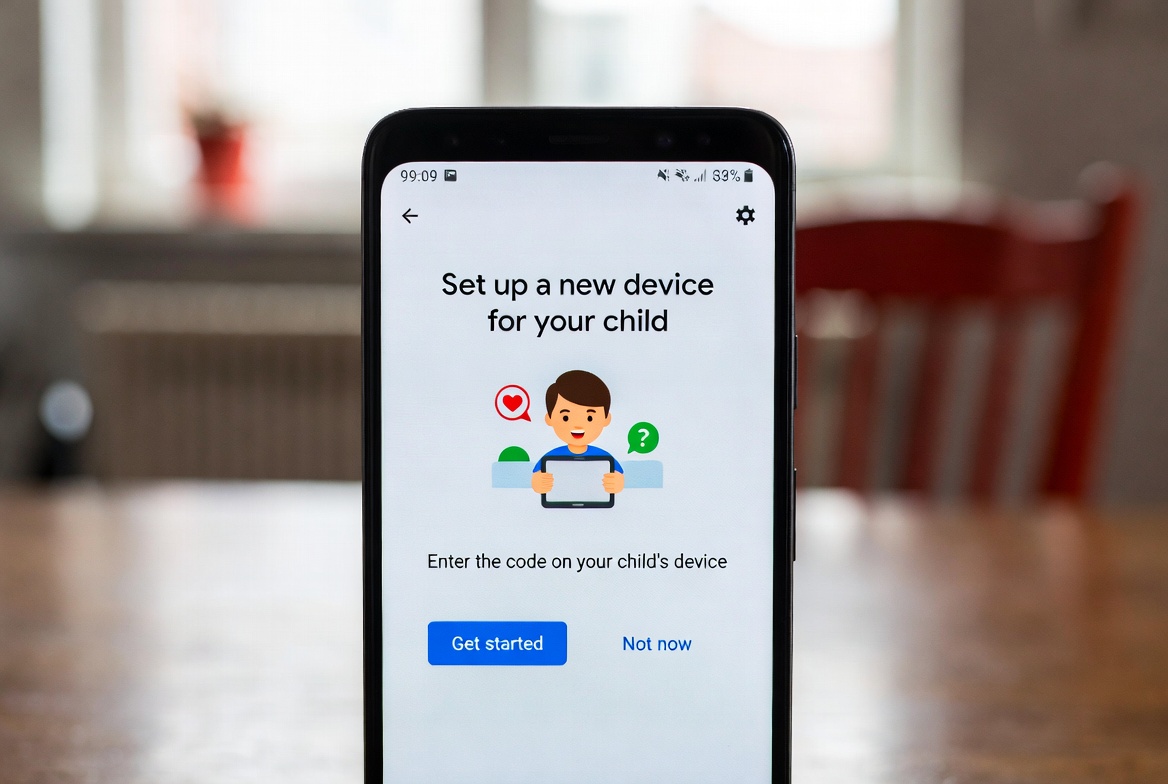
After a decade of guiding families through digital parenting, I can tell you that the single most important step you can take is also one of the simplest: completing a proper Google Family Link setup for Android kids. This free tool from Google is the cornerstone of child safety on Android devices. However, many parents stop at the basic installation, missing out on its powerful features and, more importantly, not understanding its limitations. This guide will not only provide a foolproof walkthrough but will also show you how to build upon this foundation for complete peace of mind.
Why Google Family Link is Your Non-Negotiable First Step
Before you consider any third-party apps, you must master the tools provided by the device's creator. Google Family Link is not just an app; it's a management system designed specifically for the Android ecosystem. Its integration offers distinct advantages that paid apps often struggle to match consistently.
It's Free and Authorized: Developed by Google, it has deep-level access to the Android operating system.
Device Management: It allows you to remotely lock the device, a crucial feature for enforcing bedtimes or study time.
App Store Control: You can approve or block every app your child tries to download from the Google Play Store.
Foundation for Learning: It helps children develop healthy digital habits by making them aware of their screen time.
Think of the Google Family Link setup for Android kids as installing the seatbelts and airbags in your child's digital car. It's the essential safety baseline.
Pre-Setup Checklist: What You Need Before You Begin
A smooth setup requires a few things to be in order. Having these ready will prevent frustration.
A Google Account for Yourself: You will use this as the "parent" account.
A Google Account for Your Child: If your child is under 13 (or the applicable age in your country), you will create this for them during the process. Have a personal email ready to manage this account.
Both Devices Charged and Connected to Wi-Fi: A stable internet connection is critical.
Your Child's Android Device: The phone or tablet you want to manage.
Your Own Device: The iPhone or Android phone you will use to manage the controls.
The Step-by-Step Google Family Link Setup for Android Kids
Follow these steps carefully for a seamless installation.
Step 1: Install the App on Your Phone
On your phone (the parent's device), go to the Google Play Store (on Android) or the App Store (on iPhone) and download the "Family Link for parents" app.
Step 2: Create or Add Your Child's Account
Open the Family Link app on your phone.
Sign in with your Google Account.
Tap "Create an account for your child" if they don't have one, or "Sign in with your child's Google Account" if they do.
If creating a new account, you will be guided through the process, which includes verifying your identity as the parent.
Step 3: Connect Your Child's Android Device
This is the most important part. You have two options:
For a Brand New Device: During the initial setup of your child's phone, when prompted to sign in, enter the child's new Google Account credentials. The setup will then guide you to install the "Family Link for children & teens" app on their device.
For an Existing Device:
On your child's phone, go to the Google Play Store and download the "Family Link for children & teens" app.
Open the app and sign in with your child's Google Account.
The app will then prompt your child to accept the management and install a device policy. This is required for remote controls to function.
Step 4: Configure the Core Controls from Your Parent Device
Once linked, open the Family Link app on your phone. You will see your child's account. Tap on it to access the dashboard. Now, configure these essential settings:
Set Daily Limits: Tap "Daily limit" to set a maximum amount of screen time for the device.
Establish a Bedtime Schedule: Tap "Bedtime" to remotely lock the device during specific hours, ensuring it doesn't interfere with sleep.
Manage Apps: Under "Apps," you can see all installed applications. For each app, you can:
Set an individual time limit.
Approve or block the app entirely.
Adjust Privacy Settings: Go to "Settings" and then "Privacy settings" to manage location sharing and activity tracking.
Advanced Features Every Parent Should Use
Beyond the basics, Family Link has powerful features that often go unused.
Approve Purchases: With "Purchase approvals" on, your child must get your permission for any paid app, in-app purchase, or even rental from Google Play, preventing surprise charges.
Content Restrictions: In the Google Play Store settings on your child's device (managed from your app), you can filter apps and games by maturity level.
Chrome Browser Management: You can manage the sites your child can visit on Chrome and even force "SafeSearch" on to filter out explicit results.
The Critical Limitations of Google Family Link
As powerful as it is, Family Link is a tool for device management, not comprehensive digital awareness. After ten years in this field, I consistently find parents are surprised by what it cannot do:
No Social Media Monitoring: Family Link cannot show you the content of your child's messages on WhatsApp, Instagram, Snapchat, or any other social platform. You can only see how much time they spend in the app.
No Call or SMS Logging: You cannot see who your child is calling or texting.
Limited Web Filtering: While it manages Chrome, a tech-savvy child can download another browser that bypasses these filters.
No Real-Time Keylogging: It does not record what your child types, so you cannot see their search terms or message drafts.
For true insight into your child's digital social life, you need a dedicated monitoring application that fills these gaps.
mSpy: For Deep Social Media and Communication Insight
When your primary concern is understanding your child's social interactions, mSpy is the industry standard. It provides the communication monitoring that Family Link deliberately omits.

Key Features Beyond Family Link:
Social Media Monitoring: Access chats and messages from WhatsApp, Instagram, Snapchat, and Facebook Messenger.
SMS and Call Tracking: See full message content and detailed call logs.
Keylogger: Records every keystroke made on the device.
GPS Location with Geofencing: Get real-time location and set up boundary alerts.
Parentaler: Enhancing Screen Time and App Management
Parentaler is an excellent choice for parents who want to strengthen the screen time management features that Family Link provides. It offers a more intuitive interface and robust controls.

Key Features Beyond Family Link:
One-Tap App Blocker: Instantly block any application.
Advanced Screen Time Scheduler: Create detailed schedules for device locking.
Web Filtering: Block inappropriate websites across all browsers.
Panic Alert: A safety feature for your child to send an immediate alert.
Eyezy: Gaining Unmatched Context with Screen Insight
Eyezy offers a unique advantage by providing visual context of your child's phone activity. Its standout feature gives you a window into their screen that other tools cannot.
Key Features Beyond Family Link:
Invisible Screen Recording: Takes periodic screenshots of the device's screen, showing you exactly what your child is viewing and doing.
Plans & Schedule View: See a visual timeline of your child's location and app usage.
File Finder: Access photos and videos stored on the device.
Conclusion
Your child's online safety is not a single step; it's a process of building layers. The first and most critical layer is a proper Google Family Link setup for Android kids. This manages the device, the time, and the basic content. The next essential layer is a dedicated monitoring app like mSpy, Parentaler, or Eyezy, which provides the crucial insight into your child's digital social world.
Don't stop at the basics. Take control today by setting up Family Link. Then, assess your need for deeper awareness and choose the supplemental tool that gives you true peace of mind. In the digital age, a layered defense is the only true defense.
Frequently Asked Questions (FAQs)
1. Can my child disable Google Family Link on their Android phone?
On most devices, especially for children under 13, uninstalling the Family Link for children & teens app or disabling the management profile requires the parent's password, which you set during the initial Google Family Link setup for Android kids. However, a tech-savvy teenager with device administrator access might find ways to work around it, which is why open communication is vital.
2. Does Family Link work on iPhones?
Yes, but with significant limitations. A parent can use an iPhone to manage a child's Android device. However, if the child has an iPhone, Family Link's functionality is very restricted due to Apple's closed ecosystem. You can only manage their Google Account activities (like Chrome and Search), not the iPhone itself.
3. Will Family Link monitor my child's activity on other browsers like Firefox?
No, this is a major limitation. Google Family Link's web filtering only applies to the Chrome browser. If your child downloads Firefox, DuckDuckGo, or any other browser, they can potentially bypass the web restrictions you've set. This is a key reason why some parents choose to add a supplemental monitoring app that works across all applications.


