It happens in a flash. You hand your child an iPhone or iPad for a few minutes of entertainment, and before you know it, hours have slipped away. The device that connects them to friends and learning can also become a source of endless distraction, not to mention a potential gateway to inappropriate content. As a parent, you’re left wondering how to reclaim balance and ensure their digital world is a safe one.
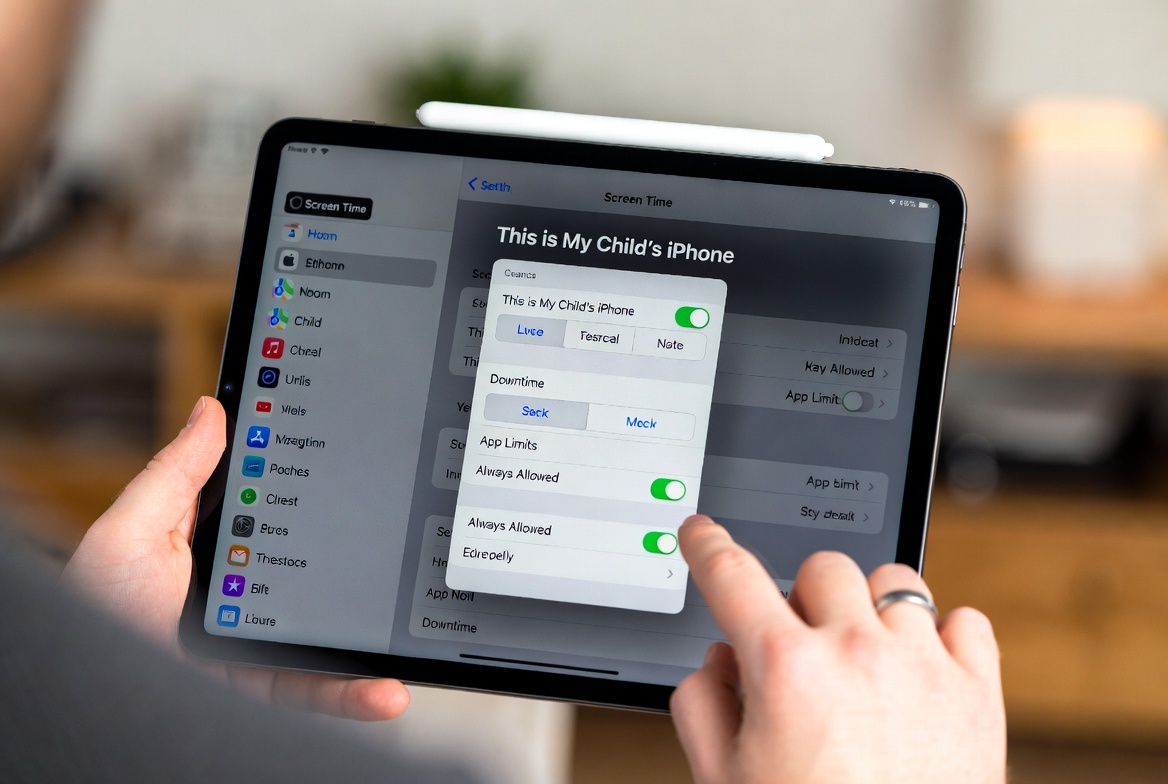
The good news is that Apple has built a powerful, free solution directly into every iPhone and iPad. It’s called Screen Time, and when configured correctly, it transforms a potentially unregulated device into a tool for healthy digital habits. However, many parents only scratch the surface of its capabilities. With a decade of experience in child safety and digital parenting, I’ve helped countless families master these settings. This definitive guide will walk you through exactly how to set up Apple Screen Time for kids, moving beyond the basics to create a customized, effective digital environment for your child.
Why Apple Screen Time is Your Essential First Step
Before considering any third-party applications, you must master the tools Apple provides. Screen Time is not just a simple timer; it's a comprehensive management system designed to work seamlessly with the iOS operating system. Its integration offers distinct advantages:
It’s Free and Built-In: No additional subscriptions or downloads are required.
Battery and Performance Friendly: It runs efficiently in the background without draining resources.
Holistic Control: It manages not just time, but also content, privacy, and purchases in one place.
Promotes Conversation: The weekly reports provide excellent data to start discussions about digital habits with your child.
Understanding how to set up Apple Screen Time for kids is the foundational skill for every modern parent with an iPhone-using child. It is the digital equivalent of teaching them to look both ways before crossing the street.
Prerequisite: Setting Up Family Sharing and a Child Account
You cannot manage your child's Screen Time remotely until you have set up Family Sharing. This is the non-negotiable first step that links your Apple ID to your child’s.
On your iPhone, go to Settings > [Your Name] > Family Sharing.
Tap Add Member > Create an Account for a Child.
Carefully follow the prompts. You will need to enter your child’s birthday (this verifies their age and enables appropriate restrictions) and create a new Apple ID for them. For children under 13, this is a "child account," which you, as the parent, manage and control.
Agree to the Parent Privacy Disclosure and enter your payment method (required for purchases, even free ones).
Once this is complete, your child’s account will appear in your Family Sharing group. Now you are ready to configure their Screen Time.
A Step-by-Step Walkthrough: Configuring Screen Time Settings
There are two ways to configure Screen Time: directly on your child's device or remotely from your own iPhone. The process is nearly identical, but for this guide, we'll assume you are setting it up on their device for the first time.
On your child's iPhone or iPad, go to Settings > Screen Time.
Tap Turn On Screen Time > Continue.
This is a critical choice: Select "This is My Child's [Device]." This tells iOS to apply the parental controls you are about to set.
You will now see the main Screen Time dashboard. Let's configure its four most important features.
Mastering "Downtime" for Scheduled Breaks
Think of Downtime as a mandatory digital quiet time. During this period, only the phone apps you explicitly allow and any apps you've set to "Always Allowed" (which we'll cover next) will be available.
How to Set It Up: Tap Downtime from the Screen Time menu. Toggle it on.
Set a Schedule: I strongly recommend setting a recurring schedule. For example, from 9:00 PM to 7:00 AM on school nights. This ensures the phone isn't a distraction during sleep. You can also set a custom schedule for weekends.
Pro Tip: Be consistent. A predictable schedule helps children adjust their expectations and manage their time before Downtime begins.
Using "App Limits" to Curb Overuse
While Downtime blocks everything, App Limits allow you to set specific time allowances for categories of apps. This is perfect for managing gaming or social media without cutting off communication.
How to Set It Up: Tap App Limits > Add Limit.
Select App Categories: You can select broad categories like "Social," "Games," and "Entertainment." For more precision, tap the arrow next to a category to select individual apps.
Set the Time Allowance: Choose a daily time limit (e.g., 1 hour for games).
Pro Tip: Use the "Customize Days" option to allow for more time on weekends. Also, consider leaving "Creative" apps like drawing or music, and "Productivity" apps like word processors, unlimited or with very high limits.
The "Always Allowed" Apps: Your Child's Digital Lifeline
This is a crucial feature for safety and practicality. During Downtime or when an App Limit is reached, the apps you list here will remain accessible.
How to Set It Up: Tap Always Allowed from the main Screen Time menu.
Essential Apps to Allow:
Phone: For making and receiving calls.
Messages: For text communication.
FaceTime: For video calls.
Maps: For navigation.
Find My: For location sharing.
This ensures your child can always reach you and be reached, even when their screen time is otherwise restricted.
Locking Down Safety with "Content & Privacy Restrictions"
This section is the heart of online safety within Screen Time. It controls what your child can see, hear, and do on their device.
How to Set It Up: Tap Content & Privacy Restrictions and toggle it on. You will be prompted to create a Screen Time Passcode. This is vital. Create a unique, secure passcode that your child cannot guess. This prevents them from changing the settings you are about to configure.
Key settings within this menu include:
Content Restrictions:
Web Content: Choose "Limit Adult Websites" or the stricter "Allowed Websites Only."
Explicit Content: Disable this for music, podcasts, news, and movies.
App Store Purchases: Set "Installing Apps" to "Don't Allow" to require your approval for all downloads.
Privacy Restrictions: I recommend reviewing each setting (Location Services, Contacts, Photos, etc.) and restricting app access where it isn't necessary for functionality.
Allow Changes: Prevent changes to important settings like Passcode, Account Changes (their Apple ID), and Cellular Data.
Understanding the Limits of Screen Time
Apple Screen Time is an excellent foundation, but it has boundaries that every parent should recognize. It is a device management tool, not a comprehensive monitoring solution.
Its primary limitations are:
No Content Monitoring: You cannot see the content of your child's iMessages, text messages, or interactions within social media apps.
Easily Bypassed Web Browsing: A tech-savvy child can use a different web browser not restricted by Screen Time's filters.
No Location History: While you can see their current location with Find My, you cannot see a history of where they have been.
Limited Insight: It tells you how long they used an app, but not what they did inside it.
For true insight into your child's digital social life and communications, you need a dedicated parental control application that works alongside Screen Time.
mSpy: For Deep Social Media and Message Insight
When you need to see beyond screen time and into the content of your child's interactions, mSpy is the leading solution. It fills the gap that Screen Time leaves open.

Key Features Beyond Screen Time:
Social Media Monitoring: Track conversations on WhatsApp, Instagram, Snapchat, and more.
Message and Call Log Access: Read SMS and iMessages and see detailed call histories.
Keylogger: Records keystrokes, revealing searches and typed messages.
GPS Location Tracking: Get real-time location and geofencing alerts.
Spynger: For Discreet and User-Friendly Monitoring
Spynger offers a balance of powerful features and a simple, stealthy interface. It operates invisibly on the target device, providing essential oversight without your child being able to disable it easily.
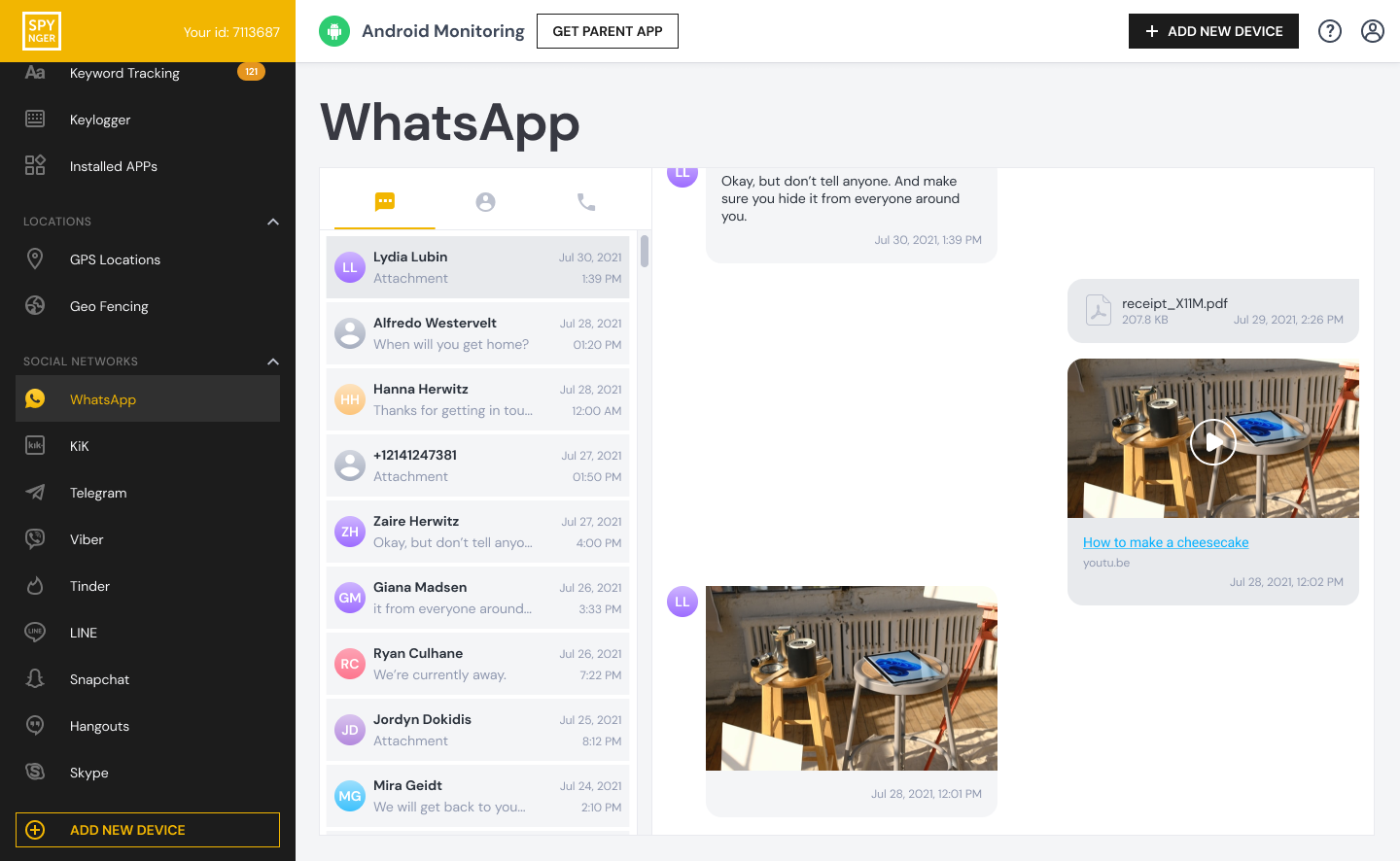
Key Features Beyond Screen Time:
Stealth Mode Operation: Completely hidden from the device user.
Social Media and Call Monitoring: Track activity on popular apps and review call logs.
Browser History Tracking: See all visited websites.
Remote Photo and Video Access: View media files on the device.
Scannero: For Specialized Location Finding
Scannero specializes in one thing: locating a phone number. This can be a vital tool in an emergency, especially if you cannot access Screen Time's Find My feature.
Key Features Beyond Screen Time:
SMS-Based Location Ping: Locate a phone by sending a discreet SMS that reveals its location when clicked.
No Installation Required: Can work without pre-installing software on the target device.
Conclusion
Your child's digital safety is best achieved in layers. The first and most important layer is learning how to set up Apple Screen Time for kids. It provides the fundamental controls for time, content, and privacy. For the next layer—true insight into social interactions and communications—a dedicated app like mSpy, Spynger, or Scannero becomes essential.
Don't leave your child's online safety to chance. Take 15 minutes today to configure Screen Time on their device. Then, assess whether your family needs the additional layer of protection that a dedicated monitoring app provides. Your proactive steps are the key to their safety in a connected world.
Frequently Asked Questions (FAQs)
1. My child figured out my Screen Time passcode and changed the settings. What can I do?
If you are the family organizer, you can reset the passcode remotely. On your iPhone, go to Settings > Screen Time. Tap your child's name under the Family section, then tap Change Screen Time Passcode. You will be prompted to authenticate with your Apple ID to create a new, more secure passcode.
2. Can I set up and manage Screen Time remotely from my own iPhone?
Yes, once Family Sharing is active, you can manage most Screen Time settings for your child directly from your own device. Go to Settings > Screen Time, and scroll down to see your family members. Tap your child's name to view their report and adjust their settings, including Downtime, App Limits, and Always Allowed Apps.
3. Why can my child still use certain websites or apps during Downtime?
This is almost certainly because those apps or websites are included in the "Always Allowed" list. Go to Settings > Screen Time > Always Allowed on their device and review the list. Only essential communication and safety apps like Phone, Messages, and Maps should be there.


