You pick up your phone for a "quick check" and suddenly 45 minutes have vanished. Or perhaps you’ve watched your child fall into the endless scroll, their attention completely captured by an algorithm designed to keep them watching. TikTok’s engaging, fast-paced format is incredibly effective at consuming time and attention. As a digital wellness consultant with over a decade of experience helping individuals and families manage technology use, I've seen firsthand the impact it can have. The good news is that regaining control is not only possible but straightforward.
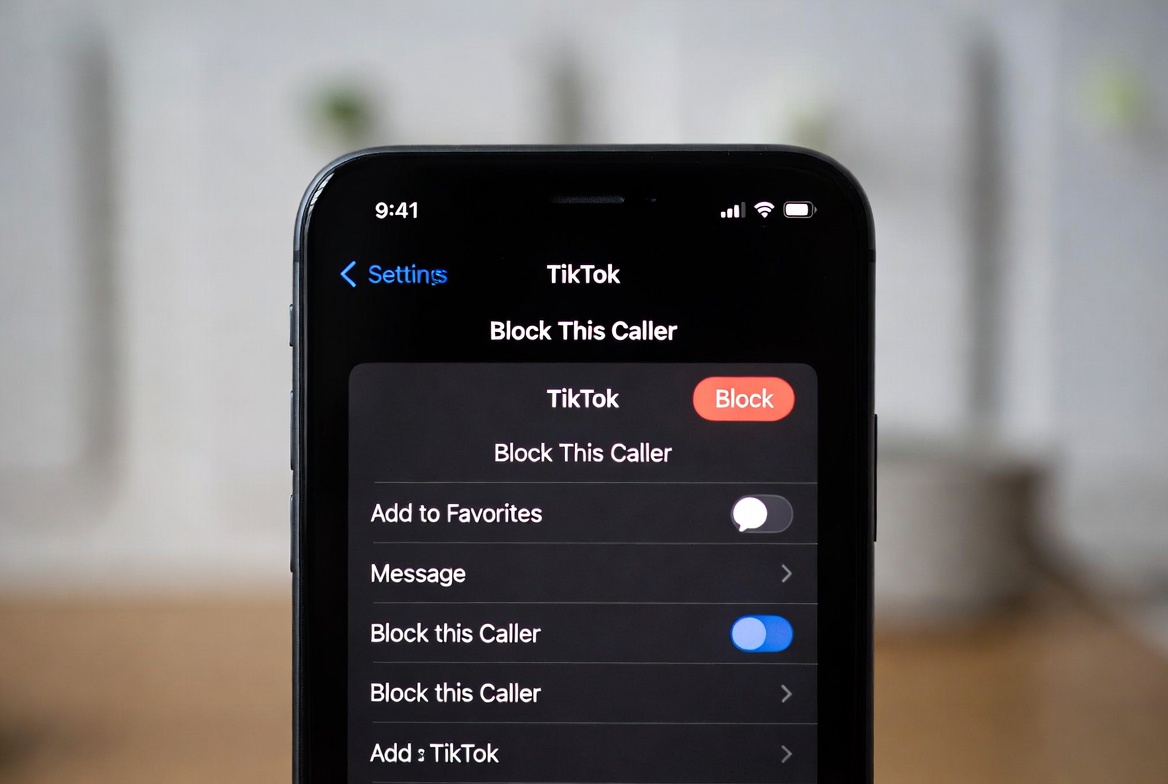
This guide will provide you with a clear, actionable blueprint for how to block TikTok on iPhone. We will start with the powerful, free tools Apple has built directly into your device. Then, we will explore the limitations of these native methods and introduce you to robust third-party applications that offer a more comprehensive and tamper-proof solution. Whether your goal is to boost your own productivity or protect your child from excessive screen time, you will find the right method here.
Understanding the "Why": The Case for Blocking TikTok
Before we address the "how," it's important to consider the "why." TikTok is not inherently bad, but its use can become problematic. Studies have linked heavy social media use to decreased attention spans and disrupted sleep patterns. For children and teens, the potential for exposure to inappropriate content and the risk of cyberbullying are real concerns. Blocking the app isn't about punishment; it's about creating a healthier digital environment. It allows you to:
Reclaim Your Time: The average user spends over 90 minutes per day on TikTok. Blocking it frees up this time for hobbies, work, or real-world connections.
Improve Focus: Eliminating a major source of distraction can significantly boost productivity and concentration.
Protect Mental Well-being: Curating your digital intake can reduce anxiety and the "comparison culture" often fueled by social media.
Enforce Family Rules: For parents, it’s a concrete way to ensure screen time limits are respected.
Your Built-in Solution: Using Apple's Screen Time
The most accessible and cost-effective method to block TikTok on iPhone is through Apple's Screen Time feature. This is a sophisticated system integrated directly into iOS, and for many users, it provides all the control they need.
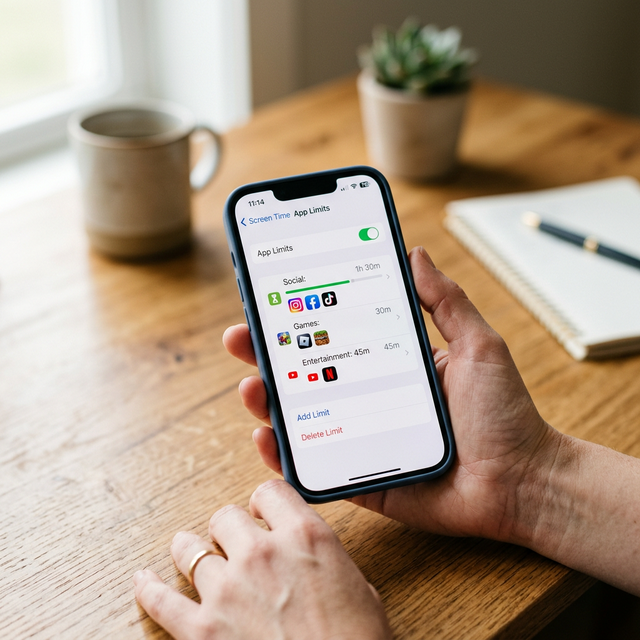
A Step-by-Step Guide to Blocking TikTok with App Limits
Screen Time uses a feature called "App Limits" to restrict access to specific apps or categories. Here is how to set it up:
Open the Settings app on your iPhone.
Tap on Screen Time.
If you haven't already, tap "Turn On Screen Time." If it's already on, proceed to the next step.
Tap App Limits, then Add Limit.
You will see a list of app categories. Tap the arrow next to Social to expand the category, or use the search bar at the top.
Scroll until you find TikTok and select it by tapping the checkmark. You can also select the entire "Social" category to block other platforms simultaneously.
Tap Next in the top right corner.
Set your daily time limit. For a complete block, set this to 1 minute. This will effectively notify you that your time is up almost immediately after you open the app.
Tap Add to activate the limit.
Once the limit is reached, the TikTok icon will become grayed-out on your home screen. Tapping it will display a "Time's Up" notification. This creates a crucial moment of friction, making you consciously decide to override the limit.
The Critical Step: Securing with a Screen Time Passcode
The single most important part of this process is setting a Screen Time Passcode. This is a separate passcode from your phone's unlock code. Without it, you (or your child) can simply tap "Ignore Limit" and continue using TikTok.
To set it up:
Go to Settings > Screen Time.
Scroll down and tap Use Screen Time Passcode.
Enter a secure four-digit code. Crucially, if you are setting this up for a child, use a code they will not guess. For personal use, consider having a family member set it for you to add an extra layer of discipline.
Re-enter the passcode to confirm.
Apple's Screen Time can limit TikTok usage, but determined teens can find workarounds.
Block TikTok Permanently
Screen Time not cutting it? Use an unbypassable app blocker that works even when they delete and reinstall TikTok.
Block TikTok NowThe Limitations of Screen Time and When to Upgrade
While Screen Time is an excellent starting point, it has notable limitations. The most significant one is that the block is often too easy to bypass. The "Ignore Limit" option is just a tap away, requiring only the passcode. Furthermore, Screen Time does not block access to TikTok through a mobile web browser like Safari, leaving a major loophole.
If you or your child consistently overrides the Screen Time limits, or if you need a more robust solution for parental controls that includes web filtering and location-based features, it is time to consider a dedicated third-party application.
Powerful Third-Party Apps for Unbreakable Blocks
Dedicated parental control and focus apps are designed to overcome the shortcomings of built-in tools. They offer deeper system integration, more granular control, and features that make bypassing the block significantly more difficult.
1. mSpy: For Comprehensive Monitoring and Control
mSpy is a powerful and well-established application in the monitoring and control space. While often used for parental controls, its app-blocking capabilities are exceptionally effective for anyone needing a disciplined, non-negotiable solution.

Key Features for Blocking TikTok:
Remote App Blocking: Instantly block the TikTok app on the target iPhone with a single click from your web dashboard.
Website Filtering: Block access to the TikTok website through all mobile browsers, closing the Safari loophole.
Schedule-Based Blocking: Set a detailed schedule for when TikTok is automatically blocked (e.g., during school or work hours).
Stealth Mode: Operates discreetly, removing the visual temptation to tamper with the settings.
Best For: Parents who need a powerful, non-bypassable solution and individuals who want strict, top-down control over their own device usage.
How to Get Started with mSpy:
If you require a high level of control and monitoring, mSpy is an excellent choice.
TRY NOW
2. Scannero: Location-Based Blocking and Simplicity
Scannero takes a unique approach by integrating location-based features with its blocking functionality. This is ideal for creating automatic rules based on your physical environment.
Key Features for Blocking TikTok:
Geofencing: Automatically block TikTok when the iPhone arrives at a specific location, like a school or your workplace.
Simple App Blocker: An intuitive interface to quickly select and block distracting apps like TikTok.
Remote Lock & Management: Control the device's apps and settings from your own phone.
Best For: Users who want their blocking rules to be automated by their location and those who appreciate a clean, simple interface.
How to Get Started with Scannero:
For a smart, location-aware blocking strategy, explore Scannero's features.
BUY NOW
3. Moniterro: An All-in-One Digital Wellness Suite
Moniterro offers a comprehensive suite of features that goes beyond simple blocking, providing deep insights into device usage to help build better long-term habits.
Key Features for Blocking TikTok:
Advanced App Blocker: Set precise schedules and time limits for TikTok.
Detailed Activity Reports: Understand not just how much time is spent on TikTok, but also see overall device usage patterns.
Web Filtering: Block inappropriate or distracting websites across all browsers.
Screen Time Management: Get a detailed breakdown of usage to identify your biggest distractions.
Best For: Data-driven individuals and parents who want to not only block apps but also understand usage patterns to foster healthier digital habits.
How to Get Started with Moniterro:
For deep insights and powerful blocking, Moniterro is an excellent all-in-one solution.
TRY NOW
Crafting a Sustainable Strategy for Long-Term Success
Knowing how to block TikTok on iPhone is only the first step. Integrating this knowledge into a sustainable routine is what leads to lasting change. I advise starting small. Begin by blocking TikTok during your most productive two hours of the day. Use the peace this creates to engage in a deeply focused task. Gradually, you can expand these blocks.
Pair your technical blocks with behavioral changes. Charge your phone outside the bedroom. Turn off non-essential notifications. Use the time you reclaim to read, exercise, or connect with people in person. The goal is not to eliminate technology, but to use it with intention.
Conclusion
The ability to concentrate without the constant pull of TikTok is a superpower in the modern world. Your iPhone, the very device that hosts the app, also holds the key to controlling it. You now have a clear path forward: you can master the built-in power of Screen Time, or you can upgrade to a dedicated solution like mSpy, Scannero, or Moniterro for a more robust defense.
The knowledge of how to block TikTok on iPhone is useless without action. Choose one method from this guide and implement it within the next hour. Your future, more focused and productive self will thank you for it.
Frequently Asked Questions (FAQs)
1. Can I just delete the TikTok app instead?
Yes, you can always delete the app. However, for many, this is an all-or-nothing approach that isn't sustainable. You might want to allow limited, controlled access. Blocking with Screen Time or a third-party app allows you to restrict distracting usage while maintaining the ability to access the app for a set period if needed, which can be a more balanced approach.
2. Will these methods block TikTok on web browsers like Safari?
Apple's native Screen Time does not block specific websites. This is a major advantage of third-party apps like mSpy, Scannero, and Moniterro. They include website filtering features that allow you to block TikTok.com on Safari and other browsers, effectively closing a significant loophole.
3. Is it possible for someone to bypass these blocks?
With Apple's Screen Time, if someone knows the Screen Time passcode, they can bypass App Limits. This is why using a hard-to-remember passcode is critical. Third-party apps provide a higher level of security. They often use configuration profiles that are more difficult to remove without a password and can operate in stealth mode, making them a much more tamper-resistant solution, especially for parental controls.