 screen time boundaries" style="width: 100%; height: auto; border-radius: 0.75rem; box-shadow: 0 20px 25px -5px rgba(0, 0, 0, 0.1), 0 10px 10px -5px rgba(0, 0, 0, 0.04); border: 1px solid #1f2937;" />
Setting boundaries is the first step to balanced screen time.
Beyond Screen Time Limits
Restricting app time is good, but knowing what they are watching is better. Get alerts for dangerous keywords and risky content directly from their device.
Monitor Device Activity
It often begins with a single, harmless video. But the seamless, endless scroll of TikTok is designed to make minutes feel like seconds. For parents, it’s the challenge of a child who can’t put the phone down. For individuals, it’s the frustration of lost productivity. The answer isn't always a complete ban; sometimes, what you need is intelligent, controlled access. As a digital habits consultant with a decade of experience, I've found that learning how to restrict tiktok on iphone with precision is the most effective long-term strategy for most families and individuals.
This guide moves beyond a simple on/off switch. We will explore how to implement nuanced restrictions that respect the need for occasional access while protecting time and focus. You will first master Apple's built-in Screen Time tools to set firm yet flexible boundaries. Then, we will examine the powerful world of third-party applications that offer granular control, from location-based locking to detailed usage reports. My goal is to provide you with a toolkit for creating a healthier digital diet, not just imposing a digital fast.
Setting boundaries is the first step to balanced screen time.
Beyond Screen Time Limits
Restricting app time is good, but knowing what they are watching is better. Get alerts for dangerous keywords and risky content directly from their device.
Monitor Device ActivityThe Philosophy of Restriction vs. Blocking
Understanding the difference between restriction and outright blocking is crucial. A full block can feel punitive and often leads to resistance or workarounds. Restriction, on the other hand, is about teaching balanced habits. It acknowledges that the platform may have some value while recognizing its potential for overuse. The decision to learn how to restrict tiktok on iphone is a commitment to:
Promoting Self-Regulation: Allowing limited access helps users, especially children, learn to manage their time within set boundaries.
Reducing Conflict: Pre-negotiated time limits are easier to enforce than constant arguments about usage.
Protecting Important Time: Ensuring that TikTok does not interfere with sleep, homework, work projects, or family time.
Maintaining Access to Value: Preserving the ability to use TikTok for creative inspiration, connection, or entertainment in a measured way.
Setting boundaries is the first step to balanced screen time.
Beyond Screen Time Limits
Restricting app time is good, but knowing what they are watching is better. Get alerts for dangerous keywords and risky content directly from their device.
Monitor Device ActivityYour Built-in Toolkit: Mastering Apple's Screen Time
The most accessible and immediate tool at your disposal is Apple's Screen Time. It's a robust system integrated directly into iOS, perfect for establishing foundational restrictions.
Setting Up App Limits for TikTok
The core feature for managing TikTok use is "App Limits." This allows you to set a daily time allowance for the app.
Open the Settings app on your iPhone.
Navigate to Screen Time.
If it's your first time, tap "Turn On Screen Time." Otherwise, proceed to the next step.
Select App Limits, then tap Add Limit.
You will see a list of app categories. Tap the dropdown arrow next to Social to see all apps within that category.
Scroll to find and select TikTok. You can also select the entire "Social" category to manage other platforms simultaneously.
Tap Next in the top right corner.
Set your desired daily time limit. For balanced use, a limit of 30-60 minutes is often a good starting point.
Tap Add to activate the restriction.
Once the time limit is reached, the TikTok icon will gray out. Tapping it will show a "Time's Up" screen, providing a clear signal that the allocated time for the day is over.
The Non-Negotiable Step: The Screen Time Passcode
A restriction is only as strong as its enforcement. To prevent the limit from being easily ignored, you must set a Screen Time Passcode. This is a separate passcode from your device's unlock code.
Go to Settings > Screen Time.
Scroll down and select Use Screen Time Passcode.
Create a four-digit code. If you are setting this up for a child, ensure it is a code they do not know. For personal discipline, consider having a trusted person set it.
Re-enter the passcode to confirm.
This passcode prevents anyone from simply tapping "Ignore Limit" and extending their time, transforming your restriction from a suggestion into a firm boundary.
Setting boundaries is the first step to balanced screen time.
Beyond Screen Time Limits
Restricting app time is good, but knowing what they are watching is better. Get alerts for dangerous keywords and risky content directly from their device.
Monitor Device ActivityWhen Built-in Tools Aren't Enough: The Case for Advanced Controls
While Screen Time is an excellent starting point, it has limitations for those needing more sophisticated control. The system doesn't prevent access to TikTok via web browsers like Safari, creating a significant loophole. Furthermore, it lacks features like real-time location-based restrictions or the ability for a parent to instantly lock the app from their own device. When you need a higher level of oversight and customization, third-party parental control apps are the logical next step.
Setting boundaries is the first step to balanced screen time.
Beyond Screen Time Limits
Restricting app time is good, but knowing what they are watching is better. Get alerts for dangerous keywords and risky content directly from their device.
Monitor Device ActivityAdvanced Restriction with Third-Party Applications
These dedicated applications are engineered to provide a comprehensive and tamper-resistant management system, offering features that go far beyond Apple's native capabilities.
1. mSpy: For Granular Control and Comprehensive Monitoring
mSpy is a well-established leader in the parental control space, known for its extensive and powerful feature set. It is ideal for parents who want detailed insight and the ability to manage app usage with precision.

Key Features for Restricting TikTok:
Remote App Blocking: Instantly block or unblock TikTok remotely from your web dashboard, allowing for flexible, on-the-fly management.
Website Filtering: Block access to the TikTok website on all browsers, effectively closing the Safari loophole that Screen Time leaves open.
Custom Schedules: Create detailed schedules for when TikTok is accessible (e.g., only between 4 PM and 6 PM on weekdays).
Usage Reports: Monitor how much time is actually spent on the app to inform your restriction strategy.
Best For: Parents and individuals who need the highest degree of control, detailed monitoring, and the ability to adjust restrictions remotely.
How to Get Started with mSpy:
For comprehensive control and detailed insights, mSpy is a premier choice.
TRY NOW
2. Spynger: Streamlined and Effective Management
Spynger provides a robust set of monitoring and restriction features with a focus on user-friendliness and effectiveness. It offers the essential tools needed for managing TikTok without unnecessary complexity.
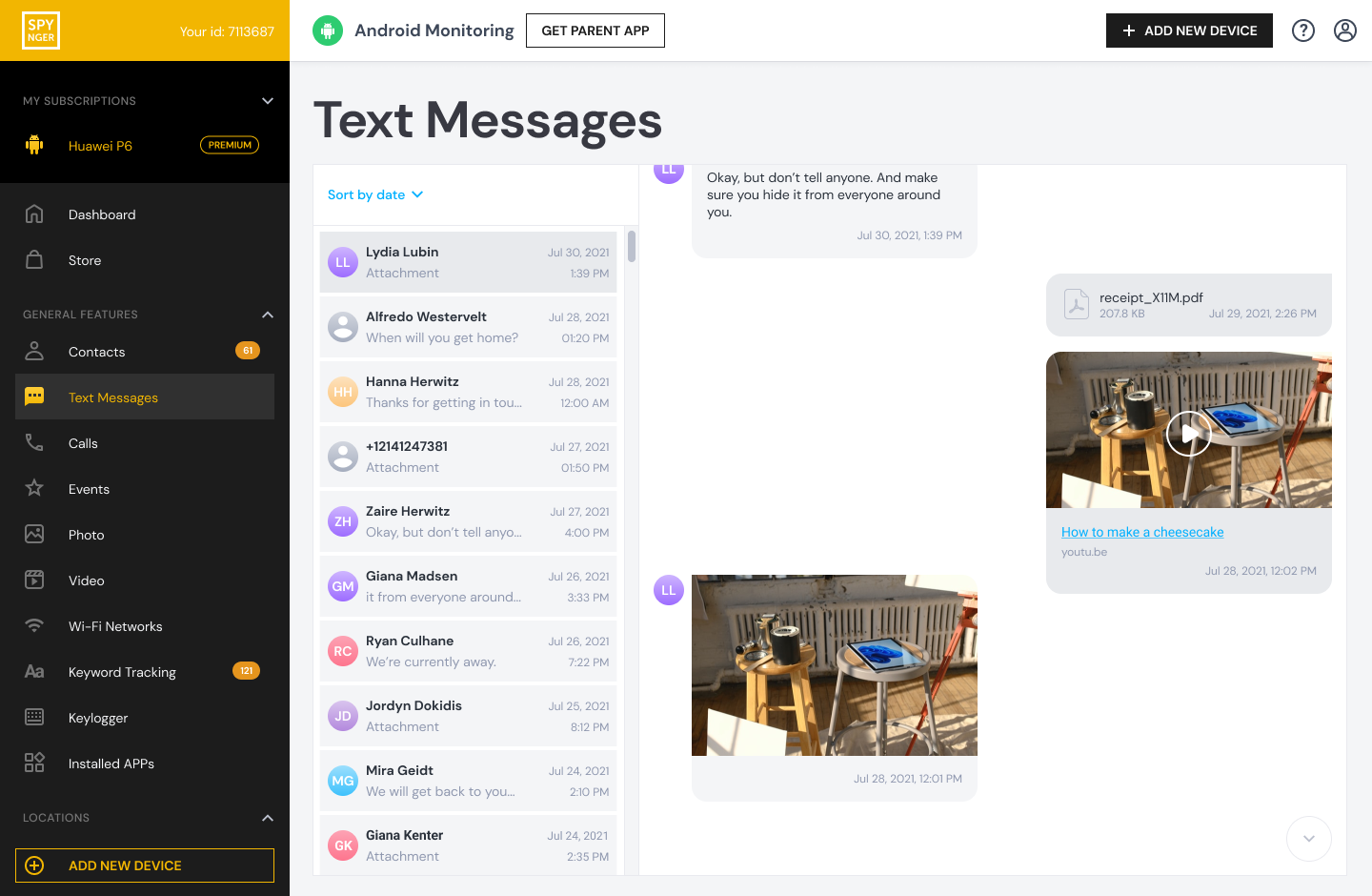
Key Features for Restricting TikTok:
App Blocker: Easily select and block the TikTok app directly from a simple dashboard.
Screen Time Management: Set daily limits and monitor overall device usage.
Web Filtering: Block inappropriate or distracting websites to complement app restrictions.
Location Tracking: Keep tabs on the device's location for added safety and context.
Best For: Users who want a straightforward, effective tool to manage app usage with a strong emphasis on blocking and filtering.
How to Get Started with Spynger:
For a user-friendly yet powerful restriction tool, Spynger is an excellent option.
BUY NOW
3. Scannero: Innovative Location-Based Restrictions
Scannero introduces a unique approach by focusing on location-based triggers. This is perfect for enforcing restrictions automatically when a child arrives at a specific location, like school.

Key Features for Restricting TikTok:
Geofencing: Create a virtual boundary on a map (e.g., around a school) and automatically restrict TikTok access when the device enters the zone.
Remote Lock: Manually lock the device or specific apps from your own phone with one tap.
Safety Alerts: Includes features for personal safety, adding an extra layer of protection.
Simple Interface: Designed for ease of use and quick setup.
Best For: Parents who want smart, automated restrictions based on location and a simple tool for manual control.
How to Get Started with Scannero:
For intelligent, location-aware restriction, Scannero offers a unique solution.
BUY NOW
Setting boundaries is the first step to balanced screen time.
Beyond Screen Time Limits
Restricting app time is good, but knowing what they are watching is better. Get alerts for dangerous keywords and risky content directly from their device.
Monitor Device ActivityImplementing a Sustainable Restriction Strategy
Knowing how to restrict tiktok on iphone is a technical skill, but its success depends on strategy and communication. For parents, discuss the reasons for the restrictions with your child. Frame it as a tool for health and balance, not punishment. Start with reasonable time limits and adjust based on observed behavior. The goal is to foster digital literacy and self-control, using these tools as a supportive framework.
Setting boundaries is the first step to balanced screen time.
Beyond Screen Time Limits
Restricting app time is good, but knowing what they are watching is better. Get alerts for dangerous keywords and risky content directly from their device.
Monitor Device ActivityConclusion
The pull of TikTok is powerful, but it doesn't have to dictate your time or your family's routine. You are now equipped with a clear path forward. You can implement balanced restrictions using Apple's Screen Time, or you can deploy the advanced, customizable controls of mSpy, Spynger, or Scannero.
Don't let another week be lost to unintended scrolling. Choose the method that aligns with your needs. Learn how to restrict tiktok on iphone effectively today, and take a proactive step toward reclaiming your focus and fostering healthier digital habits for everyone involved.
Frequently Asked Questions (FAQs)
1. What's the difference between deleting TikTok and restricting it with a time limit?
Deleting the app is an all-or-nothing approach that removes access entirely. Restricting it with a time limit teaches moderation and allows for controlled, mindful use. This is often a more sustainable long-term solution, especially for children, as it helps them learn to manage their screen time within the boundaries you set.
2. If I use Screen Time, can my child still access TikTok through a web browser?
Yes, this is a significant limitation of Apple's native Screen Time. It restricts the TikTok app but does not block the TikTok website on browsers like Safari. To close this loophole, you would need a third-party app like mSpy or Spynger, which includes website filtering features.
3. Can my teenager override these restrictions?
With Apple's Screen Time, if your teen discovers or guesses the Screen Time passcode, they can override the App Limits. This is why it's critical to use a secure, unknown passcode. Third-party apps provide a higher level of security. They are often harder to detect and remove without the parent's password, making them a more tamper-resistant solution for managing teen device use.