It often starts with a simple, innocent tap. A child playing their favorite game is offered a dazzling new character, a bundle of gems, or a special power-up. With one click, a purchase is made. For parents, the realization can be shocking—a notification for a $99 charge on the credit card bill, all from a "free" game. This scenario is more common than you think, and the financial impact can be significant.
As a child digital safety advocate with over ten years of experience, I have counseled countless families facing unexpected charges and the frustration that follows. The good news is that you are not powerless. Learning how to block in-app purchases for kids is a fundamental step in securing your devices and teaching responsible digital habits. This guide will provide you with a clear, step-by-step action plan, from using your phone's built-in settings to implementing powerful third-party tools that offer complete peace of mind.
Understanding the "Freemium" Model and Its Risks
To effectively manage the problem, it's important to understand how it works. Most mobile games operate on a "freemium" model—free to download and play, but funded by microtransactions within the app. These are the in-app purchases (IAPs).
Game developers use sophisticated design principles to make these purchases enticing, especially for young minds who may not grasp the connection between a virtual item and real-world money. They often blur the lines by using a secondary currency like "coins" or "gems," disconnecting the action from its monetary cost. The simple requirement of a password, which a child may know or see you enter, is often the only barrier—a barrier that is far too easy to cross.
Your First Line of Defense: Built-in Device Settings
The most immediate and free solution is to use the robust parental controls built directly into your iOS or Android device. These should be your first step.
How to Block In-App Purchases on iOS (iPhone & iPad)
Apple provides a very straightforward way to disable purchases.
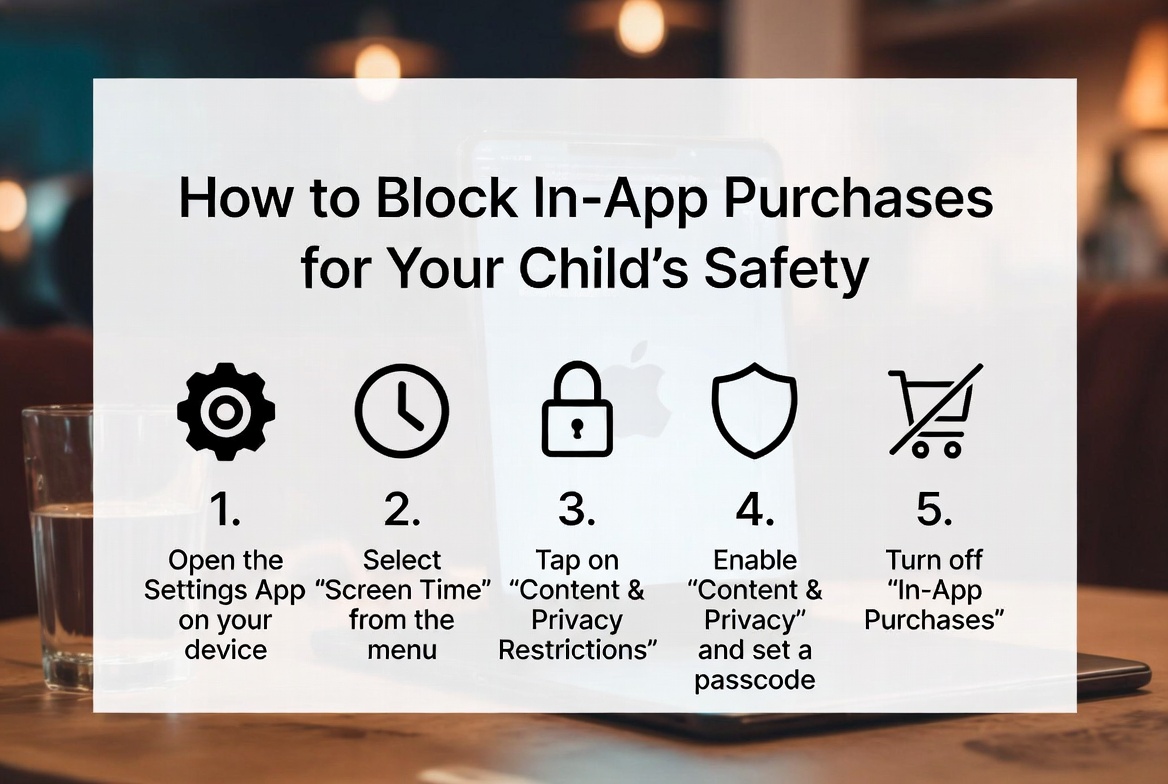
Go to Settings > Screen Time.
If you haven't already, tap Turn on Screen Time and follow the prompts. It's best to set this up as "This is My Child's Device."
Tap Content & Privacy Restrictions and enter your Screen Time passcode when prompted.
Tap iTunes & App Store Purchases.
Tap In-app Purchases and set it to "Don't Allow."
This single action will prevent any new purchases within apps. For an extra layer of security, also go to Settings > [Your Name] > Media & Purchases > Password Settings and choose to require a password for every purchase immediately. This prevents a 15-minute window where purchases can be made without re-entering the password.
How to Block In-App Purchases on Android
The process on Android can vary slightly by manufacturer, but the core path is through the Google Play Store.
Open the Google Play Store app.
Tap your profile icon in the top right corner.
Go to Settings > Family > Parental controls.
Turn on Parental controls and create a PIN that your child doesn't know.
Once enabled, tap "Require authentication for purchases."
For the strongest protection, select "For all purchases through Google Play on this device."
This ensures that your password or biometric authentication (like a fingerprint) is required for any transaction, effectively blocking accidental or unauthorized purchases.
When Built-in Controls Aren't Enough: The Case for Dedicated Apps
While built-in settings are excellent for blocking transactions, they are just one piece of the digital parenting puzzle. What if you need more comprehensive oversight? What if your child is savvy enough to try and work around these rules? This is where dedicated parental control applications provide immense value. They not only reinforce purchase blocks but also offer monitoring, time management, and location tracking.
1. mSpy: For Comprehensive Monitoring and Control
mSpy is a powerful, feature-rich application designed for parents who want deep insight into their child's digital activity. It goes far beyond purchase blocking.

Key Features for Security:
App Blocking: You can remotely block access to specific games or app stores entirely during certain hours (like homework time).
Purchase Alert Monitoring: While it doesn't intercept the payment itself, mSpy can monitor communication and alert you to receipts or messages that confirm a purchase, allowing you to address the issue immediately.
Keylogger: This feature records keystrokes, which can help you know if your child has discovered a password.
Full App Activity Overview: See which apps are being used and for how long, helping you identify which "freemium" games are taking up most of their time.
Best For: Parents who want the highest level of oversight and are concerned about overall digital safety, not just financial transactions.
2. Moniterro: Streamlined Security and Peace of Mind
Moniterro offers a balanced approach, providing strong monitoring tools with a focus on user-friendliness. It helps you maintain a secure digital environment for your child.

Key Features for Security:
App Management: View all installed applications and block those you deem inappropriate or too risky for in-app spending.
Web Monitoring & Filtering: Block access to websites where purchases could be made outside of the app store ecosystem.
Social Media Oversight: Monitor activity on popular platforms where links to games and promotions are often shared.
Location Tracking: Know your child's whereabouts, adding an extra layer of family security.
Best For: Families looking for a straightforward and effective tool to monitor app usage and online behavior, complementing the built-in purchase blocks.
3. Scannero: Location-Focused Safety with Added Controls
Scannero’s primary strength is in its robust location-tracking services, but it also includes valuable features to help manage device usage and security.
Key Features for Security:
Number Lookup & Location Tracking: While not directly related to purchases, this feature provides general peace of mind about your child's safety and context for their device use.
Geofencing: Set up safe zones (like home or school) and receive alerts when your child enters or leaves them, helping you manage when and where they use their device for gaming.
Companion App Oversight: The service helps you stay informed about the digital environment your child is in, which is the first step in preventing risky behaviors, including unauthorized spending.
Best For: Parents whose top priority is location safety but who also want a tool that contributes to a broader digital management strategy.
Proactive Parenting: Conversations About Money and Value
Technology is a powerful tool, but it is not a substitute for conversation. Use these technical controls as a springboard for discussion.
Explain Real-World Value: Use a concrete example. "That $4.99 skin pack for your character is the same as buying a gallon of milk. It's real money."
Set Clear Rules: Establish a family policy. "You must always ask for permission before clicking anything that says 'buy' or 'purchase,' even if it uses 'coins.'"
Lead by Example: Show your own restraint with in-app purchases or mobile shopping. Your behavior sets a powerful precedent.
Your Action Plan for a Secure Digital Home
Activate Now: Immediately use the step-by-step guides above to disable in-app purchases on your child's device.
Assess Your Needs: Decide if your family would benefit from the additional oversight offered by an app like mSpy, Moniterro, or Scannero.
Have the Talk: Sit down with your child and explain the new rules and the reasons behind them.
Stay Vigilant: Periodically check your purchase history in the App Store or Google Play and review your credit card statements.
Conclusion
You do not have to live in fear of your next credit card statement. By combining the free, built-in settings on your device with the powerful features of dedicated parental control apps, you can create a safe and secure digital space for your child. You now have the expert knowledge on how to block in-app purchases for kids. The next step is to implement it. Secure your devices, open a dialogue with your child, and enjoy the peace of mind that comes with being a proactive, informed parent.
Frequently Asked Questions (FAQs)
1. I've blocked in-app purchases, but my child can still download free games. How can I stop this?
Yes, you can prevent this. On iOS, go to Settings > Screen Time > Content & Privacy Restrictions > iTunes & App Store Purchases and set "Installing Apps" to "Don't Allow." On Android, within the Google Play Store's Parental Controls, you can restrict app downloads by maturity rating or require approval for all downloads.
2. Can my child reverse these settings without my password?
No, that is the entire purpose of the passcode or PIN. On both iOS (Screen Time passcode) and Android (Parental Controls PIN), the restrictions you set cannot be altered without entering this password. This is why it is crucial to choose a password your child cannot guess and not to share it with them.
3. What should I do if I discover an unauthorized purchase has already been made?
Act quickly. Both Apple and Google have processes for refunding accidental purchases made by children. You can report the issue directly through your purchase history on the App Store or Google Play website. Be prepared to explain that the purchase was made by a minor without your consent. Using a dedicated app like mSpy can help you detect these incidents faster.


