Watching your child unwrap their first iPhone or iPad is a milestone moment. It’s a tool for connection, learning, and fun. But as a parent, that excitement is often quickly followed by a wave of anxiety. The internet is vast, and the digital world is full of both wonders and risks. How do you give them the freedom to explore while ensuring they are safe? The single most important step you can take is to create a Child Apple ID for parental control.
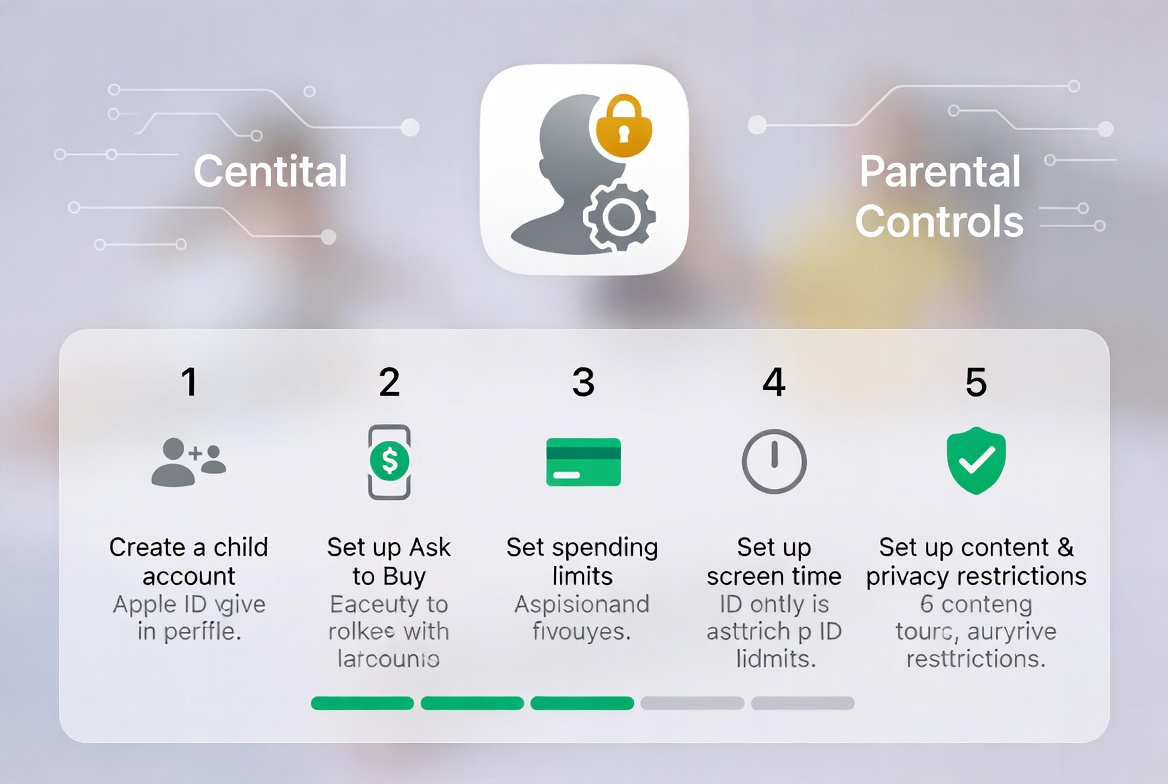
For over a decade, I’ve guided thousands of families in establishing healthy digital boundaries. Apple’s Family Sharing system, built around the Child Apple ID, is the cornerstone of this process. It transforms a personal device from a potential source of worry into a managed, secure environment where your child can thrive. This guide will walk you through every step, explain the powerful controls at your disposal, and introduce you to tools that can provide an extra layer of oversight.
Why a Child Apple ID is Your First Line of Defense
A standard Apple ID treats every user as an independent adult. A Child Apple ID is fundamentally different. It’s designed with safety and parental oversight baked into its core. When you create a Child Apple ID for parental control, you are not just setting up an account; you are establishing a framework for digital parenting.
The primary benefits are:
Centralized Management: You, as the parent, have the ultimate authority. You control the password, and more importantly, you can link the account to your own via Family Sharing.
Ask to Buy: Every purchase—whether a new app, an in-game item, or a music album—requires your explicit approval on your device.
Content and Privacy Restrictions: This is the heart of Apple’s parental controls. You can filter web content, restrict explicit music and movies, and prevent app installations or deletions.
Location Sharing: You can easily see your child’s device location, providing peace of mind when they are away from home.
Skipping this step means missing out on these essential safeguards. It’s the difference between giving your child a key to a locked cabinet and giving them a key to the entire house.
Step-by-Step: How to Create a Child Apple ID
The process is straightforward and can be completed in just a few minutes on your own iPhone or iPad. Before you begin, ensure you are signed into your own Apple ID and have a valid payment method on file (required for Family Sharing, even if you use Ask to Buy).
Open the Settings app on your device.
Tap your name at the top to access your Apple ID settings.
Select Family Sharing.
Tap Add Member.
Choose Create an Account for a Child and then tap Continue.
You will be prompted to enter the child’s birthdate. This is crucial, as it determines when the account transitions to a standard adult account (at age 13 in most regions).
Read and agree to the Parent Privacy Disclosure and the terms for your child’s account.
Follow the on-screen instructions to enter the child’s name, create their new Apple ID email address (you can use an existing iCloud address or create a new one), and set a password.
Once completed, the new Child Apple ID will appear in your Family Sharing group. You are now ready to configure the powerful parental controls that come with it.
Configuring Screen Time and Content Restrictions
Creating the account is only half the battle. The real power lies in configuring Screen Time. This suite of tools gives you granular control over your child’s device usage.
Downtime: Set a schedule for time away from the screen. During Downtime, only phone calls and apps you explicitly allow will be available.
App Limits: You can set daily time limits for entire app categories (like Games or Social Networking) or for individual apps. When the time is up, the app is paused until the next day.
Communication Limits: This vital feature lets you control who your child can communicate with via Phone, FaceTime, and Messages, both during allowed screen time and during Downtime.
Content & Privacy Restrictions: Here, you can lock down the device to prevent unwanted changes. Key settings include:
Content Restrictions: Block explicit content, and set age ratings for music, movies, TV shows, books, and apps.
Web Content: You can limit adult websites or restrict access to only a specific list of approved sites.
Privacy Settings: Prevent changes to location services, contacts, photos, and other sensitive data.
Allow Changes: Crucially, you can set a passcode to lock these Screen Time settings, preventing your child from bypassing them.
The Power of "Ask to Buy" and Purchase Approvals
One of the most common concerns for parents is unexpected charges from the App Store. The "Ask to Buy" feature completely eliminates this risk. When your child initiates any purchase, a notification is sent directly to your device. You can review the app or content and then approve or decline the request with a single tap.
This not only protects your wallet but also opens a dialogue about responsible spending and digital consumption. It encourages your child to think before they request and gives you insight into the types of apps and games they are interested in.
Beyond Apple: Enhancing Oversight with Dedicated Monitoring Apps
While Apple’s native tools are excellent for managing the device itself, some parents seek a deeper level of insight, especially into the content of their child’s digital communications. Native tools can tell you how much time is spent on WhatsApp, but not what is being said there. This is where third-party parental control apps can play a complementary role.
These applications can provide features like monitoring text messages and social media chats, tracking real-time location with geofencing, and providing detailed web browsing history. Here are three highly-regarded options, each with its own strengths:
mSpy: Comprehensive Social Media and Communication Monitoring
mSpy is a powerful tool designed for parents who want a clear window into their child's social interactions.

It goes beyond basic screen time management to monitor popular social media platforms like Instagram, Snapchat, and Facebook, as well as text messages and call logs. Its key strength is its detailed reporting on communication, helping you identify potential risks like cyberbullying or contact with strangers.
BUY NOW
Scannero.io: Simple and Effective Location Tracking and Geofencing
If your primary concern is your child's physical safety and whereabouts, Scannero.io offers a straightforward solution.
It specializes in real-time location tracking and geofencing—allowing you to set up safe zones (like home or school) and receive instant alerts when your child enters or leaves them. Its simplicity makes it a great choice for parents who want reliable location data without complex features.
TRY NOW
Moniterro: Balanced Monitoring for the Concerned Parent
Moniterro strikes a balance between comprehensive monitoring and user-friendliness.

It provides insights into social media activity, text messages, and browsing history, while also offering location tracking and app blocking features. It’s a robust all-in-one solution for parents who want a wide range of oversight tools in a single application.
TRY NOW
Fostering Open Communication About Digital Safety
Technology is a powerful aide, but it is not a substitute for conversation. The most effective parental control strategy combines robust tools with open, ongoing dialogue. Use the features like "Ask to Buy" and App Limits as conversation starters. Explain why certain restrictions are in place—not to punish, but to protect. Teach your child about online privacy, the importance of being kind, and what to do if they encounter something that makes them uncomfortable.
When your child understands that these digital boundaries come from a place of love and concern, they are more likely to respect the rules and come to you with problems.
Conclusion
Taking the time to properly create a Child Apple ID for parental control is one of the most responsible actions you can take as a modern parent. It empowers you to provide a safer, more structured digital environment for your child to learn and connect. By mastering Apple’s built-in Screen Time features and considering supplemental tools like mSpy, Scannero, or Moniterro for added peace of mind, you can move from feeling anxious to feeling confident about your child’s use of technology.
Your child’s digital safety is a journey, not a one-time setup. Start today by implementing these steps, and continue the conversation about responsible technology use.
Frequently Asked Questions (FAQs)
1. At what age should I stop using a Child Apple ID?
A Child Apple ID automatically converts to a standard adult account when the child turns 13 (or the age of digital consent in your region). However, you can choose to keep them in your Family Sharing group indefinitely. The transition should be gradual; as your teen demonstrates responsibility, you can loosen restrictions while maintaining open communication.
2. Can I see my child's text messages and iMessages with a Child Apple ID?
No, you cannot. Apple prioritizes user privacy, and the contents of Messages (both SMS and iMessage) are end-to-end encrypted. The native parental controls allow you to manage who they can message, but not see the content. To monitor message content, you would need to use a third-party application like mSpy or Moniterro.
3. What happens if I forget my Screen Time passcode?
This is a common issue. Unfortunately, Apple does not provide a way to retrieve a forgotten Screen Time passcode. The only official method to reset it is to erase your device entirely and restore it from a backup, which will remove the passcode. This underscores the importance of choosing a passcode you will remember and keeping it secure.


