You watch your child open a web browser, their small fingers pecking at the keyboard. The default homepage loads—a stark search bar, news headlines with troubling images, or a grid of your own recently visited sites. In an instant, their innocence is just one misplaced click away from being challenged by the vast, uncurated world of the internet. This moment of digital vulnerability is a common fear for modern parents, but it is entirely preventable.
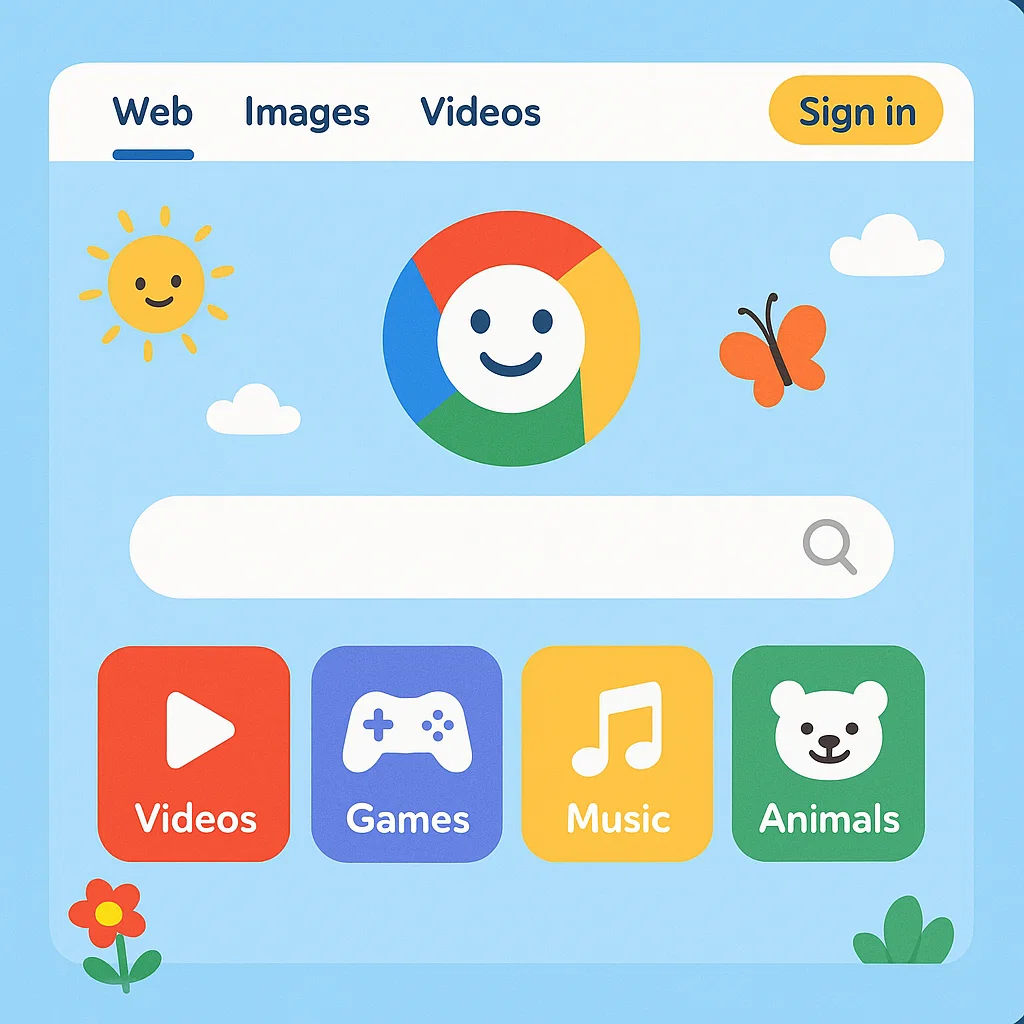
The internet doesn't have to be a scary place for children. By redesigning their starting point, you can transform the web from a source of anxiety into a playground of safe, educational, and age-appropriate discovery. The solution lies in learning how to create a child friendly browser homepage. This isn't just about blocking the bad; it's about actively promoting the good. With over a decade of experience in digital safety, I will guide you through the practical steps, from using dedicated kids' browsers to implementing powerful oversight tools, to build a digital front door that protects and empowers your child.
Why a Custom Homepage is the Foundation of Online Safety
A browser's homepage is the first thing a child sees and interacts with when they go online. A standard homepage, like Google or a news portal, is designed for adults. It offers unfettered access to the entire web, including its darkest corners. A child-friendly homepage, however, serves as a protective gateway.
Think of it as building a fenced-in backyard instead of letting your child play on the edge of a busy highway. Within this safe space, they can explore, learn, and play without the immediate risks of stumbling upon explicit content, malicious websites, or overwhelming advertisements. Taking control of this starting point is the single most effective way to shape your child's initial online experiences and create a child friendly browser homepage that aligns with your family's values.
The Direct Method: Using Dedicated Kids' Browsers
The most straightforward way to achieve a safe starting point is to bypass traditional browsers altogether and use an application built specifically for children. These apps are designed from the ground up to be the homepage, search engine, and content filter all in one.
Popular Kids' Browser Options:
Kidoz Browser: This is a popular choice for younger children. It functions as a standalone app that replaces your standard browser. It comes pre-loaded with thousands of safe, hand-picked websites, videos, and games. Children can only access content that parents have pre-approved, and there is no ability to type in arbitrary URLs.
Khan Academy Kids: While primarily an educational platform, its interface acts as a contained, curated environment for learning. It’s a fantastic option for creating a homepage focused exclusively on skill-building and creativity.
Zac Browser: Originally designed for children with autism, Zac Browser is a wonderful, simplified interface that locks the device into a safe, predictable environment with access only to pre-selected games, activities, and videos.
How to implement this: Simply download one of these apps from the iOS App Store or Google Play Store and set it as the default browser on your child's device (where supported). On an Android device, you can go to Settings > Apps > Default Apps > Browser App to select it. On iOS, the default cannot be easily changed, so you will need to place the kid's browser prominently on the dock and guide your child to use it exclusively.
Configuring Mainstream Browsers for Enhanced Safety
If you prefer to use a mainstream browser like Google Chrome or Mozilla Firefox, you can configure it to be significantly safer for a child. This process involves a few key steps.
Step 1: Set a Safe and Engaging Homepage
Instead of leaving the homepage blank or set to a search engine, set it to a website that is both engaging and safe.
KidzSearch: This is a Google-powered safe search engine and homepage designed for kids. It filters out inappropriate content and provides a colorful, engaging interface with links to educational games and videos.
Kiddle: This is another visual search engine for kids, with large thumbnails and easy-to-read text. You can set
kiddle.coas your browser's homepage to ensure it's the first thing your child sees.A Custom Bookmark Page: You can use a simple "New Tab" extension to create a page filled with large, visual bookmarks to all your child's favorite approved websites, like PBS Kids, National Geographic Kids, or Coolmath Games.
Step 2: Activate Built-In Safety Features
All major browsers have parental controls, though they are often hidden in the settings.
Google Chrome (Supervised Profiles): Use Google Family Link to create a supervised Chrome profile for your child. This allows you to block specific sites, only allow approved sites, and enforce SafeSearch.
Mozilla Firefox (Content Blocking): In Firefox's settings, you can enable "Block dangerous and deceptive content" and use extensions to enhance filtering.
Safari (Content Restrictions): On iOS and macOS, use the Screen Time settings to restrict adult websites in Safari and only allow a specific list of approved sites you create.
The Limitations of Browser-Only Solutions and the Need for a Deeper Layer
While dedicated kids' browsers and configured settings are an excellent start, they have a critical weakness: they only control that specific browser. A tech-savvy child can simply download a different browser, like Firefox or Opera, which won't have any of your restrictions. Browser settings can also be reset or changed if a child has access to the settings menu.
This is why the most robust child-proofing strategy involves a multi-layered approach. The kid-friendly browser is your first, visible layer. But beneath that, you need a system-wide solution that manages the entire device.
The Ultimate Safety Net: Parental Control Apps for Device-Wide Management
To truly secure your child's digital experience, you need software that works across every app and every browser on the device. Parental control applications provide this device-wide authority, making them the most reliable way to enforce the safe environment you create a child friendly browser homepage to provide.
These tools allow you to lock down the device so that only approved browsers can be used, and they provide monitoring to ensure your child stays within the boundaries you've set.
Let's examine three leading options that offer this comprehensive protection.
1. mSpy: For Comprehensive Oversight and Control
mSpy is a powerful monitoring tool that provides a deep level of insight into your child's device activity, giving you the data needed to make informed safety decisions.

Key Features for Browser and Homepage Management:
App Blocker: You can block any browser app you haven't approved, forcing your child to use only the safe, kid-friendly browser you've installed.
Website Blocker: Block specific websites or entire categories of content across all browsers, providing a safety net if they manage to access a different one.
Bookmark Tracking: See what bookmarks your child has saved, giving you insight into their interests and online behavior.
Keylogger: This feature records keystrokes, allowing you to see what your child is searching for, which can help you identify potential risks early.
mSpy is ideal for parents who want detailed reports and powerful remote-control features to manage their child's entire digital life.
2. Parentaler: For Streamlined Web and Location Safety
Parentaler combines essential web filtering with robust location-tracking services in a user-friendly package, making it a great all-in-one solution for many families.

Key Features for Browser and Homepage Management:
Web Filtering: Actively block inappropriate websites across every single browser on the device, ensuring a consistent level of safety.
App Usage Control: Monitor and limit the time your child spends on specific apps, including their web browser.
Browser History Access: Review the complete web history from all browsers, even if your child tries to clear it.
Simple Dashboard: Manage all of these features from a single, easy-to-understand control panel.
Parentaler offers a balanced approach, providing strong web safety features without being overly complex.
3. Eyezy: For a Detailed and Discreet Overview
Eyezy provides a powerful suite of monitoring tools that operate seamlessly in the background, offering a clear and honest view of your child's online activities.

Key Features for Browser and Homepage Management:
Invisible Shield: Runs in stealth mode, preventing the app from being detected or tampered with.
Web Magnifier: Tracks browsing history and bookmarks across all installed browsers, providing a complete picture of their internet use.
App Blocker & Scheduler: Block unwanted browsers or set schedules for when the safe browser can be used.
Screen Recording: See exactly what is happening on your child's screen in real-time, allowing you to verify they are on their kid-friendly homepage.
Eyezy is perfect for parents who want powerful, behind-the-scenes oversight to complement the safe browsing environment they've created.
The Human Element: Guiding Your Child's Digital Journey
Technology can build the walls of the playground, but it can't teach your child how to play safely inside it. The most important component of any digital safety plan is open communication. Talk to your child about why you've created a special homepage for them. Explain the basics of online safety in an age-appropriate way. Encourage them to come to you if they see anything confusing or upsetting. This combination of a technically safe starting point and your ongoing guidance is the recipe for raising a resilient and responsible digital citizen.
Building a Safer Digital Home, One Browser at a Time
Creating a secure online environment for your child is one of the most important parenting tasks of the 21st century. Start today by choosing a method to create a child friendly browser homepage, whether it's a dedicated app like Kidoz or a configured safe search engine like Kiddle. Then, for complete peace of mind, consider reinforcing this with a device-wide parental control app like mSpy, Parentaler, or Eyezy. This multi-layered strategy ensures that your child's first steps online are safe, positive, and full of wonder.
Don't leave your child's online experience to chance. Take proactive control and build them a digital home they can explore with confidence.
Frequently Asked Questions (FAQs)
1. Can't I just use "Incognito Mode" to see what my child is doing?
Incognito or Private Browsing mode only prevents the browser from saving history and cookies on the device itself. It does not make your child invisible online. Furthermore, a robust parental control app that works across the entire device will still be able to monitor activity, even in Incognito Mode, by tracking screen activity or network usage.
2. What's the best kid-friendly browser for a very young child (age 3-5)?
For the youngest users, a highly visual and locked-down browser is best. Kidoz Browser or the PBS Kids Video app are excellent choices. Their interfaces are designed for pre-readers, with large icons and no ability to type in web addresses, ensuring they stay within the pre-approved content.
3. My child found a way to disable the kid's browser. What should I do?
This is a common challenge and highlights the need for a device-level solution. If your child is circumventing your browser-level controls, it's a clear sign you need a parental control app. Use an app like mSpy or Eyezy to block the ability to uninstall or disable the kid-friendly browser and to block all other browser apps from being used.


