It’s a question that weighs on nearly every modern parent’s mind: "What is my child actually doing on their iPhone?" The device is a black box of social interactions, videos, games, and potential risks. As a family digital safety consultant for the past ten years, I’ve seen the anxiety this uncertainty causes. You’re not being nosy; you’re being responsible.
The good news is that you have more visibility than you might think. Apple provides robust built-in tools, and when those aren't enough, dedicated applications can fill the gaps. This guide will walk you through every practical method, from simple settings to comprehensive monitoring, to answer the question of how to see what my child does on iPhone. Our goal is not to encourage spying, but to empower you with knowledge to guide and protect your child effectively.
First Steps: The Foundation of Open Communication
Before we look at any technical tools, the most important step is conversation. Abruptly monitoring a child's device without context can damage trust. Start by having an open discussion about online safety. Frame your concerns around your role as a parent: "My job is to keep you safe, and that includes online. Part of that means I need to understand how you're using your phone so I can help you navigate it." This sets the stage for using the following tools as a collaborative safety net, not a secret weapon.
Your Most Powerful (and Free) Tool: Apple's Screen Time
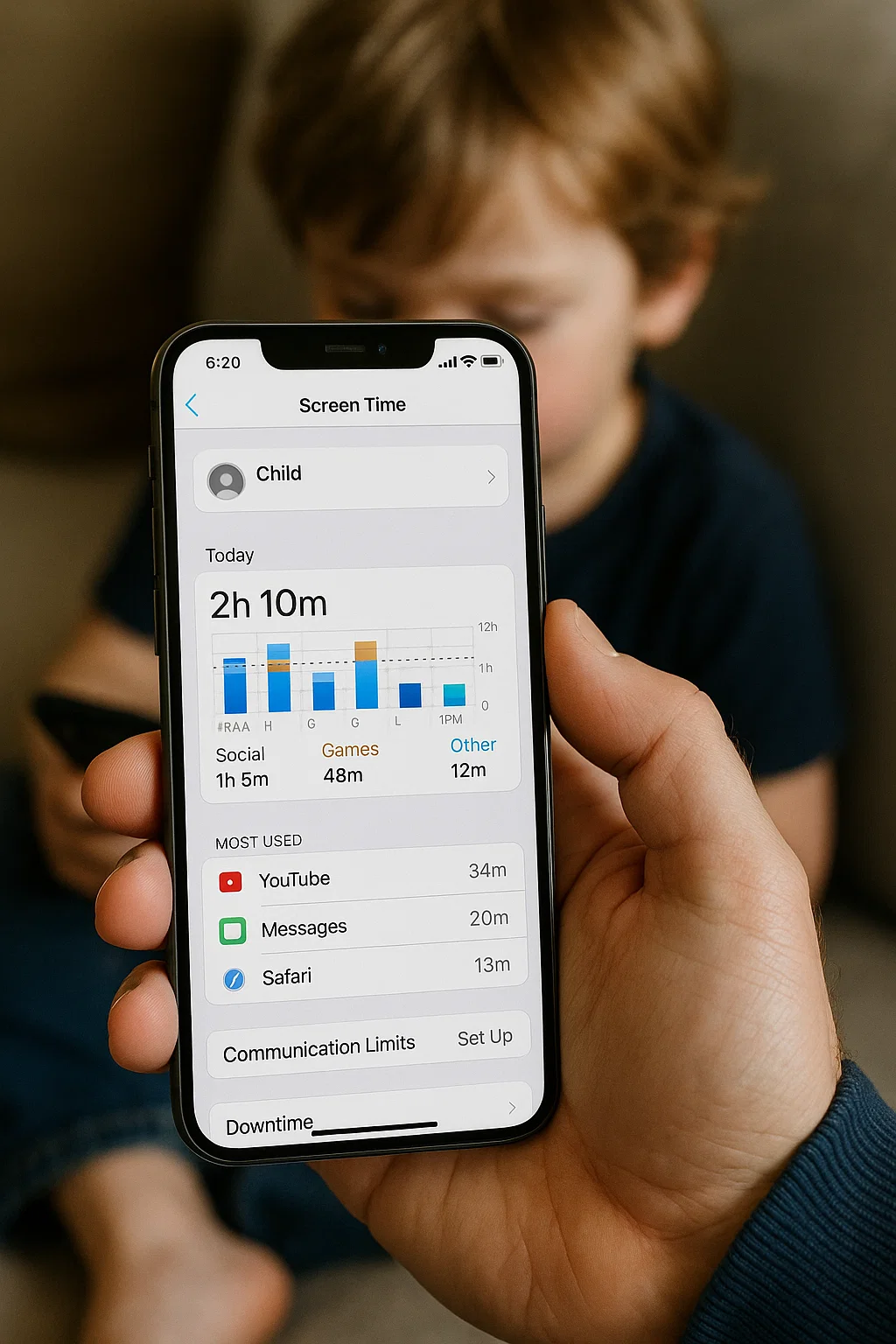
For many parents, the answer to how to see what my child does on iPhone is already built into the device. Apple's Screen Time is a powerful, free system that provides significant insight and control.
To set this up, you need to create a family group and enable Screen Time for your child's device. Here’s what you can see and do once it's activated:
See App & Website Usage: Screen Time provides a detailed breakdown of how much time is spent in each app and website category, down to the minute. You can see daily and weekly reports that show total screen time, pickups (how often they unlock the phone), and notifications received.
Set App Limits: You can set daily time limits for specific app categories (like Social Networking or Games) or for individual apps. When the time is up, the app is paused until the next day.
Schedule Downtime: This feature locks down most apps during set hours, such as bedtime or study time. Only apps you choose to allow and phone calls will be accessible.
Content & Privacy Restrictions: This is a critical section. Here, you can block inappropriate content, prevent explicit music, restrict web searches in Siri, and, most importantly, prevent app downloads or deletions without your approval.
To access this on your child's phone: Go to Settings > Screen Time. If you're using Family Sharing, you can view these reports directly from your own iPhone.
Gaining Deeper Insight with Third-Party Monitoring Apps
While Screen Time is excellent for basic oversight and time management, it has limitations. It doesn't show you the content of your child's activities—the specific messages they send, the photos they receive, or their precise location history. This is where dedicated parental control apps become invaluable for parents who need a more complete picture. They are the definitive answer for how to see what my child does on iPhone in granular detail.
These apps work within Apple's security framework, typically requiring a one-time installation on your child's phone and using their iCloud credentials to sync data to a secure dashboard that you access.
1. mSpy: For Comprehensive Social and Communication Monitoring
mSpy is one of the most feature-rich applications available, designed for parents who need a deep understanding of their child's digital social life.

Key Features: mSpy allows you to monitor text messages (including iMessages), see call logs, and track social media activity on platforms like Instagram, Snapchat, and WhatsApp. It provides real-time GPS location, geofencing alerts, and can even track keystrokes and browsing history.
Best For: Parents of older teens who are active on multiple social platforms and for whom understanding the content of their communications is a top safety priority.
2. Parentaler: For Straightforward Screen Time and App Management
Parentaler focuses on providing a clean, user-friendly interface for managing the most common parental concerns: screen time and app access.
Key Features: It allows you to set strict screen time schedules, block specific apps entirely (like games or social media during school), and pause the internet on the device with one tap. Its web filtering feature blocks inappropriate sites, and it provides a clear overview of the device's usage patterns.
Best For: Parents of younger children and pre-teens who need a simple, effective way to enforce digital boundaries and manage time without being overwhelmed by complex features.
3. Eyezy: The All-in-One Management Suite
Eyezy strikes a balance by combining powerful monitoring tools with practical device management features in a single dashboard.

Key Features: Eyezy offers social media and message monitoring, GPS location tracking, and screen time scheduling. A unique feature is its "Screen Recording," which takes periodic screenshots of the device, showing you exactly what your child is seeing and doing in real-time.
Best For: Families looking for a versatile solution that covers both safety monitoring (like social media) and practical controls (like app blocking), all in one place.
A Step-by-Step Plan for Implementation
Knowing the tools is one thing; using them effectively is another. Follow this plan:
Start with Screen Time: Before investing in anything, fully explore and set up Apple's Screen Time. It might provide all the insight you need.
Have the "Why" Conversation: If you decide to use a third-party app, be transparent with your child. Explain that it’s a tool to help them learn responsible digital habits and to keep them safe from online dangers they may not yet recognize.
Install the App Together: For older children, involve them in the process. This builds trust rather than secrecy. Show them the dashboard and explain what you will be able to see.
Use Insights for Guidance, Not Gotchas: If you see concerning activity, use it as a teaching moment. Instead of "I saw you were on TikTok for 3 hours!" try, "I noticed you spent a lot of time on TikTok yesterday. What do you like about it? Let's make sure it's not getting in the way of your other responsibilities."
Balancing Visibility with Trust and Independence
The ultimate goal of understanding how to see what my child does on iPhone is not to control their every move indefinitely. It is to mentor them into becoming responsible digital citizens. As your child demonstrates good judgment and honesty, it's important to gradually scale back the monitoring. This shows that you trust their growing maturity and prepares them for the time when they will manage their own digital lives independently.
Conclusion
You no longer have to wonder and worry. You have the right and the ability to understand your child's digital world. By leveraging Apple's built-in features and, if necessary, supplementing with a dedicated parental control app, you can move from feeling helpless to being an informed, proactive guide.
Take action today. Start with a conversation, explore Screen Time, and if you need a clearer window into their world, choose the tool that best fits your family's needs.
Frequently Asked Questions (FAQs)
1. Can my child disable Screen Time or these other apps?
Screen Time can be protected with a passcode that only you know, preventing your child from turning it off. Dedicated parental control apps like mSpy, Parentaler, and Eyezy are designed to be tamper-resistant. They often run in stealth mode or require your password for removal, making them difficult for a child to disable without your knowledge.
2. Is it legal to use these monitoring apps on my child's phone?
Yes, it is generally legal for a parent to monitor the phone of their minor child. The legal principle is that parents have a responsibility to ensure the safety and well-being of their children, and this extends to their online activities.
3. Will these methods work if my child uses VPNs or private browsing?
This is a common challenge. Screen Time can still track overall app usage time, but it cannot see the specific browsing history in private mode. Most dedicated monitoring apps also cannot capture browsing activity from within a private browser window or a VPN. However, they can still see which apps are being used, for how long, and can monitor activity within other apps like social media and messaging platforms.


