It’s a question I hear from frustrated and concerned parents every single day: "How do I block TikTok on my child's iPhone?" You see the endless scrolling, notice homework taking a backseat, or worry about what they might be exposed to on the platform. You’re not overreacting. The pull of TikTok’s algorithm is powerful, and its potential impact on young minds is a valid concern. As a digital wellness specialist who has focused exclusively on family online safety for the past decade, I want to assure you that taking back control is not only possible—it’s straightforward.
This guide is designed to give you a clear, actionable answer to that pressing question. We will walk through the process together, starting with the free and effective tools Apple provides on every iPhone. Then, for situations that require a stronger hand, we will explore dedicated parental control applications that offer a more robust and tamper-proof solution. By the end of this article, you will have the confidence and knowledge to create a safer, healthier digital environment for your child.
Understanding the "Why": The Importance of Blocking TikTok
Before we get to the "how," it's helpful to confirm the "why." Deciding to block TikTok isn't about being restrictive; it's about being proactive. Studies have linked excessive social media use in children and teens to issues with attention, sleep, and mental well-being. TikTok's specific format—rapid, endless, and algorithmically driven—is designed to maximize engagement, making it particularly challenging for young users to self-regulate. Finding out how do I block TikTok on my child's iPhone allows you to:
Protect Their Mental Health: Shield them from comparison culture, cyberbullying, and age-inappropriate content.
Safeguard Their Time: Reclaim hours for homework, extracurricular activities, family time, and uninterrupted sleep.
Establish Clear Boundaries: Enforce your family's screen time rules in a concrete, effective way.
Gain Peace of Mind: Reduce your own anxiety about your child's online activities.
Your First Step: Using Apple's Built-in Screen Time
The quickest, easiest, and most cost-effective way to block TikTok is already on your child's device. Apple's Screen Time feature, when configured correctly, provides a powerful line of defense. This is the foundational answer for any parent asking, "How do I block TikTok on my child's iPhone?"
Step 1: Set Up Family Sharing
To manage your child's device from your own iPhone, you need to create a Family Sharing group.
On your iPhone, go to Settings > [Your Name] > Family Sharing.
Tap Add Member and follow the prompts to create an Apple ID for your child. If they already have one, you can invite them.
Once they are part of your family, their device will appear in your Screen Time settings.
Step 2: Use App Limits to Block the App
The core feature for blocking TikTok is called "App Limits."
On your iPhone, go to Settings > Screen Time.
Tap your child’s name under the "Family" section.
Select App Limits, then Add Limit.
Expand the Social category or use the search bar to find and select TikTok.
Set the daily time limit to 1 minute. This functions as a near-instantaneous block.
Tap Add.
Once this limit is reached, the TikTok icon will be grayed out. When your child taps it, they will see a "Time's Up" screen.
The Most Critical Step: The Screen Time Passcode
A block without a lock is just a suggestion. You must set a Screen Time Passcode that is different from your child's device passcode. This prevents them from simply tapping "Ignore Limit."
While in your child's Screen Time settings, tap Use Screen Time Passcode.
Create a secure, four-digit code that your child does not know.
Re-enter the passcode to confirm.
This single step is what makes the entire system work.
When You Need a Stronger Solution: The Limits of Screen Time
While Screen Time is an excellent starting point, it has limitations. A determined child with access to the passcode can override it. More importantly, Screen Time does not block access to TikTok through a web browser. Your child can simply open Safari and continue watching videos, completely bypassing the app block. If you need a more comprehensive solution, a dedicated parental control app is the answer.
Top Parental Control Apps for Unbreakable Blocks
These applications are specifically designed to provide a level of oversight and control that surpasses Apple's native tools. They are ideal for parents who need a robust, tamper-resistant solution.
1. mSpy: For Maximum Control and Insight
mSpy is a widely recognized leader in the parental control space, known for its extensive and powerful feature set. It is designed for parents who need detailed monitoring and remote management capabilities.
Key Features for Blocking TikTok:
Remote App Blocking: Instantly block the TikTok app on your child's iPhone from your web dashboard.
Website Filtering: Block access to the TikTok website on Safari and other browsers, closing the critical loophole.
Custom Schedules: Set schedules for when TikTok is automatically blocked (e.g., during school hours).
Location Tracking & Geofencing: Receive alerts and set location-based rules for added safety.
Best For: Parents who need comprehensive oversight and the most robust control.
How to Get Started with mSpy:
For powerful monitoring and blocking, mSpy is a top-tier choice.
BUY NOW
2. Parentaler: Streamlined and User-Friendly
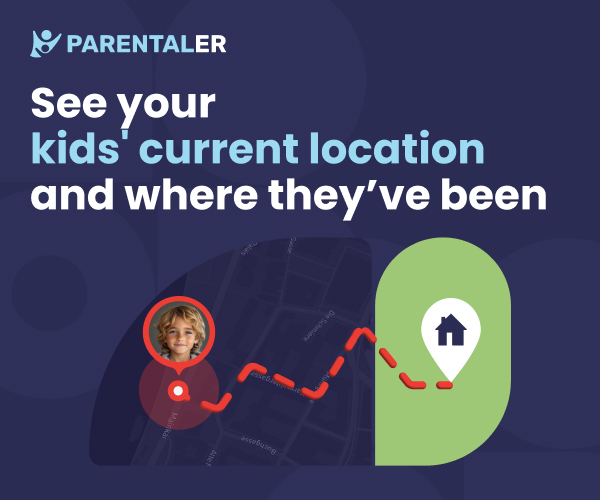
Parentaler offers a clean, intuitive interface that makes remote management straightforward. It focuses on providing essential tools without overwhelming the user.
Key Features for Blocking TikTok:
One-Tap App Blocking: Easily select and block the TikTok app from the parent's dashboard.
Screen Time Scheduling: Set daily limits and create recurring schedules for app access.
Remote Management: Control settings from your own phone.
Panic Alert: A safety feature for emergencies.
Best For: Parents who want a simple, effective, and user-friendly solution.
How to Get Started with Parentaler:
For a straightforward and powerful tool, Parentaler is an excellent choice.
TRY NOW
3. Eyezy: All-in-One Monitoring and Management
Eyezy blends powerful remote control with deep analytics into your child's digital habits. It’s designed for parents who want both immediate action and long-term insight.

Key Features for Blocking TikTok:
App Blocker & Scheduler: Precisely control when TikTok can be used.
Screen Time Management: View detailed reports on device usage.
Web Filtering: Block distracting and inappropriate websites.
Social Media Insights: Monitor activity across platforms.
Best For: Data-driven parents who want to combine blocking power with detailed insights.
How to Get Started with Eyezy:
For deep monitoring and robust control, Eyezy provides a complete solution.
BUY NOW
Balancing Control with Communication
Technology is a powerful tool, but it works best alongside open communication. Use these apps to enforce the rules you've discussed as a family. Be transparent with your child about why you are using parental controls. Frame it as a tool for safety and health, not as a punishment. The ultimate goal is to guide them toward developing their own self-regulation skills.
Conclusion
The question, "How do I block TikTok on my child's iPhone?" has a clear and actionable answer. You can start with the free, built-in power of Apple's Screen Time, or you can upgrade to the advanced, robust capabilities of mSpy, Parentaler, or Eyezy for complete peace of mind.
Don't wait for a problem to arise. Your child's safety and well-being are paramount. Choose the solution that best fits your family's needs and implement it today. You have the power to create a healthier, more balanced digital life for your child.
Frequently Asked Questions (FAQs)
1. Will my child know that I've blocked TikTok?
With Apple's Screen Time, a "Time's Up" screen will appear. With third-party apps, the experience can be more discreet. Apps like mSpy can operate in stealth mode, and the app may simply not open or may be hidden from the home screen entirely, depending on your settings.
2. Can my child uninstall these parental control apps?
On an iPhone, third-party apps require a configuration profile to be installed for full functionality. To remove this profile, your child would need the restrictions passcode you set during installation. This makes it very difficult for them to uninstall the app without your knowledge.
3. If I use Screen Time, can my child still watch TikTok in a web browser?
Yes, this is a significant limitation of Apple's native Screen Time. It restricts the TikTok app but does not block the TikTok website on browsers like Safari. To close this loophole, you need a third-party app like mSpy or Eyezy, which includes website filtering features that work across all browsers.