It starts with a casual glance over their shoulder. A flash of an inappropriate ad, a glimpse of a concerning forum, or a website you simply don’t recognize. In that moment, the vast, wonderful resource of the internet can feel like a threatening place for a child. As a parent and digital safety consultant with over a decade of experience, I can tell you this feeling is universal. The desire to protect our children is instinctual, and in the digital age, that means learning how to create boundaries online.
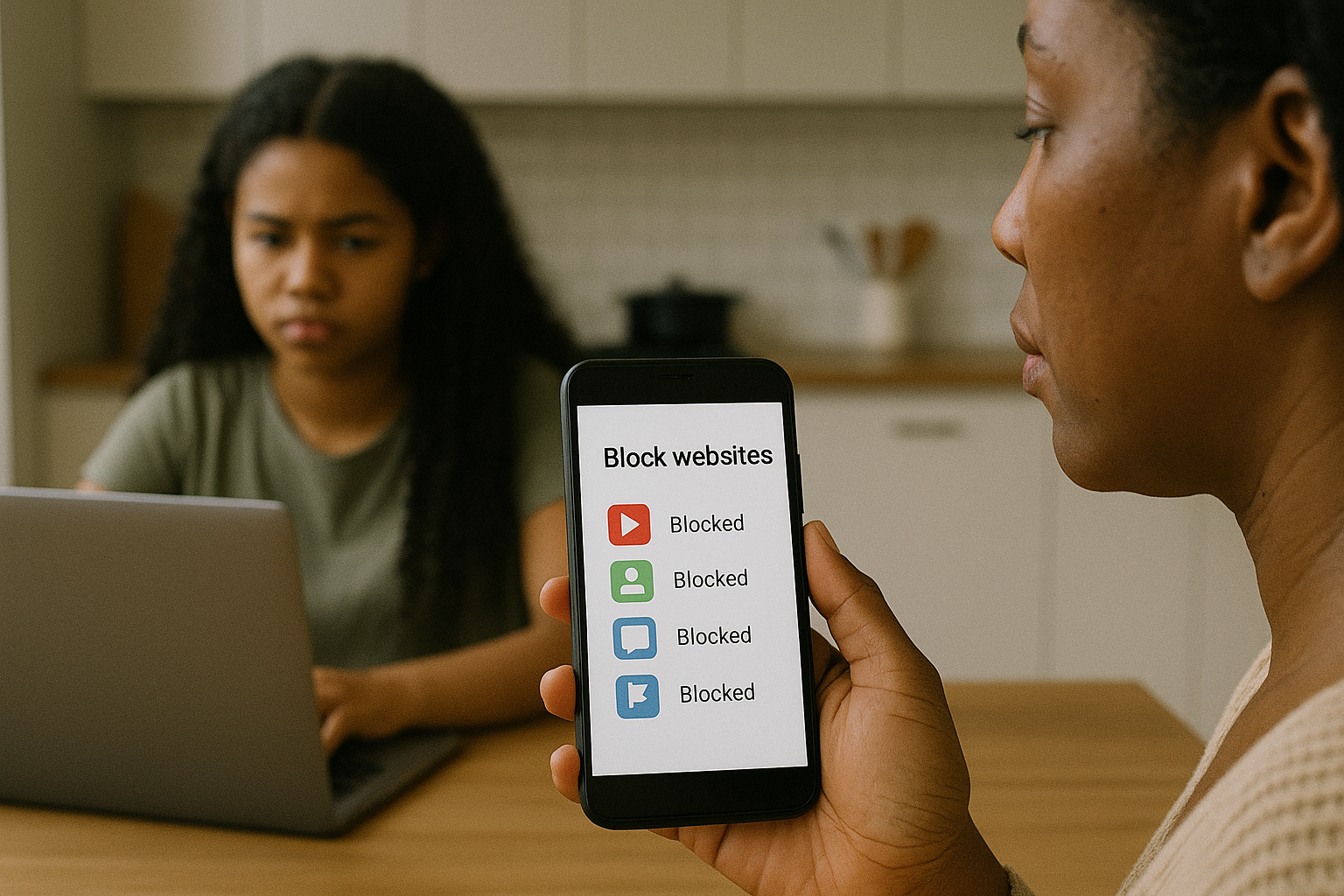
The goal isn't to build a wall that cuts them off from the world, but to install a fence—a curated, safe space where they can learn and explore without being exposed to genuine harm. Knowing how to block specific websites for children is one of the most fundamental and effective tools in your digital parenting toolkit. This guide will provide you with a clear, step-by-step blueprint. We will explore the free tools already on your devices and then examine more powerful, dedicated applications that offer comprehensive protection. My aim is to empower you with the knowledge to choose the right strategy for your family, giving you back your peace of mind.
Why Proactive Website Blocking is Non-Negotiable
The internet is an uncurated library. Without guidance, a child can just as easily stumble into the section with mature, violent, or otherwise harmful content as they can find educational material. A 2023 report from the Pew Research Center found that a majority of parents are concerned about their children being exposed to inappropriate content. Blocking isn't about distrust; it's about proactive parenting. It helps:
Shield from Explicit Material: Prevent accidental exposure to pornography, graphic violence, and hate speech.
Eliminate Distractions: Create a focused environment for homework and study by blocking social media and gaming sites during certain hours.
Counter Cyber Threats: Reduce the risk of phishing scams and malware that often target less-experienced users.
Promote Mental Well-being: Limit exposure to content that promotes unhealthy behaviors, such as eating disorders or self-harm.
Learning to block specific websites for children is a critical first line of defense in building a healthier digital environment for your family.
Your First Line of Defense: Built-in Operating System Controls
Every modern smartphone, tablet, and computer comes with robust, free parental controls. These should be the first place you start, as they are integrated directly into the device's core functions.
For Apple Devices: Screen Time
Apple’s Screen Time feature is incredibly powerful for creating a managed experience on iPhones and iPads.
Content & Privacy Restrictions: Within this menu, you will find the key tools for web filtering.
Limit Adult Websites: This is an automatic filter that blocks known adult content. It’s a good baseline.
The Crucial Tool: "Allowed Websites Only" and "Never Allow" This is where you get precise control. You can choose to only allow access to a pre-approved list of child-friendly websites (like National Geographic Kids or PBS Kids). More importantly, you can manually add specific URLs to a "Never Allow" list. This is the direct method to block specific websites for children on their iOS device.
Setup: Navigate to Settings > Screen Time. Tap "Content & Privacy Restrictions" and enable them. Then, go to "Content Restrictions" > "Web Content" to configure your allowed and blocked sites.
For Android and Chromebooks: Google Family Link
Google Family Link gives parents granular control over a child’s Android device or Chrome browser.
Google Chrome Management: You can manage the sites your child can visit on Chrome directly from the Family Link app on your phone.
"Always Allow" and "Always Block": Similar to Apple's system, you can create a list of approved sites. More critically, you can manually enter the web addresses of sites you want to permanently block. This function is straightforward and effective.
"Try to block mature sites": This setting acts as an automatic filter for sexually explicit content, serving as a helpful safety net.
Setup: Download the Google Family Link app on your device and your child's. Link the accounts, and then you can manage web filters remotely through the parent interface.
The Limitations of Built-in Controls and the Case for an Upgrade
While built-in controls are a fantastic starting point, they have significant limitations that I've seen frustrate parents time and again. They are often device-specific—blocking a site on the iPhone doesn't block it on the laptop. Tech-savvy children can sometimes find workarounds, especially on desktop computers. Furthermore, these systems primarily react to known websites; they are less effective at filtering the vast, unregulated corners of the internet in real-time. This is where dedicated parental control applications become essential.
Advanced Protection: Dedicated Parental Control Apps
Third-party apps are designed from the ground up to give parents comprehensive, cross-device, and tamper-resistant control. They offer a deeper layer of security and more nuanced filtering options.
mSpy: For Granular Control and Monitoring
mSpy is a comprehensive solution for parents who want detailed oversight and powerful blocking capabilities.

Website Blocker: Remotely block access to any specific website by adding its URL to a blacklist.
App Blocking: Block the apps and games you find distracting or inappropriate.
Keyword Alerts: Set up alerts for specific keywords, giving you insight into what your child is searching for or encountering online.
Social Media Monitoring: Track activity on platforms like Instagram, WhatsApp, and Facebook Messenger to understand the context of their online interactions.
mSpy is ideal if you need a high degree of specificity and want to understand not just where your child goes online, but what they are doing there.
Moniterro: User-Friendly Web Filtering and More
Moniterro offers a clean, intuitive interface that makes managing your child's web access straightforward.
Web Filter & Blocker: Easily block entire categories of websites (like Gambling or Social Media) or manually enter specific URLs to block.
Browser History Tracking: Monitor which sites your child visits, even if they attempt to clear their history.
Screen Time Scheduling: Lock the entire device or specific apps during homework hours or bedtime.
Bookmark Management: See what sites your child has bookmarked for later viewing, providing another layer of insight.
Moniterro is a great choice for parents who want robust, easy-to-use website filtering without an overly complex setup process.
Scannero: Location Safety with Web Management
While known for its strong location-tracking features, Scannero also provides essential tools for managing online access.
Website Blocking: Add specific websites to a block list to prevent access on the target device.
App Blocking: Control which applications can be installed and used.
Real-Time Location Tracking: Know your child's whereabouts, adding a crucial layer of physical safety to digital protection.
Geofencing: Receive instant alerts when your child arrives at or leaves a specific location, like school or home.
Scannero is an excellent balanced option for parents who want to combine strong location safety with the ability to block specific websites for children and manage app usage.
Choosing the Right Tool for Your Family
The best solution depends on your child's age, their devices, and your primary concerns.
For Basic, Device-Specific Blocking: Start with Apple Screen Time or Google Family Link.
For Detailed Monitoring and Social Media Oversight: mSpy offers the most comprehensive insight.
For Straightforward, User-Friendly Web Filtering: Moniterro is an excellent choice.
For Combining Web Management with Location Safety: Scannero provides a valuable dual-purpose tool.
The Human Firewall: Combining Technology with Conversation
No app can replace open, ongoing communication. Use these tools to support your parenting, not replace it. Have age-appropriate conversations with your child about why certain websites are blocked. Explain the dangers of the internet just as you would the dangers of the physical world. This builds trust and helps them develop their own critical thinking skills, turning your technical firewall into a "human firewall" that will protect them for life.
Conclusion
The internet is a part of our children's lives, but it doesn't have to be a wild, unmanaged frontier. You have the power and the right to create a safe digital space for your family. You now have a clear understanding of how to block specific websites for children, from simple built-in settings to powerful dedicated apps like mSpy, Moniterro, and Scannero.
Don't wait for a close call to take action. Your child's online safety is too important. Choose the method that fits your family's needs, implement it today, and browse with confidence, knowing you've taken a crucial step to protect what matters most.
Frequently Asked Questions (FAQs)
1. Can my child bypass these website blocks?
Built-in controls can sometimes be bypassed by a determined child, especially on computers by using a different browser or a VPN. Dedicated parental apps like mSpy, Moniterro, and Scannero are designed to be more tamper-resistant and often will alert you if the service is disabled, providing a stronger layer of security.
2. Is it better to block specific sites or use broad category filters?
A layered approach is best. Start by using broad category filters (like "Adult Content") to cast a wide safety net. Then, use the specific website blocker for individual sites that slip through the filters or that you know are problematic, like a particular game or social media platform.
3. Will blocking a website on my child's phone also block it on our home Wi-Fi?
No. Blocking a website on the device itself (via an app or OS setting) only affects that specific device. To block a website for all devices connected to your home Wi-Fi, you would need to log into your router's administrative settings and configure filters there, which is a separate process.


