It happens in a moment. Your child is researching for a school project, watching a video, or playing an online game when they suddenly encounter something deeply inappropriate, frightening, or confusing. Your heart sinks. You thought the basic parental controls were enough, but the vast, unpredictable nature of the internet found a way through.
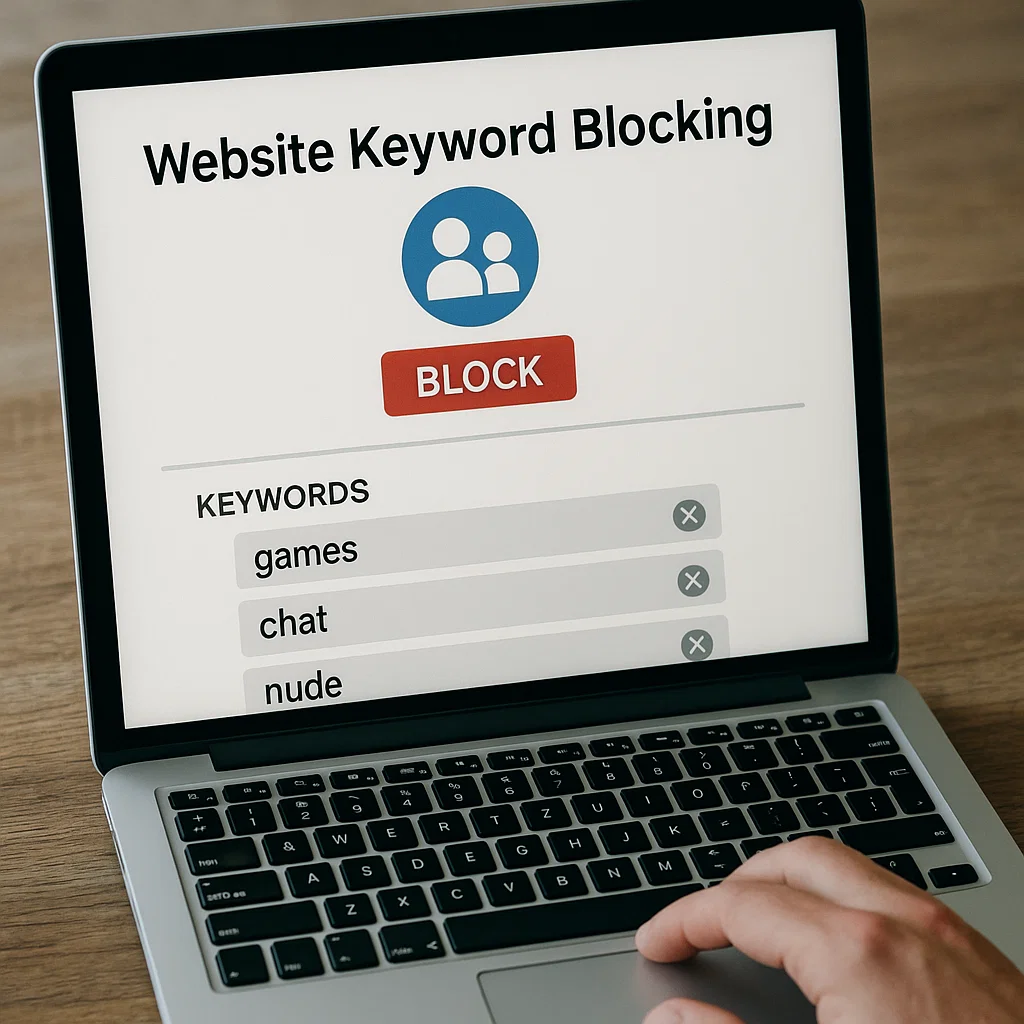
After a decade of helping families navigate digital parenting, I can tell you that this is a common experience. Standard website blockers are a good first step, but they operate like a coarse sieve—they catch the big rocks but let through the smaller, equally dangerous gravel. The most effective strategy I have consistently recommended is mastering website keyword blocking for parents. This guide will demystify this powerful tool, providing you with a clear, actionable plan to create a truly secure online environment for your child.
Understanding the "Why": The Critical Limits of Basic Website Blocking
Most parental control software includes a feature to block entire websites. You can add facebook.com or roblox.com to a blacklist, and access is denied. This is useful for managing screen time on specific platforms. However, this method has two major flaws:
It's Reactive: You can only block a site after you know about it. With millions of new websites created daily, you are always playing catch-up.
It's Impractical for Search Engines: You can't block google.com or bing.com—your child needs them for school. But these are the very gateways to the entire internet, good and bad.
Website keyword blocking for parents solves this problem. Instead of blocking entire sites, you block the specific words and phrases associated with harmful content. When your child types one of these blocked keywords into a search engine or a browser's address bar, the search results or website is prevented from loading. This transforms your parental controls from a static wall into an intelligent, proactive filter.
How Website Keyword Blocking Actually Works
Think of it as a highly sensitive security checkpoint for every single search query and URL. When your child initiates an online action, the parental control software intercepts the request and scans it for your predefined list of banned terms. If a match is found, the connection is blocked, and a notification is often shown to the child explaining that the content is restricted.
This process happens in milliseconds and is incredibly effective at filtering content across:
Search Engines: (Google, Bing, YouTube)
Website URLs: Blocking sites that contain the keyword in their web address.
In-App Browsers: Many games and social media apps have built-in browsers that can also be filtered.
Building Your First Line of Defense: A Foundational Keyword List
The effectiveness of website keyword blocking for parents hinges on the quality of your keyword list. A good list is organized, comprehensive, and updated regularly. Here is a foundational list to get you started, categorized for clarity.
Category 1: Explicit Adult Content
Core Terms: porn, xxx, adult, sex, nude, naked, erotic, hentai, porno
Slang & Platforms: onlyfans, patreon (for adult creators), snapchat nudes, "nsfw"
Actions & Profanity: hookup, one night stand, fuck, shag
Category 2: Violence, Weapons, and Gore
Weapons: gun, rifle, pistol, ammunition, bomb making
Extreme Violence: gore, murder, kill, torture, massacre, terrorist, execution
Graphic Content: beheading, snuff, crime scene
Category 3: Drugs, Alcohol, and Vaping
Substances: weed, marijuana, cocaine, meth, heroin, LSD, ecstasy, xanax, vape, vaping
Actions: how to get high, how to roll a joint, binge drinking, get drunk
Category 4: Self-Harm and Dangerous Behaviors
Self-Harm: suicide, suicidal, cut myself, self harm, how to kill yourself
Eating Disorders: anorexia, bulimia, pro ana, thinspiration, "thinspo"
Pro Tip: Always include common misspellings and number-for-letter substitutions (e.g., "p0rn", "s3x") in your list, as children often use these to bypass simple filters.
Implementing Your Strategy: A Step-by-Step Plan
Creating the list is only the first step. Proper implementation is what makes it work.
Choose the Right Tool: Select a parental control app that offers robust, customizable keyword blocking (we'll review top options next).
Start with Core Categories: Begin by implementing keywords from the adult content and violence categories. These present the most immediate risks.
Be Age-Appropriate: Tailor your list to your child's age. A list for a 9-year-old will be much broader than one for a mature 15-year-old.
Review and Refine: Periodically check the blocked activity logs in your parental control app. This will show you what keywords were triggered, allowing you to add new terms you hadn't considered.
Communicate with Your Child: For older children and teens, explain what you are doing and why. Frame it as a safety measure, not a punishment. This builds trust and understanding.
Beyond Keywords: The Role of Comprehensive Monitoring
While powerful, website keyword blocking for parents is not a silver bullet. Savvy teens may find new slang, and some harmful interactions happen in private messages, not public searches. Therefore, your digital safety strategy should be multi-layered. The most effective approach combines proactive keyword blocking with comprehensive monitoring that gives you insight into your child's actual digital activity.
Top Tools for Advanced Website Keyword Blocking and Monitoring
Here are three leading parental control applications that provide excellent keyword filtering features, along with the deep monitoring needed for complete oversight.
mSpy: For Unmatched Social Media and Communication Insight
mSpy is a powerhouse for parents who need deep visibility into their child's digital social life.

While it offers strong keyword and website blocking, its true strength is monitoring social media and messaging apps like Instagram, Snapchat, and WhatsApp. You can see sent and received messages, even deleted ones. This provides crucial context, revealing risks like cyberbullying or contact with predators that a simple keyword block might miss.
TRY NOW
Parentaler: User-Friendly Monitoring with Essential Filters
Parentaler offers a balanced and intuitive approach to digital safety. It includes powerful and easy-to-configure keyword filtering for web content and searches.
Beyond this, it provides essential features like screen time management, app blocking, and reliable location tracking with geofencing alerts. It’s an excellent all-in-one choice for parents who want comprehensive oversight without a steep learning curve.
BUY NOW
Eyezy: The All-in-One Family Safety Powerhouse
Eyezy consolidates nearly every monitoring tool a parent could need. Its keyword blocking is part of a vast suite of features, including monitoring for 30+ social and messaging apps, tracking full browsing history, and even a keylogger that records every keystroke made on the device.

This makes it the ultimate tool for maximum visibility, acting as a final safety net that captures risky behavior even if a new keyword slips past your primary filter.
TRY NOW
Maintaining a Balanced and Trusting Relationship
Technology is a powerful aide, but it works best within a framework of open communication. Use these tools to start conversations, not to spy.
Create a Family Media Agreement: Establish clear, agreed-upon rules for internet use.
Be a Safe Resource: Promise your child that they can come to you with any problem they find online without fear of punishment.
Use Insights for Guidance: If you see your child repeatedly searching for a blocked term about mental health, use it as an opportunity to start a supportive conversation, not just to enforce a rule.
Conclusion
The internet is an incredible resource for learning and connection, but it requires us to be proactive guardians. By mastering website keyword blocking for parents, you move from a reactive position of fear to a proactive stance of confidence. You are no longer just hoping your child stays safe; you are actively building the digital walls that protect them.
Combine this powerful technique with the deep monitoring capabilities of a tool like mSpy, Parentaler, or Eyezy, and you will have a comprehensive safety strategy that grows with your child. Don't wait for a negative experience to take action. Empower yourself today to create a safer, healthier online world for your family.
Frequently Asked Questions (FAQs)
1. Will keyword blocking prevent my child from doing legitimate school research?
It can, and this is a key consideration. Blocking "suicide" might block a research paper on mental health awareness. The best practice is to use keyword blocking in conjunction with "Allowed Websites." You can block the keyword generally but whitelist specific, trusted sites like suicidepreventionlifeline.org or academic databases.
2. How is keyword blocking different from just using "Safe Search"?
"Safe Search" (on Google, Bing, etc.) is a good first step, but it is not foolproof and can be easily turned off by a tech-savvy child. Keyword blocking through a parental control app is enforced at the device or network level, cannot be easily disabled by the child, and is customized with your own list of concerns.
3. How often should I update my blocked keyword list?
You should aim to review and update your list every three to four months. The most effective way to find new terms is by checking the activity logs in your parental control app to see what new words your child is encountering or searching for.


