The scene is a common one in households across the country: a child sits with their iPad open, a math worksheet half-finished, while their fingers subtly swipe to a game or their eyes flick toward a YouTube notification. For parents, it’s a source of immense frustration. You’ve provided a powerful learning tool, but it has become a portal to endless distraction. As an educational technology consultant with ten years of experience working with families and schools, I have seen this struggle firsthand. The good news is that it is a solvable problem.

Learning how to limit iPad usage for homework focus is not about taking away technology; it’s about shaping the digital environment to serve your child’s academic success. The iPad is a fantastic educational resource, but its very design—with instant access to games, social media, and videos—works against the deep concentration required for effective learning. This guide will provide you with a clear, actionable plan. We will explore practical household strategies, master the iPad’s built-in controls, and examine powerful third-party applications that can automate the process. My goal is to give you the tools and confidence to transform the iPad from a source of conflict into a focused learning aid.
Why the iPad is a Double-Edged Sword for Learning
To solve the problem, we must first understand it. The iPad’s capacity for distraction isn't a personal failing in your child; it's a result of how our brains work. Notifications, bright colors, and the promise of new content trigger dopamine releases, making the device inherently compelling. Research from the American Psychological Association shows that even the mere presence of a smartphone can reduce cognitive capacity. When that device is the same one used for homework, the challenge is magnified. Unmanaged iPad use during study time leads to:
Increased Time on Task: What should take 30 minutes stretches into hours due to constant task-switching.
Poorer Information Retention: Divided attention prevents information from moving from short-term to long-term memory.
Heightened Frustcation: For both parent and child, homework becomes a daily battle of wills.
Undermined Academic Confidence: When work takes too long or feels too hard due to distraction, a child's belief in their own ability suffers.
Understanding how to limit iPad usage for homework focus is therefore essential for protecting both your child's grades and their overall attitude toward learning.
Start with the Environment: Non-Technical Strategies
Before you touch a single setting on the iPad, establish a foundation of good habits. Technology is a tool, not a substitute for structure.
Create a Dedicated Homework Zone: Establish a specific, screen-free area for homework, like the kitchen table. The rule is simple: when it's homework time, the iPad is used for work and nothing else.
Implement the "Homework First" Rule: Make recreational screen time (games, social media, videos) a reward that comes after homework is completed and checked. This provides a clear and motivating incentive.
Use a Physical Timer: Techniques like the Pomodoro Method—25 minutes of focused work followed by a 5-minute break—are highly effective. A physical timer prevents the child from needing to check the iPad clock, which is a common distraction gateway.
Model Good Behavior: Let your child see you engaging in focused, screen-free work or reading. Your example is a powerful teacher.
These strategies create a culture of focus in your home, making the technical controls we'll discuss next much more effective.
Your First and Free Tool: Mastering iPad's Built-In Screen Time
Every iPad comes with a powerful, free parental control system called Screen Time. It should be your first line of defense. When configured correctly, it is remarkably effective for helping you limit iPad usage for homework focus.
Key Features for Homework Focus:
Downtime: This is not just for bedtime. You can schedule a "Homework Downtime" block—for example, from 4 PM to 6 PM on weekdays. During this period, only apps and functions you explicitly allow will be available.
App Limits: This is your most precise tool. You can set a daily time limit for entire categories of apps, like "Games" and "Social Networking," or for specific apps like YouTube or Roblox. Once the time is up, the apps are paused for the day.
Always Allowed: This is the crucial companion to Downtime. Here, you can whitelist the essential apps for homework, such as your school's learning portal (Google Classroom, Canvas), a word processor, a calculator, and a research browser like Safari. During Downtime, only these apps will be accessible.
Setup Walkthrough:
Go to Settings > Screen Time on your child's iPad.
Tap "Turn On Screen Time" and select "This is My Child's iPad."
Set a passcode that only you know. This is vital to prevent your child from changing the settings.
Go to "Downtime" and set your homework schedule.
Go to "Always Allowed" and select only the essential educational apps.
Go to "App Limits" to set time limits for distracting app categories.
This system creates a "walled garden" during homework hours, allowing access only to what is necessary.
When You Need a Stronger Solution: Dedicated Parental Control Apps
While Apple's Screen Time is excellent, it has limitations. A determined child can find workarounds, and the controls don't offer much insight into what your child is actually doing on their device. For parents who need more robust control and deeper oversight, dedicated parental control apps are the answer. These tools are specifically designed to help you limit iPad usage for homework focus with greater authority.
mSpy: For Comprehensive Monitoring and Control
mSpy is a feature-rich solution that provides detailed insight into your child's device activity alongside powerful blocking features.

App Blocking: Remotely block any game or social media app instantly, at any time, directly from your parent dashboard.
Website Filtering: Block access to distracting websites, not just in Safari but in other browsers as well.
Screen Time Scheduling: Create highly specific schedules for when the iPad can be used for entertainment versus for schoolwork.
Keylogger & Usage Reports: See what your child is typing and which apps they are using most, giving you context for their habits.
mSpy is ideal if you suspect your child is consistently circumventing rules and you need a high level of detail and control.
Spynger: User-Friendly Focus and Scheduling
Spynger offers a clean, intuitive interface that makes managing your child's iPad straightforward and less overwhelming.
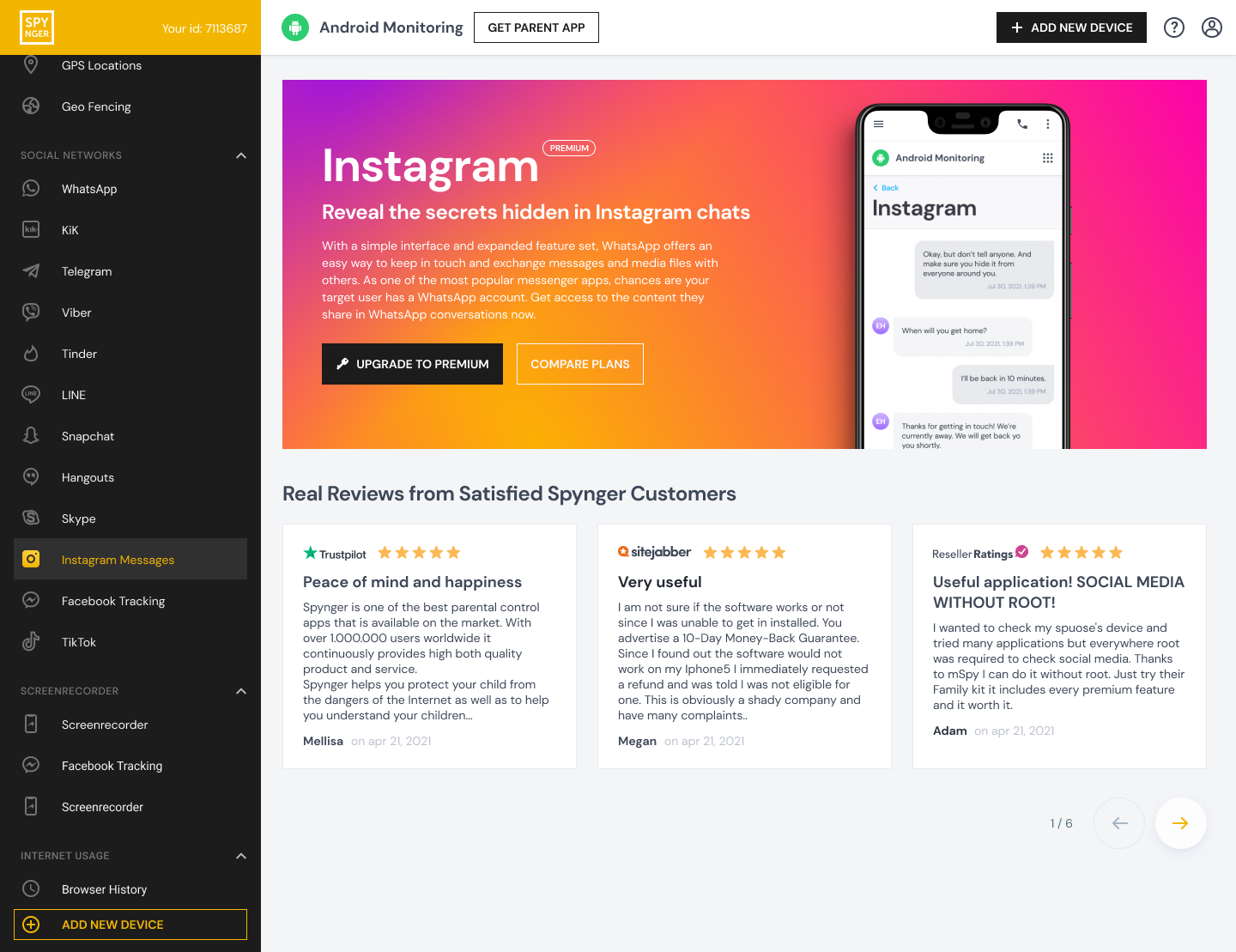
App Blocker: Easily block distracting applications with a single tap.
Screen Time Scheduler: Set clear "focus sessions" that automatically lock entertainment apps during homework hours.
Instant Pause: Remotely lock the iPad or specific apps immediately if you see your child is off-task.
Web History Access: Review your child's browsing history to ensure they are using the internet for research and not for play.
Spynger is a great choice for parents who want powerful functionality without a complex setup process.
Scannero: Location Safety with Usage Management
While known for its strong location-tracking features, Scannero also provides essential tools for managing iPad usage.
App Blocking: Add specific distracting apps to a block list to prevent their use.
Website Blocker: Manually block access to specific distracting websites.
Real-Time Location Tracking: Know your child's whereabouts, providing an added layer of physical safety.
Geofencing: Receive alerts when your child arrives at or leaves a specific location, like school or home.
Scannero is an excellent option for parents who want to combine screen time management with peace of mind about their child's physical location.
Creating a Sustainable Homework Routine
Technology can enforce boundaries, but lasting change comes from routine. Combine your chosen technical tools with a consistent daily structure. Start homework at the same time each day, in the same distraction-free place. Use a physical timer for focus sessions. Most importantly, after homework is complete, ensure there is time for unstructured play and relaxation—both on and off the screen. This balance shows your child that the goal is not to eliminate fun, but to make space for both work and play.
Conclusion
The battle over the iPad during homework doesn't have to be your new normal. You have the power to reshape your child's digital environment. You now possess a clear strategy: establish ground rules, master the free tools in Screen Time, and if necessary, upgrade to a dedicated app like mSpy, Spynger, or Scannero to secure that focus.
Don't let another afternoon be lost to distraction and frustration. Choose one method from this guide and implement it today. You can transform homework from a daily struggle into an opportunity for your child to build concentration, independence, and academic confidence.
Frequently Asked Questions (FAQs)
1. My child needs specific websites for research, but I want to block others. How can I do this?
Both Apple's Screen Time and third-party apps offer solutions. In Screen Time, you can use the "Always Allowed" feature to whitelist specific educational websites. In apps like mSpy and Spynger, you can use website filtering to block entire categories (like "Games") while still allowing general browsing or manually whitelisting necessary sites.
2. Can my child disable these controls?
Apple's Screen Time can be disabled if your child knows or can guess your passcode. This is why a secure, unique passcode is critical. Dedicated parental control apps like mSpy and Spynger are designed to be more tamper-resistant. They often run in a stealth mode and will send an alert to your phone if the service is disrupted or uninstalled.
3. Will these methods also work on an iPhone?
Yes, absolutely. The strategies and tools discussed are nearly identical for both iPad and iPhone. Apple's Screen Time works across iOS and iPadOS, and the third-party parental control apps are designed to function on all Apple mobile devices, giving you consistent management across your child's Apple ecosystem.


