It’s a scene playing out in living rooms everywhere: a child, hunched over a tablet, utterly absorbed in a digital world. As a child safety consultant with over a decade of experience, I’ve seen the anxiety this can cause parents. You want to provide the benefits of technology—the educational apps, the creative tools—without exposing them to the internet's bottomless pit of risks. The central question has shifted from "Should I give my child a tablet?" to "How can I make it safe?"
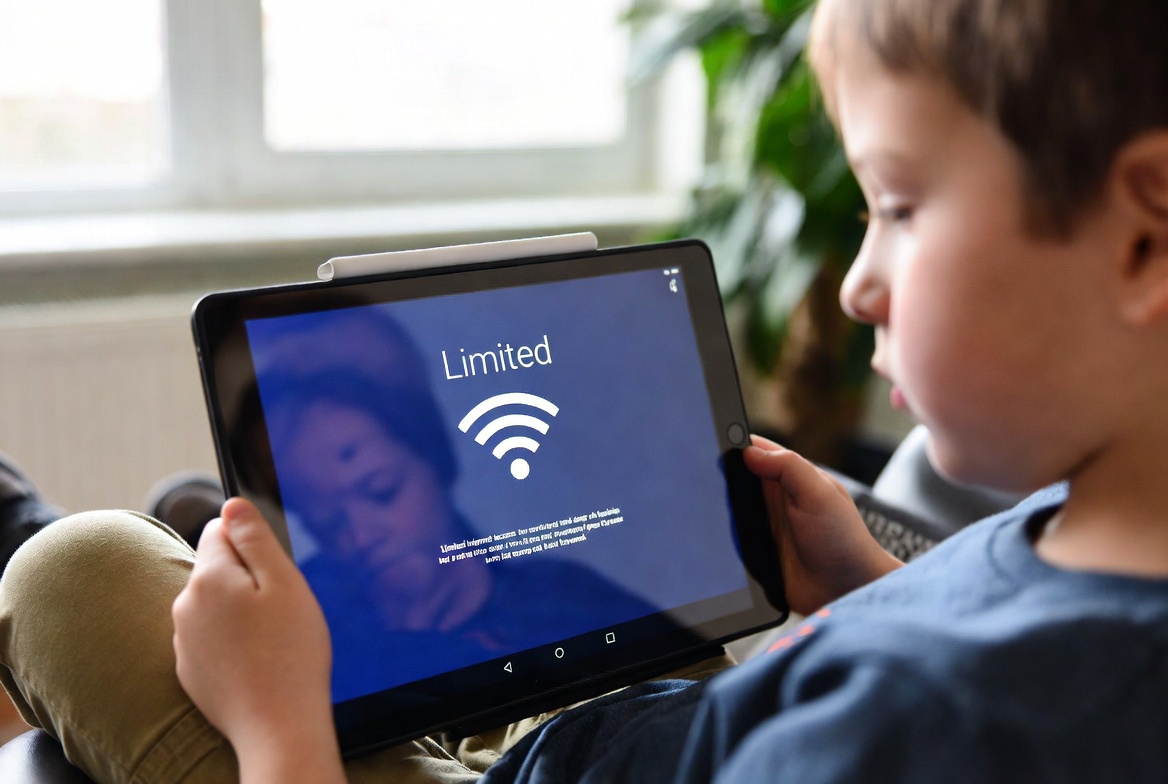
The good news is that you have more power than you think. Learning how to limit internet access on a child's tablet is not about building a digital prison; it's about creating a safe, gated garden where they can learn and play. This comprehensive guide will walk you through every step, from using the free tools already on your device to selecting powerful third-party apps that offer granular control. My goal is to equip you with a clear, actionable plan to manage your child's screen time, filter out harmful content, and finally achieve peace of mind.
Why Simply "Supervising" Isn't Enough: The Need for Proactive Controls
Many parents believe that keeping the tablet in a common room and glancing over occasionally is sufficient. However, the nature of online risks makes this strategy unreliable. Inappropriate ads can pop up on even the most benign gaming sites. YouTube's algorithm can quickly lead a child from a cartoon to a disturbing video. Social pressure can lead them to download apps with hidden chat features.
Proactive controls are essential because they:
Prevent Accidental Exposure: Filters block harmful content before a child ever sees it.
Establish Healthy Boundaries: Time limits teach self-regulation and prevent excessive use.
Reduce Parental Burnout: Constant, direct supervision is exhausting. Automated controls provide a consistent safety net, giving you a much-needed break.
Your First Line of Defense: Built-in Parental Controls
Before investing in any software, you should master the free tools built into your device's operating system. Both Apple and Google have made significant strides in their native features.
For Apple iPads (iOS Screen Time):
Downtime: This allows you to set a schedule for time away from the screen. Only apps you explicitly approve and phone calls will be available during this period.
App Limits: You can set daily time limits for specific app categories, like Games or Social Networking. The child can request more time, but you have to approve it.
Content & Privacy Restrictions: This is where you can limit internet access on a child's tablet most directly. You can restrict explicit content, prevent web downloads, and, most importantly, limit adult websites. You can also choose to only allow access to a specific list of websites you approve.
For Android/Amazon Tablets (Google Family Link & Parental Controls):
Google Family Link: This is the cornerstone for Android devices. It allows you to set daily screen time limits, see which apps your child uses most, and approve or block apps they want to download from the Play Store.
Bedtime Schedules: You can remotely lock the device during set hours, like bedtime or homework time.
Content Filters: You can filter apps and games by maturity rating in the Play Store and manage the sites they can visit on Chrome.
When to Level Up: The Role of Dedicated Monitoring Apps
Built-in controls are a fantastic start, but they have limitations. They often can't monitor activity within apps like YouTube, TikTok, or messaging platforms. This is where a dedicated third-party parental control app becomes invaluable. These apps offer a deeper layer of oversight and control, giving you a true window into your child's digital life.
mSpy: Granular Control for the Security-Conscious Parent
mSpy is a well-established name in the monitoring space, known for its extensive feature set that goes far beyond simple internet filtering.

Key Features for Tablet Safety:
Website and App Blocking: Instantly block access to specific websites or entire categories (like social media or gambling sites). You can also block any application you don't want your child to use.
Keyword Alerts: Set up alerts for specific words or phrases. If your child types or receives a message containing that word (e.g., "bullying," "depression," or a swear word), you get an immediate notification.
Social Media Monitoring: This is mSpy's strength. It lets you see direct messages, shared photos, and comments on platforms like Instagram, Snapchat, and Facebook, even if the built-in browser filters miss them.
Scheduled Screen Blocking: Remotely lock the tablet according to a custom schedule, ensuring it's unavailable during school hours or after lights-out.
Best For: Parents who need comprehensive insight and control, especially concerning social media and private messaging on the tablet.
Eyezy: User-Friendly Oversight with Unique Insights
Eyezy takes a slightly different approach, focusing on a clean, intuitive interface and features that are easy to set up but powerful in their execution.

Key Features for Tablet Safety:
Screen Time Scheduler: A simple, visual tool to plan exactly when the tablet can and cannot be used throughout the week.
App Blocker & Website Filtering: Easily block distracting or dangerous apps and websites with a few clicks.
Social Spotlight: This feature consolidates your child's activity from various social media and messaging apps into one easy-to-read feed, so you don't have to jump between platforms.
Invisible Shield: Runs completely in the background without any visible icon on the tablet, preventing your child from tampering with the settings.
Best For: Parents who want a powerful but straightforward solution without a steep learning curve. Its focus on clarity and ease of use is a major advantage.
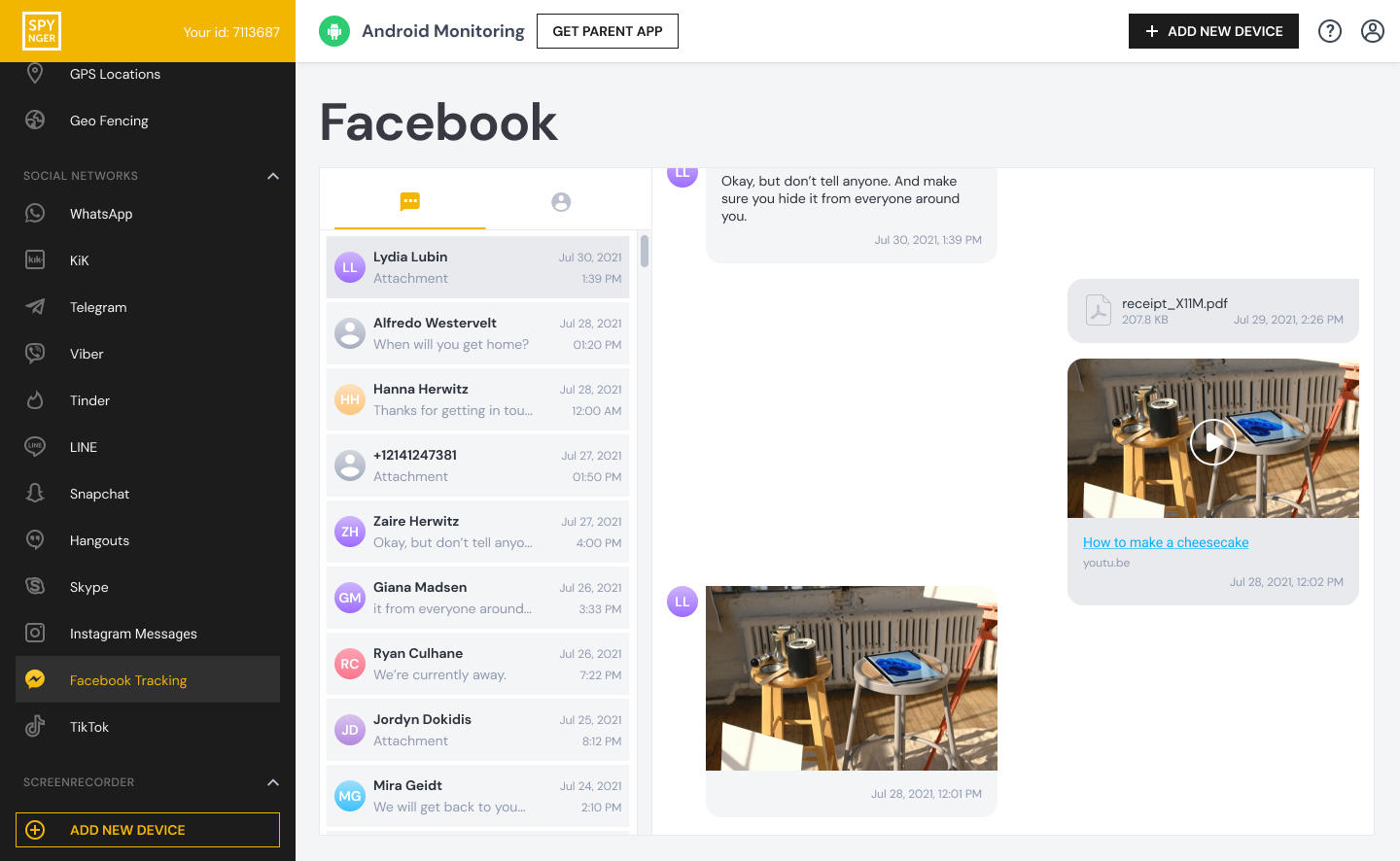
Spynger: Comprehensive Monitoring with Remote Control
Spynger offers a robust suite of tools that rivals more expensive options, making it a strong contender for parents who want extensive oversight.
Key Features for Tablet Safety:
Full Internet History Tracking: See every single website your child has visited on the tablet, even if they tried to delete their browsing history.
Application Usage Reports: Get detailed reports on how much time is spent in each app, helping you identify distractions.
Remote Control: A standout feature. If you need to, you can remotely lock the tablet or even wipe its data if it's lost or stolen.
Geofencing: While primarily a location feature, this is useful for ensuring the tablet (and your child) stays within a defined area, like your home or school.
Best For: Parents looking for a feature-rich, all-in-one solution that provides detailed reports and remote management capabilities.
Beyond the Technology: The Human Element of Digital Parenting
Technology is a powerful tool, but it is not a substitute for parenting. The most effective strategy combines robust controls with open communication.
Have "The Talk": Explain to your child why you are setting these limits. Frame it as a matter of safety, not punishment.
Create a Family Media Plan: Establish clear rules about when and where the tablet can be used. For example, "No tablets at the dinner table" or "All devices charge in the kitchen overnight."
Lead by Example: Model the behavior you want to see. Put your own phone away during family time and demonstrate healthy digital habits.
Conclusion
Navigating your child's digital world can feel overwhelming, but you don't have to do it alone or without resources. You now have a clear roadmap: start with the built-in parental controls on your tablet to establish a basic safety net, and then, if you need deeper insight and control, consider a dedicated app like mSpy, Eyezy, or Spynger to fill the gaps.
The goal is not to raise a child who is afraid of the internet, but one who knows how to use it wisely and safely. By taking these proactive steps today, you are not just limiting screen time; you are fostering a healthy, balanced relationship with technology that will serve your child for a lifetime. Choose the method that fits your family's needs and start creating a safer digital environment for your child.
Frequently Asked Questions (FAQs)
1. Can I limit internet access on a tablet without my child knowing?
While most parental control apps can run in stealth mode, it is generally better for your long-term relationship to be open about the rules. Explain that monitoring is a safety precaution, not a sign of mistrust. For young children, this conversation can be simple; for teenagers, it should be a more detailed discussion about digital citizenship and safety.
2. What's the difference between using built-in controls and a third-party app?
Built-in controls (like iOS Screen Time) are great for setting basic time limits and content filters directly on the device. A third-party app typically offers more granular control, such as monitoring specific social media conversations, tracking keystrokes, receiving alerts for specific activities, and managing the device remotely from your own phone.
3. Will these methods work on a school-issued tablet?
Typically, no. School-issued tablets are managed by the school's IT department and often have their own security profiles that prevent the installation of third-party apps or changes to system settings. For these devices, you should work with the school to understand their safety protocols and discuss any concerns you have.


