The scene is a modern-day battleground in homes worldwide: the nightly struggle to pry a tablet, phone, or gaming controller from your child's hands. As a child development specialist with over ten years of experience working with families, I've seen the frustration and guilt this causes. You're not a bad parent for wanting a break, and your child isn't inherently addicted. The real issue is that the digital world is designed to be endlessly engaging, and without clear boundaries, it's a challenge for any young mind to self-regulate.
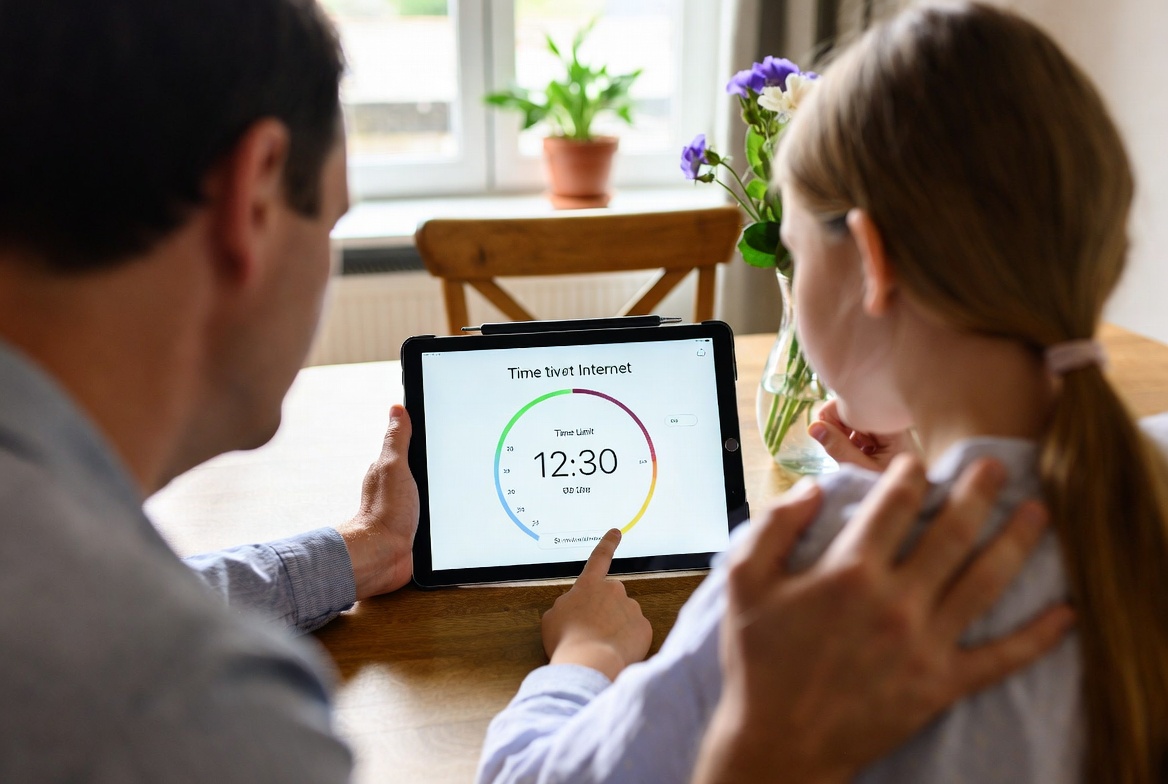
The solution isn't to declare a digital cold war, but to become a proactive digital parent. Learning how to set internet time limits for kids is one of the most effective and compassionate things you can do. It’s not about punishment; it's about teaching healthy habits, ensuring a balanced life, and protecting their sleep and social development. This guide will provide you with a clear, step-by-step plan. We will explore the free tools on your devices, evaluate powerful third-party apps, and discuss the crucial conversations that make these technical solutions truly work. My goal is to give you back a sense of control and help your family build a healthier relationship with technology.
Why "Just One More Minute" Doesn't Work: The Science Behind Limits
Before we get to the "how," it's important to understand the "why." Children's brains are still developing executive functions like impulse control and time management. When they are immersed in a game or video, they genuinely struggle to pull away. The constant dopamine hits from digital entertainment make it difficult for less stimulating activities—like homework or reading—to compete.
Establishing clear time limits provides the external structure their brains haven't yet built internally. Studies have consistently linked excessive screen time to:
Disrupted Sleep: The blue light from screens can suppress melatonin, the hormone needed for restful sleep.
Reduced Physical Activity: Time spent on devices is often time not spent playing outside or engaging in sports.
Attention Difficulties: The rapid pace of digital media can make sustained focus on slower-paced tasks more challenging.
By setting boundaries, you are not being restrictive; you are creating the space necessary for other critical parts of childhood to flourish.
Your First Step: Mastering Built-In Device Controls
The easiest and most cost-effective place to start is with the parental controls already built into your devices. Both major operating systems have made significant strides in this area.
For Apple Devices (iOS & iPadOS): Screen Time
Apple's Screen Time is a powerful and intuitive tool. To activate it, go to Settings > Screen Time. You can set it up for your child's device or use Family Sharing to manage it from your own iPhone.
Downtime: This is your most powerful tool to set internet time limits for kids. It allows you to schedule a block of time where only apps you choose to approve (like the Phone app) and specific websites are available. This is perfect for bedtime and homework hours.
App Limits: You can set daily time allowances for specific app categories, such as "Social Networking" or "Games." When the time is up, the apps are blocked until the next day. Your child can request more time, but you have to approve it.
Communication Limits: You can manage who your child can communicate with throughout the day and during Downtime.
For Android Devices & Google Family Link
Google's Family Link app is the cornerstone for managing Android devices and Chromebooks. After installing the app on your phone and your child's device, you gain extensive control.
Set Daily Limits: You can impose a hard time limit for the entire device. Once the time is up, the tablet or phone will lock.
Bedtime Schedule: This feature allows you to remotely lock the device during set hours, ensuring it's not a distraction when they should be sleeping or focusing on family time.
Time Limits for Specific Apps: Go beyond overall limits. You can allow an educational app for longer while restricting a game to 30 minutes a day.
When You Need More Granular Control: Introducing Parental Control Apps
While built-in tools are excellent for basic time management, they have limitations. They often can't monitor activity within apps like YouTube or Roblox, and their controls can sometimes be bypassed by a determined child. This is where dedicated parental control apps offer a significant advantage, providing a deeper layer of oversight and more flexible scheduling.
mSpy: For Comprehensive Oversight and Scheduling
mSpy is known for its extensive monitoring features, but its time management tools are equally robust, making it a strong choice for parents who want total visibility.

Key Features for Time Management:
App Blocking: Instantly block any application you don't want your child to use, at any time. This is useful for removing distractions during school hours.
Schedule Blocking: Create a custom schedule for when the entire device can and cannot be used. You can set different rules for weekdays and weekends.
Detailed Activity Reports: See exactly how much time is spent in each app, helping you make informed decisions about which limits to set.
Keyword Alerts: While not a time-limit feature, this adds a layer of safety by alerting you if your child types or receives specific concerning words.
Best For: Parents who want a powerful, all-in-one solution that combines strict time scheduling with extensive monitoring of social media and messages.
Eyezy: User-Friendly Management with Unique Insights
Eyezy focuses on providing powerful features through a clean, intuitive interface that is easy for any parent to navigate.

Key Features for Time Management:
Screen Time Scheduler: A simple, visual tool that lets you plan your child's available screen time for each day of the week in a clear, calendar-like view.
App Blocker: Easily block distracting apps with a single click, either permanently or on a schedule.
Magic Alerts: Get notified based on your child's activity, such as if they start using a specific app outside of allowed hours.
Invisible Shield: Runs in complete stealth mode on the target device, preventing your child from disabling the controls you've set.
Best For: Parents who want an effective and straightforward tool to set internet time limits for kids without a complicated setup process.
Parentaler: Straightforward Time and Content Control
Parentaler is designed specifically for parents who want clear, effective controls for their children's digital lives, with a strong emphasis on time and content filtering.

Key Features for Time Management:
Screen Time Control: Set clear daily time limits for the device's overall use.
App Usage Control: Monitor and limit time spent on individual applications.
Web Filtering: Block inappropriate websites and manage your child's browsing activity, which complements time limits by ensuring their online time is spent safely.
Location Tracking & Geofencing: While a safety feature, geofencing can be used to trigger alerts if a device leaves a designated area, like home during homework time.
Best For: Parents looking for a dedicated parental control app that focuses squarely on the essentials: time limits, app blocking, and web filtering.
The Human Connection: Strategies That Make Limits Stick
Technology can enforce rules, but it can't teach values. The most successful digital parenting strategies combine tools with conversation.
Collaborate on the Rules: Involve your child in the process. Ask them how much time they think is fair for different activities. When they have a voice, they are more likely to cooperate.
Create "Screen-Free" Zones and Times: Establish family rules, such as no devices at the dinner table or all devices charging in a common room overnight.
Offer Alternatives: Boredom is often a trigger for screen use. Encourage other activities by having books, board games, art supplies, and outdoor equipment readily available.
Model Good Behavior: Put your own phone away during family time. Show your children that you can also enjoy offline activities.
Conclusion
Setting internet time limits for your kids is an ongoing process, not a one-time fix. It requires a blend of the right technology and consistent, compassionate communication. Start with the built-in controls on your devices to establish a basic framework. If you find you need more precise control or deeper insight, a dedicated app like mSpy, Eyezy, or Parentaler can provide the additional support you need.
Remember, the ultimate goal is to raise children who are not only safe online but also capable of managing their own time and choices in the future. By taking these proactive steps today, you are not just limiting screens; you are teaching invaluable life skills. Choose the approach that fits your family's values, start the conversation, and take back the peace in your home.
Frequently Asked Questions (FAQs)
1. What is a reasonable amount of screen time for my child?
The American Academy of Pediatrics recommends consistent limits for children ages 6 and older, but avoids a one-size-fits-all number. The key is ensuring screen time doesn't replace sleep, physical activity, and other healthy behaviors. For younger children (2-5), they recommend limiting non-educational screen time to one hour per day. Focus on the quality of content and the balance of activities in your child's day, not just the clock.
2. My child keeps bypassing the time limits. What can I do?
If your child is tech-savvy, built-in controls may not be enough. This is when a dedicated app like mSpy or Eyezy, which runs in stealth mode and is harder to disable, becomes essential. Simultaneously, have a calm conversation about why the rules are in place. Consistency between your technical enforcement and your family values is crucial.
3. Should I be strict about time limits on weekends and holidays?
It's wise to have a different, more flexible schedule for weekends and breaks. The goal is balance, not deprivation. You might allow more time for entertainment, but still maintain important boundaries like device-free meals and a consistent bedtime. Use the scheduling features in your parental control app to automatically switch between weekday and weekend routines.


