The scene is a modern-day universal for parents: the whine, the negotiation, the outright meltdown when it’s time to put the tablet away. If you’re tired of the daily struggle over devices, you are far from alone. As a child development specialist and digital wellness coach with over ten years of experience working with families, I have witnessed this exact challenge evolve. The question has shifted from if children will use screens to how we can manage that use in a healthy, constructive way.
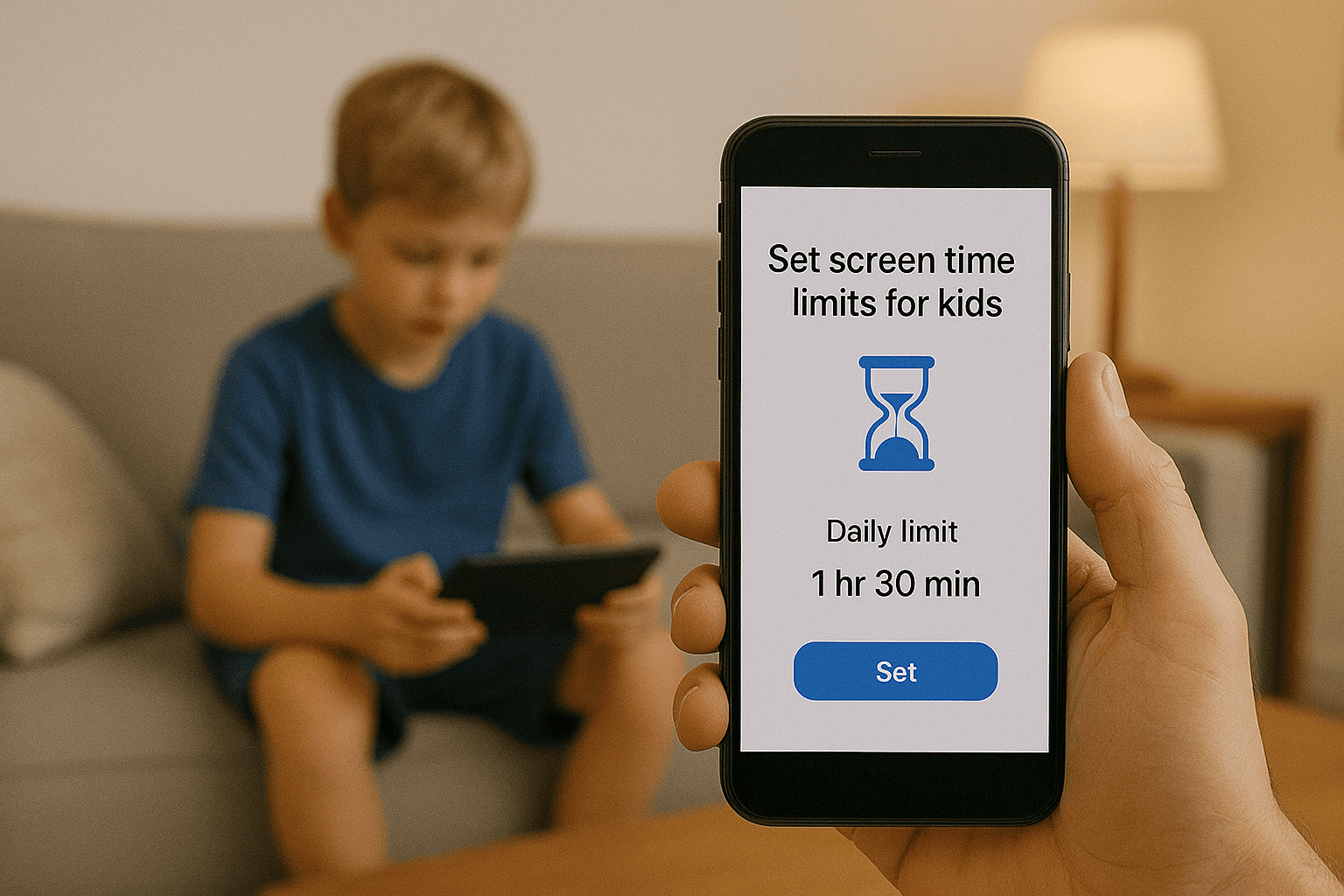
The answer lies not in elimination, but in smart, consistent boundaries. Learning how to set screen time limits for kids is one of the most crucial digital parenting skills you can develop. It’s not about declaring war on technology; it’s about teaching balance and ensuring that screens serve your family, not the other way around. This comprehensive guide will provide you with a practical, step-by-step plan. We will move beyond theory and into actionable strategies, exploring everything from foundational family agreements to the powerful technological tools that can enforce them. My goal is to equip you with the confidence and knowledge to create a peaceful, balanced digital environment in your home.
Why Setting Screen Time Limits is Essential, Not Just Optional
Before we dive into the "how," it's important to solidify the "why." The American Academy of Pediatrics (AAP) has long emphasized the importance of consistent limits on screen use. This isn't just about preventing eye strain or procrastinating on homework. Unmanaged screen time is linked to:
Sleep Disruption: The blue light from screens inhibits melatonin production, directly impacting the quality and duration of a child's sleep.
Reduced Physical Activity: Time spent on devices is often sedentary, displacing time for active play crucial for physical health.
Attention and Behavioral Issues: Studies have correlated excessive, unstructured screen time with shorter attention spans and increased impulsivity.
Mental Health Concerns: The curated, often unrealistic world of social media and the dopamine-driven feedback loops of games can contribute to anxiety and lower self-esteem in young people.
Understanding how to set screen time limits for kids is a proactive measure to protect their physical, mental, and emotional well-being. It’s a foundational part of parenting in the 21st century.
Laying the Groundwork: The Family Media Plan
Technology is a powerful tool, but it should never replace conversation. Before you touch a single setting on a phone or tablet, the first and most important step is to create a Family Media Plan. This is a collaborative agreement that sets expectations for everyone in the household.
Involve Your Kids: Depending on their age, include them in the conversation. Ask them how they feel when they use screens and what they think is a fair amount of time. This fosters buy-in rather than resentment.
Define Screen-Free Zones and Times: Establish key areas and times where screens are not allowed. Common examples include the dinner table, bedrooms, and the hour before bedtime.
Prioritize "First Things First": Make it a non-negotiable rule that homework, chores, and physical activity must be completed before any recreational screen time begins.
Discuss Content Quality: Not all screen time is equal. An hour of an educational app is different from an hour of mindless scrolling. Talk about the value of creative, interactive, or educational content.
This plan is your family's constitution. The technological tools we discuss next are simply the enforcement mechanisms for the rules you have already agreed upon together.
Your First Tool: Built-in Operating System Controls
Every modern smartphone and tablet comes with powerful, free parental controls. These should be your first line of technical defense, as they are integrated directly into the device.
For Apple Devices: Screen Time
Apple’s Screen Time feature is a robust system for managing iOS and macOS devices.
Downtime: This function allows you to schedule a block of time where only phone calls and apps you specifically allow will be available. This is perfect for setting a daily "digital sunset" for bedtime.
App Limits: This is the core tool for daily limits. You can set a daily time allowance for entire categories of apps (like "Social Networking" or "Games") or for individual apps. Once the time is up, the app is paused for the day.
Communication Limits: You can manage who your child can communicate with during Downtime and throughout the day.
Setup: Go to Settings > Screen Time. You can configure it directly on your child's device or manage it remotely through Family Sharing on your own iPhone.
For Android Devices: Google Family Link
Google Family Link provides similar, comprehensive control for Android devices and Chromebooks.
Daily Limit: Set a hard stop for total device use each day. When the time is up, the device will lock.
Bedtime Schedule: Lock the device entirely during set hours to ensure uninterrupted sleep.
App Time Limits: Set specific time limits for individual apps. You can also approve or block app downloads from the Google Play Store directly from your parent device.
Setup: Download the "Google Family Link" app on both your phone and your child's phone. Follow the in-app instructions to link the accounts and configure your settings.
When to Upgrade to a Dedicated Parental Control App
While built-in controls are excellent, they have limitations I've consistently observed in my practice. They are platform-specific (an Apple setting doesn't control a Windows laptop), and they can sometimes be bypassed by a determined child. Furthermore, they offer limited insight. You can see how long an app was used, but not necessarily what your child was doing within it. This is where dedicated third-party applications provide a significant advantage.
Powerful Third-Party Apps for Granular Control
These applications are engineered specifically for parental oversight, offering more robust, cross-platform, and tamper-resistant controls.
mSpy: For Comprehensive Monitoring and Management
mSpy is a feature-rich solution for parents who want detailed oversight alongside powerful limiting features.

App Blocking: Remotely block any application you find inappropriate or distracting, at any time.
Screen Time Scheduling: Create precise schedules for when the device can and cannot be used, going beyond simple daily limits.
Website Filtering: Block access to inappropriate websites and monitor browsing history.
Social Media Monitoring: Track activity on platforms like Instagram, Snapchat, and Facebook to understand the context of your child's online interactions.
mSpy is ideal if you want the highest level of detail and control, making it a powerful tool for parents learning how to set screen time limits for kids in a comprehensive way.
Eyezy: User-Friendly Insights and Scheduling
Eyezy focuses on delivering powerful features through an intuitive and easy-to-navigate dashboard.
Screen Time Scheduler: Easily create time-based schedules to block the phone or specific apps during homework or family time.
App Blocker: Instantly block any app with a single tap from your parent dashboard.
Magic Alerts: Get notified based on specific keywords being typed or viewed on the device.
Social Magnifier: View the content of your child's social media interactions on connected platforms.
Eyezy is perfect for parents who want robust functionality without a steep learning curve, making the process of setting limits straightforward and less stressful.
Parentaler: Straightforward and Effective Limiting
Parentaler excels at providing core parental control features in a simple, reliable package.

Remote Phone Lock: Instantly lock your child's device from your own phone—a perfect tool for enforcing unplanned breaks.
App Usage Control: Block apps individually or set time limits for them.
Web Filter: Protect your child from harmful content online with customizable filters.
Location Tracking: Know your child's whereabouts, adding a layer of physical safety to digital management.
If you want a no-fuss, effective application that handles the essentials of screen time management reliably, Parentaler is an excellent choice.
Choosing the Right Strategy for Your Family
The best approach depends on your child's age, maturity, and your specific concerns.
For Basic, Free Management: Start with Apple Screen Time or Google Family Link.
For Maximum Detail and Oversight: Choose mSpy for its comprehensive monitoring.
For Ease of Use and Powerful Features: Eyezy offers a great balance.
For Simple, Reliable App Blocking: Parentaler is direct and effective.
The Human Connection: Balancing Rules with Relationship
Remember, the most sophisticated app in the world cannot replace your presence and guidance. Use these tools to support your parenting, not replace it. Be a media mentor—watch shows together, play games with your child, and discuss what they see online. When limits are consistently enforced with empathy and open communication, you reduce conflict and help your child develop the self-regulation skills they will need for a lifetime.
Conclusion
The journey to balanced screen time is a marathon, not a sprint. It requires patience, consistency, and the right tools. You now have a clear roadmap for how to set screen time limits for kids, from creating a family plan to leveraging powerful technologies like mSpy, Eyezy, and Parentaler.
Don't let another day be dominated by negotiations and frustration. You have the power to create a healthier digital environment for your family. Choose one strategy from this guide, implement it this week, and start reclaiming peace, focus, and connection in your home.
Frequently Asked Questions (FAQs)
1. What is a reasonable amount of screen time for my child?
The AAP suggests consistent limits for children 6 years and older, avoiding media use for children under 2 except for video chatting. For older children, there is no one-size-fits-all number. Focus on ensuring screen time doesn't displace sleep, physical activity, homework, and family interaction. The quality of content is often more important than the sheer quantity of time.
2. My child keeps bypassing the limits. What can I do?
Built-in controls can be vulnerable if a child knows the device's passcode. Dedicated apps like mSpy, Eyezy, and Parentaler are designed to be more tamper-resistant. If bypassing is a persistent issue, it's a sign to revisit your Family Media Plan with a conversation about trust and responsibility, and consider upgrading to a more robust parental control application.
3. Will these limits block emergency calls?
No. All the tools mentioned in this guide—both built-in and third-party—are designed to block data and app access. The ability to make standard phone calls, including calls to emergency services, always remains active for the child's safety.


