The internet is a vast, double-edged sword for our children. It’s a portal to incredible knowledge, creativity, and connection, but it also harbors hidden dangers and distractions. As a parent for over a decade and a specialist in digital safety, I’ve watched this landscape evolve. The question I hear most often from concerned parents is not if they should manage their child's online world, but how to do it effectively without causing constant conflict.
If you're feeling overwhelmed, you are not alone. The good news is that with a structured approach and the right tools, you can create a safe and balanced digital environment for your family. This guide will walk you through a multi-layered strategy, from using the free tools already at your disposal to exploring more comprehensive software solutions. My goal is to empower you with the knowledge and confidence to guide your child safely through the digital world.
Start with the Foundation: Open Communication and Clear Rules
Before you touch a single setting on a device, the most crucial step is to have an open and honest conversation with your child. Technology controls are a support system, not a substitute for parenting.
Sit down as a family and establish clear, reasonable rules about internet use. Discuss the why behind these rules—explain the risks of inappropriate content, online predators, and cyberbullying in an age-appropriate way. Create a "Family Media Agreement" that outlines acceptable screen times, which websites and apps are allowed, and what information should never be shared online. When children understand the reasons for boundaries, they are more likely to follow them and come to you with problems.
Leverage Built-in Device Controls: Your First Line of Defense
Every major operating system now includes robust parental controls. These are free, integrated, and surprisingly powerful, making them the perfect starting point for any family looking to learn how to restrict a child's internet access at home.
Apple Devices (iOS & macOS): Use Screen Time within the Settings app. You can create a dedicated child account, set "Downtime" to block all but phone calls and approved apps during certain hours, and use "App Limits" to cap time on games or social media. Most importantly, you can use "Content & Privacy Restrictions" to filter explicit content, prevent web purchases, and block inappropriate websites.
Android & ChromeOS: Utilize Google Family Link. This app allows you to manage your child's Android device or ChromeOS profile from your own phone. You can approve or block apps they want to download, set daily screen time limits, remotely lock their device, and manage their content filters on Google Chrome and Search.
Windows PCs: Set up a child account through Microsoft Family Safety. Once added to your family group, you can get weekly activity reports, set screen time limits, block inappropriate apps and games, and enable web filtering to block adult sites.
Take Command of Your Home Network with Router Settings
Controlling individual devices is effective, but managing the source of the internet itself provides blanket coverage for every device connected to your Wi-Fi. This is an excellent method for how to restrict a child's internet access on gaming consoles, smart TVs, and friends' devices that visit your home.
Access your router's admin panel (usually by typing an IP address like 192.168.1.1 into a web browser). Look for features like:
Parental Controls or Access Scheduling: This allows you to pause the internet for specific devices (like your child's laptop or phone) during homework hours, dinner time, or after bedtime.
Website Filtering: You can create blacklists (blocking specific sites like TikTok or Roblox) or whitelists (only allowing access to a pre-approved list of educational sites).
Guest Network: Create a separate Wi-Fi network for guests with its own password and stricter filters, keeping your main network more secure.
When You Need More Insight: The Role of Parental Monitoring Apps
For many parents, basic controls and filters are sufficient. However, if you have a teenager navigating social media, a child who is particularly tech-savvy, or you need deeper insight into their digital interactions, dedicated parental monitoring apps offer a more comprehensive solution. These apps provide detailed activity reports, social media monitoring, and location tracking.
As an expert, I always recommend using these tools transparently with older children, framing them as a safety net rather than a spying tool. Here are three top-tier applications I have evaluated over the years, each with its own strengths.
1. mSpy: For Comprehensive Social Media and Communication Monitoring
mSpy is one of the most feature-rich applications on the market, designed for parents who need a detailed view of their child's digital communications.

Key Features:
Monitors messages and calls on WhatsApp, Snapchat, Instagram, Facebook, and more.
Tracks GPS location in real-time and sets up geofenced alerts.
Records keystrokes, allowing you to see what is typed on the device.
Provides access to photos, videos, and browser history.
Allows you to block specific apps and websites remotely.
Best For: Parents of teenagers who are active on multiple social media platforms and may be at a higher risk of encountering cyberbullying or unwanted contact.
2. Eyezy: User-Friendly Monitoring with a Focus on Stealth
Eyezy prioritizes a clean, intuitive user interface and powerful monitoring capabilities that run discreetly in the background of the target device.
Key Features:
Social Spotlight: Aggregates all social media activity from over 30 apps into one easy-to-read feed.
Phone Analyzer: Lets you review installed apps, check photos, and view bookmarks.
Keylogger: Captures every keystroke made on the device.
Invisible Shield: Operates in stealth mode, making it undetectable on the monitored device.
GPS and geofencing capabilities.
Best For: Parents who value a simple dashboard and prefer a solution that works without the child being constantly aware of its presence.
3. Parentaler: Balanced Monitoring with a Focus on Well-being
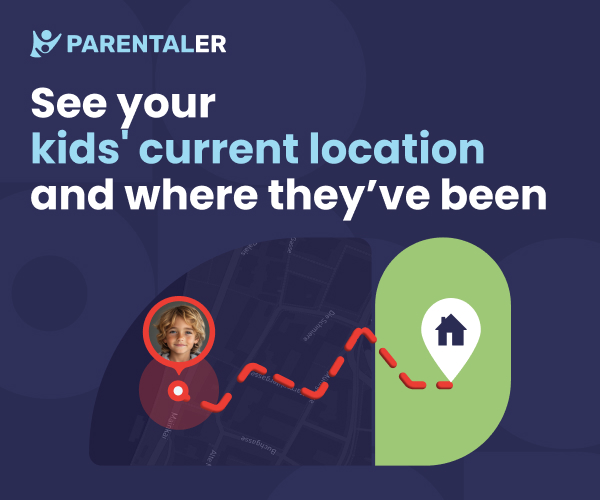
Parentaler strikes a good balance between providing essential monitoring features and promoting healthy digital habits, making it a great choice for many families.
Key Features:
Tracks text messages, call logs, and GPS location.
Monitors popular social media apps.
Allows you to set screen time limits and schedule device usage.
Includes a web filter to block inappropriate content.
Features an "App Blocker" to restrict access to distracting apps during study time.
Best For: Families looking for a well-rounded tool that combines activity monitoring with proactive screen time management features.
Create Tech-Free Zones and Times
Technology management isn't just about software; it's also about household culture. Designate specific areas of your home, like the dinner table and bedrooms, as tech-free zones. Similarly, establish tech-free times, such as during family meals or the hour before bedtime. This encourages real-world interaction, improves sleep quality, and helps children develop a healthier relationship with their devices.
Lead by Example: Model the Behavior You Want to See
Children learn more from what we do than what we say. If you are constantly glued to your own phone, scrolling through social media during conversations, or bringing your laptop to the dinner table, your rules will lack credibility. Make a conscious effort to be present. Put your own devices away during family time, engage in offline hobbies, and demonstrate that the internet is a tool to be used purposefully, not a constant background presence.
Conclusion
Learning how to restrict a child's internet access at home is a journey that blends technology, communication, and consistent parenting. There is no one-size-fits-all solution, but by combining open dialogue, built-in device settings, network management, and—if needed—a dedicated monitoring app, you can build a robust digital safety net for your child.
The goal is not to create a fortress of isolation, but to provide a guided and safe path for your child to explore, learn, and connect. You have the power to turn the digital world from a source of anxiety into an opportunity for growth.
Ready to take the next step? Review the tools discussed in this guide, start a conversation with your family tonight, and choose the approach that best fits your family's needs. A safer, more balanced digital life for your child is within your reach.
Frequently Asked Questions (FAQs)
1. At what age should I start using parental controls?
It's never too early to start fostering good habits. For young children (under 10), use strict content filters and time limits on tablets and shared computers. As children enter their pre-teen and teenage years and get their own devices, shift towards more monitoring and open communication about online risks, using controls as a safety net rather than a cage.
2. My child is very tech-savvy and can bypass restrictions. What can I do?
This is a common challenge. A multi-layered approach is your best defense. Combine router-level filtering (which is harder for a child to change) with a robust monitoring app that runs discreetly. Most importantly, maintain an open dialogue about why these measures are in place. If they understand it's for their safety and not a lack of trust, they may be less motivated to circumvent the rules.
3. Will using a monitoring app damage the trust between me and my child?
It can, if handled poorly. The key is transparency. With older children and teenagers, have a conversation before installing any software. Explain that in the same way you taught them to look both ways before crossing the street, you are using these tools to guide and protect them in the digital world. Frame it as a part of your responsibility as a parent, not as a lack of trust in them. For younger children, this level of disclosure may be less necessary.


