It starts with a simple homework assignment. Your child needs to research a historical figure or a scientific concept. They type a seemingly innocent word into Google, and the results are anything but educational. Or they’re watching a harmless cartoon on YouTube, only to have the algorithm recommend a video with mature themes in the sidebar. In an instant, the digital world you thought was safe reveals its unpredictable and often inappropriate underbelly.
As a parent, this scenario is a constant source of anxiety. The internet is an invaluable tool for learning and entertainment, but it’s an uncurated one. After a decade of working in online safety, I can tell you that the single most effective first step any parent can take is to master the built-in controls on the platforms their children use most. This guide will provide you with a clear, step-by-step plan to activate and, most importantly, lock the safe search settings for google and youtube. We will also explore advanced tools to ensure your child’s online environment is secure, giving you genuine peace of mind.
Why "Safe Search" is Your Essential First Line of Defense
Google and YouTube are not inherently designed for children. They are vast repositories of human knowledge and creativity, which unfortunately includes content that is explicit, violent, or otherwise unsuitable for young audiences. Relying on your child to simply "click away" from something inappropriate is not a strategy; their curiosity can easily override caution.
The algorithms that power these platforms are designed for engagement, not protection. They can inadvertently lead a viewer from a mild video to a disturbing one in just a few clicks. Activating safe search settings for google and youtube is not about censorship; it's about age-appropriate filtering. It’s the digital equivalent of childproofing your home before your toddler starts to walk—a fundamental and necessary precaution.
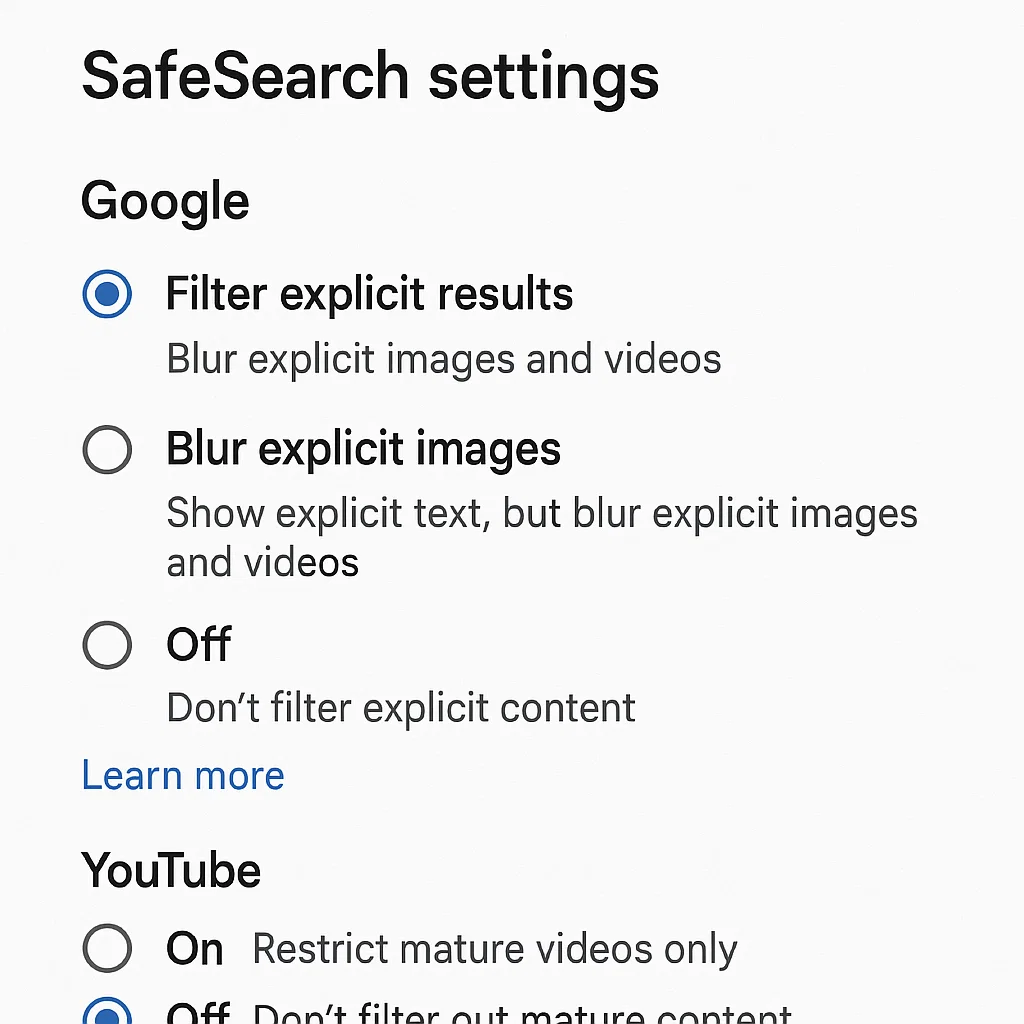
How to Enable and Lock Google SafeSearch
Google SafeSearch is designed to filter out explicit images, videos, and websites from Google Search results. While it’s highly effective, it’s crucial to lock this setting so it cannot be easily turned off by a curious child.
On a Web Browser (Computer):
Go to www.google.com and ensure you are signed in to your Google account.
Click on "Settings" at the bottom right of the page, then select "Search settings."
Under the "SafeSearch" section, you will see the option "Turn on SafeSearch."
Check the box to enable it.
Most importantly, scroll to the bottom of the page and click "Lock SafeSearch."
This will require you to enter your password. Once confirmed, the SafeSearch setting will be locked on that specific browser. Anyone using that browser will be unable to change it without your password.
Important Note: You must repeat this process for every web browser (Chrome, Safari, Firefox, etc.) on the computer.
On the Google App (Mobile Devices):
Open the Google app on your phone or tablet.
Tap your profile picture in the top right corner and go to Settings > General.
Find the "SafeSearch" option.
Toggle it on. The locking feature is often tied to the device's broader parental controls or a supervised account, which we will discuss next.
How to Restrict Content on YouTube
YouTube’s sheer volume makes it one of the biggest concerns for parents. Fortunately, it has a powerful, though often misunderstood, feature called "Restricted Mode."
Enabling Restricted Mode on a Web Browser:
Go to YouTube.com and sign in.
Click on your profile picture in the top right corner.
Select Settings.
On the left, click General.
Scroll down until you see "Restricted Mode." It will be described as "Hide potentially mature videos."
Toggle the switch On.
Crucially, to lock this setting, you must click the "Lock Restricted Mode on this browser" link and follow the prompts to save and lock it with your password.
Just like Google SafeSearch, this setting is browser-specific and must be activated on every browser your child might use.
Creating a Supervised Experience with YouTube Kids
For younger children, the YouTube Kids app is a far safer alternative. It offers a more curated environment with content specifically approved for younger audiences, parental timers, and the ability to approve which videos and channels your child can watch. However, for teenagers who have outgrown YouTube Kids but aren't ready for the full, unfiltered YouTube experience, Google offers "Supervised Experiences."
A supervised account allows you to create a YouTube profile for your teen with one of three content settings: "Explore," "Explore More," or "Most of YouTube," each with increasing levels of access, while still blocking mature content. This requires creating a Google Family Link account.
The Limitations of Built-In Controls and the Need for a Backup Plan
While activating these safe search settings for google and youtube is non-negotiable, they are not a silver bullet. Their primary weakness is that they are platform-specific and often browser-specific. A determined child can simply use a different browser where the settings aren't locked, or download a different search app entirely.
This is where a multi-layered approach becomes critical. The built-in settings are your first, essential fence. But to truly secure your child's digital playground, you need a solution that works across every app and every browser on the device itself.
Beyond the Platform: The Power of Device-Wide Parental Control Apps
Dedicated parental control applications provide a comprehensive safety net. They operate at the device level, giving you the ability to enforce rules that cannot be bypassed by simply switching apps. For parents who need absolute certainty, these tools are invaluable.
Let's examine three leading options that can help you manage and monitor your child's overall digital activity.
1. mSpy: For Comprehensive Monitoring and Oversight
mSpy is a powerful tool for parents who want detailed insight into their child's phone or tablet usage. It goes beyond simple filtering to provide a full picture of their digital life.

Key Features for Search and Content Safety:
Website Blocker: Actively block specific websites or entire categories (like adult content) across all web browsers on the device.
App Blocker: Prevent the use of other search apps or browsers that might not have SafeSearch enabled.
Social Media Monitoring: Track activity on platforms where inappropriate links and content can be shared.
Keyword Alerts: Get notified if your child searches for or types specific concerning terms.
mSpy is ideal for parents of teenagers who need a high level of oversight to guide conversations and interventions.
2. Parentaler: For Streamlined Web and Location Safety
Parentaler combines essential web filtering with robust location-tracking services. Its user-friendly interface makes it a great choice for parents who want an effective, all-in-one solution without a steep learning curve.
Key Features for Search and Content Safety:
Web Filtering: Block inappropriate websites across all browsers, ensuring a safe browsing experience no matter which app they use.
App Usage Control: See how much time is spent on specific apps, including YouTube and Chrome, and set limits.
Browser History Access: Review your child's complete web history to ensure they are staying on safe sites.
Parentaler offers a balanced approach to digital and physical safety for the modern family.
3. Eyezy: For a Detailed and Discreet Overview
Eyezy provides a extensive suite of monitoring tools that run seamlessly in the background, offering a clear window into your child's online activities.
Key Features for Search and Content Safety:
Invisible Shield: Operates discreetly to provide honest data about your child's browsing habits.
Web Magnifier: Tracks browsing history and bookmarks across all installed browsers.
Keystroke Capture: Records search queries and typed messages, alerting you to potential risks.
Screen Recording: See exactly what your child is viewing on their screen in real-time.
Eyezy is a powerful option for parents who want to understand their child's true digital footprint without constant confrontation.
The Human Element: Guiding Your Child in a Digital World
Technology can build walls, but it cannot build character. The most important layer of protection is your ongoing communication with your child. Talk to them about why you are using these safety tools. Explain the potential dangers of the internet in an age-appropriate way. Encourage them to come to you if they see something that makes them feel confused or uncomfortable. By combining robust technical controls with open, trusting dialogue, you empower them to become responsible and resilient digital citizens.
Your Next Steps for a Safer Digital Home
Your child's online safety is a journey, not a one-time task. Start today by following the steps in this guide to lock down safe search settings for google and youtube on every device and browser in your home. Then, evaluate your family's specific needs. If you require a more robust, device-wide solution, consider a dedicated parental control app like mSpy, Parentaler, or Eyezy to close any potential gaps.
Don't leave your child's online safety to chance. Take proactive control now to create a digital environment where they can learn, explore, and grow without unnecessary risks.
Frequently Asked Questions (FAQs)
1. My child found a way to turn off Restricted Mode on YouTube. What can I do?
This is a common issue and highlights the limitation of browser-based locks. The most effective solution is to use a device-level parental control app (like those mentioned above) that can block access to YouTube.com entirely or enforce the use of the safer YouTube Kids app. You can also use Google Family Link to manage your child's account and restrict their ability to modify settings.
2. Is SafeSearch 100% effective?
No filter is perfect. While Google's SafeSearch and YouTube's Restricted Mode are highly effective at blocking the vast majority of explicit content, they may occasionally miss something or over-filter and block harmless content. This is why they should be used as part of a larger strategy that includes supervision and open communication.
3. At what age should I stop using these filters?
This is a personal parenting decision that depends on your child's maturity and digital literacy. A gradual approach is often best. You might relax settings for a teenager while maintaining open conversations about online responsibility. Many parents choose to maintain some level of filtering throughout the teen years, often shifting the focus from blocking explicit content to monitoring for more complex issues like cyberbullying or predatory behavior.


