As a parent for over a decade and a digital safety consultant for just as long, I’ve had countless conversations that start with the same frustration: "I just need a break from their phone!" It’s a universal sentiment in the modern parenting experience. The phone is a constant companion, a source of entertainment, social connection, and, let's be honest, a significant point of contention. The question isn't whether we should manage our children's phone use, but how to do it effectively. Learning how to pause internet on a child's phone isn't about punishment; it's about creating healthy boundaries. It’s a tool for ensuring homework gets done, family dinners remain conversation-focused, and sleep is uninterrupted by the glow of a screen.
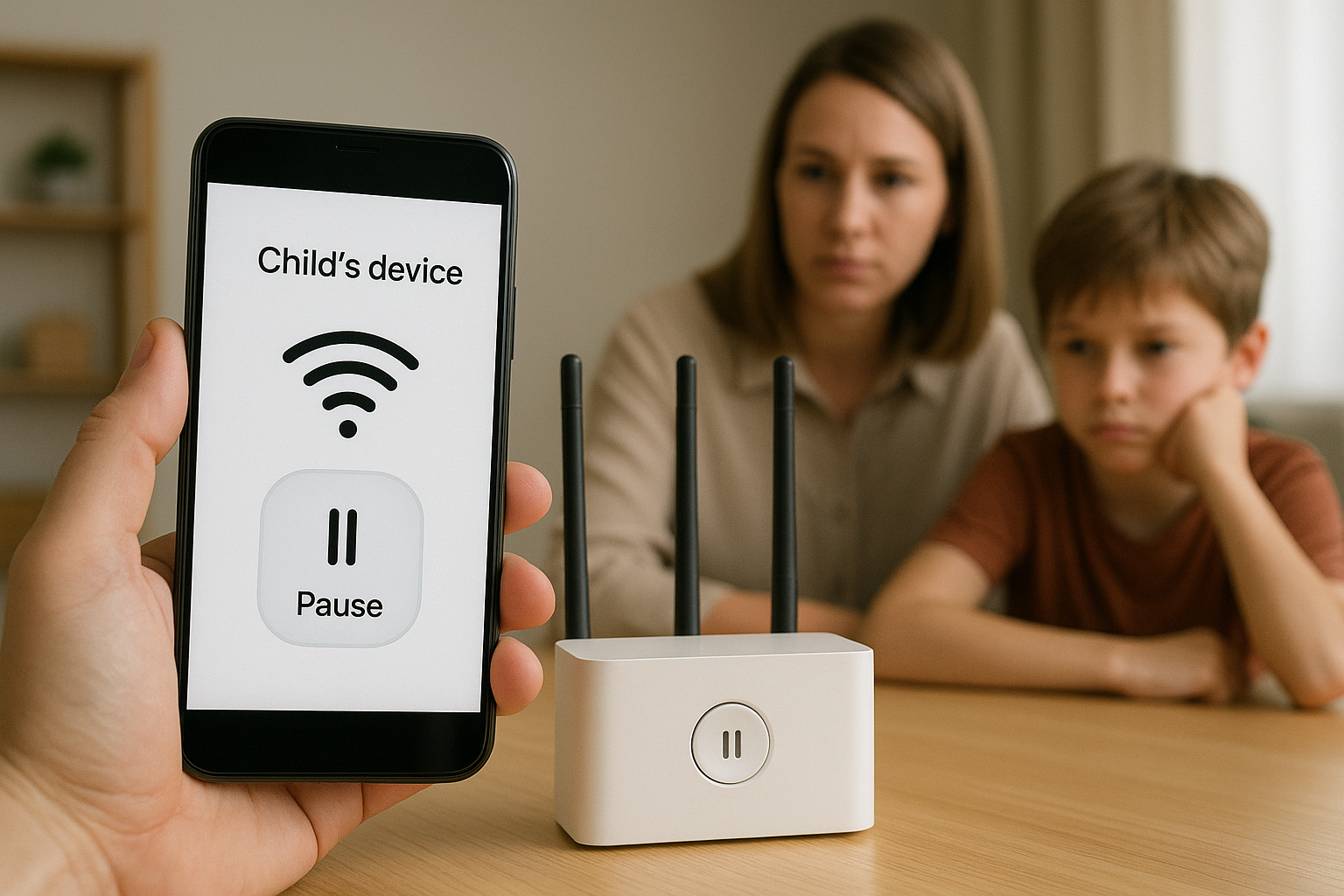
This guide will walk you through every available option. We'll start with the free, built-in tools on your child's device and then explore more comprehensive parental control applications that offer granular management. My goal is to equip you with the knowledge to choose the right strategy for your family’s unique needs, restoring your peace of mind and helping your child build a healthier relationship with technology.
Why Pausing Internet Access is a Modern Parenting Essential
Before we get to the "how," it's crucial to understand the "why." Pausing the internet isn't just about limiting screen time; it's about proactive parenting in a digital world. Unrestricted access can lead to:
Sleep Disruption: The blue light from screens and the mental stimulation of online content can severely impact sleep quality and duration.
Distraction from Responsibilities: It’s all too easy for a "quick check" of social media to turn into an hour lost, pulling focus away from homework, chores, and family time.
Overexposure to Risks: Without supervision, children can inadvertently stumble upon inappropriate content or engage with unknown individuals.
Mental Health Concerns: Constant connectivity and the pressure of social media can contribute to anxiety and feelings of inadequacy.
Having the ability to pause internet on a child's phone gives you a simple, immediate lever to pull to protect their well-being and reinforce your family's values around technology use.
Method 1: Utilizing Built-in Operating System Controls
Both Apple and Google provide robust, free tools within their operating systems. These should be your first stop.
For iPhones and iPads: Apple's Screen Time
Apple’s Screen Time is a powerful, integrated feature that allows for detailed management.
Downtime: This is your primary tool for pausing internet access. You can schedule a block of time (e.g., from 9 PM to 7 AM) where only phone calls and apps you explicitly allow will be available. All web browsing and most apps requiring internet will be blocked.
App Limits: You can set daily time limits for specific app categories, like Social Media or Games. Once the time is up, the app is paused for the day.
Content & Privacy Restrictions: Here, you can manually block specific websites or only allow access to a whitelist of approved sites.
How to Set It Up: Go to Settings > Screen Time. You can configure it for your child's device directly or manage it from your own iPhone through "Family Sharing." It requires your child's Apple ID password to make changes, preventing them from easily bypassing the settings.
For Android Phones: Google Family Link
Google Family Link offers similar control for Android devices and Chromebooks.
Bedtime Schedule: This function locks the device entirely during set hours, ensuring uninterrupted sleep.
Daily Time Limits: Set a maximum amount of time the phone can be used each day. Once the limit is reached, the device becomes unusable except for emergency calls.
Pause Device Management: With a single tap in your parent app, you can instantly lock the child's device. This is perfect for moments when you need their immediate attention, like at the dinner table.
How to Set It Up: Download the "Google Family Link" app on both your phone and your child's phone. Follow the in-app instructions to link the devices and configure your preferred settings.
The Limitations of Built-in Controls and When to Upgrade
While Screen Time and Family Link are excellent starting points, they have gaps. In my professional experience, tech-savvy children often find workarounds. These systems also lack deeper insight. You can see how long an app was used, but not what your child was doing inside it. This is where dedicated parental control applications fill a critical need. They offer a more robust, tamper-resistant, and feature-rich solution for parents who need more than just a simple pause button.
Method 2: Powerful Parental Control Applications for Total Peace of Mind
Third-party apps are designed specifically for one purpose: giving parents comprehensive oversight and control. They often run in a more hidden manner and provide a wider array of features that go far beyond pausing the internet.
mSpy: The Comprehensive Monitoring Solution
mSpy has been a leader in this field for years, and for good reason. It’s a powerful tool for parents who want a complete picture of their child's digital activity.

Key Features:
App Blocking: Remotely block any application on the target device, including social media, games, and browsers.
Website Filtering: Block access to inappropriate websites and set custom filters.
Screen Time Management: Schedule when the phone can and cannot be used.
GPS Location Tracking: Know your child's whereabouts in real-time.
Social Media Monitoring: Track messages and activity on platforms like WhatsApp, Instagram, and Snapchat (varies by plan and device).
mSpy is ideal if you need a high level of detail and are concerned about specific interactions and content. It provides the "why" behind the screen time.
Eyezy: User-Friendly Insights and Control
Eyezy positions itself as a more user-friendly and intuitive option, focusing on delivering clear insights and easy-to-use controls in a clean dashboard.

Key Features:
Screen Time Scheduler: Easily create schedules to block phone use during school, study, or family time.
App Blocker: Instantly block any app you find distracting or inappropriate.
Magic Alerts: Get notified when your child enters or leaves a specific location, like school or home.
Social Media Viewer: See what is being posted and shared on their social networks.
Keystroke Capture: See what is being typed in search bars and messages, helping to identify concerning conversations or searches.
Eyezy is a fantastic choice for parents who want powerful features without a steep learning curve. Its design makes monitoring straightforward and less overwhelming.
Parentaler: Straightforward and Effective Management
Parentaler focuses on the core essentials of parental control, doing them well with a straightforward approach. It’s a great balanced option.

Key Features:
Remote Phone Lock: The ultimate "pause" button. Lock the phone instantly from your own device.
App Usage Control: Block apps individually or set time limits for them.
Web Filter: Protect your child from harmful content online.
Location History & Geo-fencing: View where the device has been and set up safe zones.
Call & Text Monitoring: See who your child is communicating with.
If you want a no-fuss application that delivers reliable control over internet access, app use, and location, Parentaler is an excellent and dependable choice.
Choosing the Right Solution for Your Family
Your choice will depend on your specific concerns and your child's age and maturity level.
For Basic, Free Control: Start with Apple Screen Time or Google Family Link.
For Detailed Monitoring and Social Media Oversight: mSpy is the most comprehensive.
For an Intuitive Interface with Powerful Features: Eyezy offers a great balance.
For Straightforward, Essential Phone Locking and Filtering: Parentaler is efficient and effective.
The Bigger Picture: Combining Technology with Conversation
No app can replace open communication. Use these tools as a support system, not a substitute for parenting. Explain to your child why you are implementing these controls. Frame it as a matter of safety and health, not a lack of trust. Setting clear expectations and having ongoing conversations about digital citizenship will make the technical controls more effective and less likely to cause conflict.
Conclusion
The ability to pause internet on a child's phone is a non-negotiable part of parenting in today's world. It empowers you to protect your child’s time, focus, and mental well-being. You now have a clear roadmap, from free built-in options to powerful dedicated apps like mSpy, Eyezy, and Parentaler.
Don't let frustration and worry become your norm. Take action today. Assess your family's needs, explore the options, and implement a solution that gives you back control and grants your child the gift of a more balanced digital life.
Frequently Asked Questions (FAQs)
1. Can my child disable these parental controls?
Built-in controls like Screen Time and Family Link can sometimes be bypassed by a determined child who knows the device's passcode. Dedicated third-party apps like mSpy, Eyezy, and Parentaler are designed to be more tamper-resistant, often running in stealth mode and alerting you if the app is uninstalled.
2. Is it legal to use these apps on my child's phone?
Yes, it is perfectly legal for a parent or legal guardian to monitor a device that they own and provide to their minor child. The legal expectation of privacy for a child is different from that of an adult. It is always recommended to inform your child about the monitoring as part of an open conversation about safety.


