It happens in a flash. One moment, your home is filled with conversation and the sounds of family life. The next, a quiet hush falls as everyone—your teenager, your tween, and even you—disappears into separate digital worlds. The internet is a fantastic resource, but as a parent, it can feel like a force you can't contain. How do you manage what feels unmanageable?
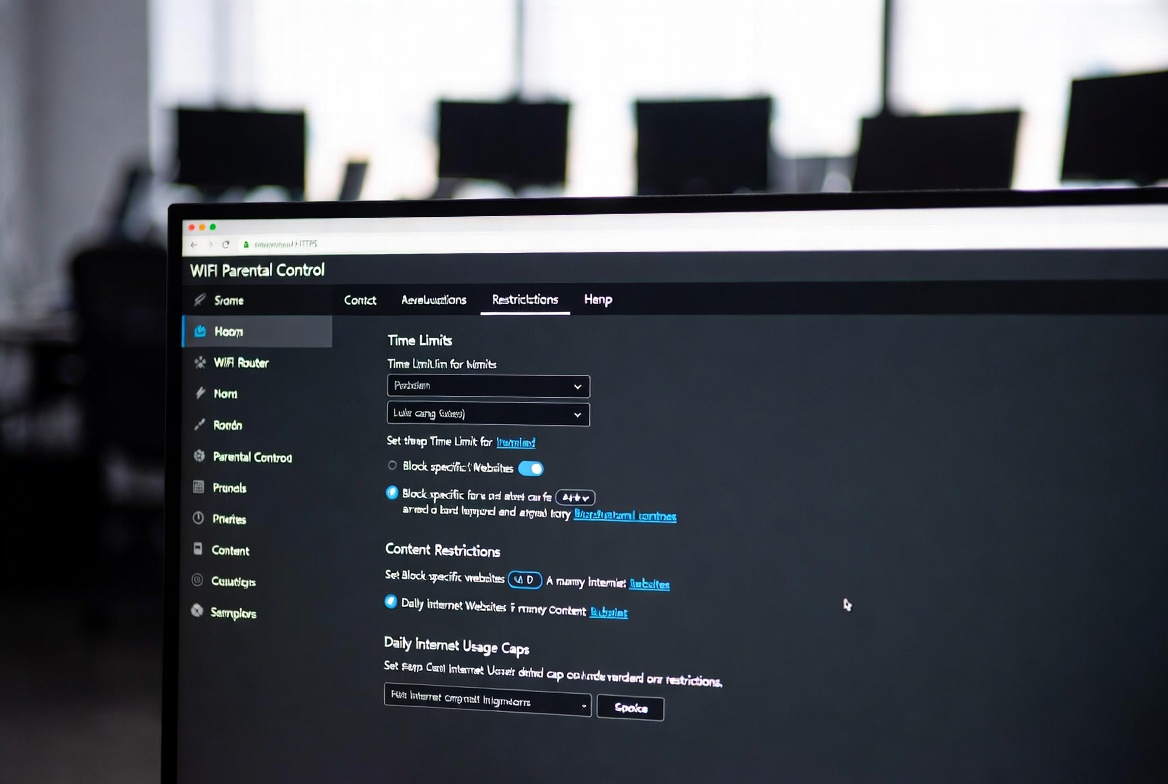
After a decade of helping families create safer digital homes, I’ve found the most effective solution often starts at the source: your WiFi router. Many parents overlook the powerful tools already built into their home network. Mastering your WiFi parental control router settings is the closest thing to a superpower you can have in modern parenting. It allows you to set ground rules that apply to every device connected to your network, from smartphones and tablets to gaming consoles and smart TVs.
This guide will demystify your router's dashboard. I will walk you through the essential steps to take control, from basic access schedules to advanced content filtering. We will also explore how to enhance these built-in features with dedicated software for a truly comprehensive approach to your family's digital well-being.
Why Your Router is Your First and Most Powerful Ally
Before we look at individual apps on a phone, we must talk about the network that connects them all. Your router is the gateway to the internet for your entire household. The primary advantage of using WiFi parental control router settings is their blanket effect.
Think of it like this: you can install an app on your child's phone to filter content, but what about their school laptop, their gaming console, or a friend's device they connect to your WiFi? Router-level controls apply to all of them simultaneously. This provides a consistent, non-negotiable layer of protection that is difficult for children to bypass, making it an essential foundation for any digital parenting strategy.
Accessing Your Router's Dashboard: The First Step
The first task is to log in to your router's administration panel. This might sound technical, but it's usually a straightforward process.
Find Your Router's IP Address: On a computer connected to your WiFi, open a command prompt (type "cmd" in the Windows search bar) and enter
ipconfig. Look for the "Default Gateway" address—it will typically be something like192.168.1.1or192.168.0.1. On a Mac, go to System Preferences > Network > Advanced > TCP/IP.Enter the Address in a Browser: Type this IP address into your web browser's address bar and press Enter.
Log In: You will be prompted for a username and password. If you never changed it, this is often found on a sticker on the router itself (common defaults are "admin" for both username and password). For security reasons, changing these default credentials after your first login is highly recommended.
If this process seems daunting, a quick internet search for "how to access [Your Router Brand and Model] admin panel" will provide specific instructions.
Core Settings Every Parent Should Configure
Once inside your router's settings, look for a section typically labeled "Parental Controls," "Access Control," or "Guest Network." Here are the four fundamental features you should set up.
1. Scheduling Internet Access (Bedtime and Study Time)
This is one of the most impactful features. You can set schedules to automatically disconnect specific devices—or all devices—from the internet during set hours.
How to Use It: Create a rule that turns off the internet for your children's devices on school nights from 9:00 PM to 7:00 AM. You can also create a "Study Time" rule that blocks access to social media and gaming sites during homework hours. This eliminates arguments and helps establish healthy boundaries.
2. Content Filtering and Website Blocking
This feature allows you to block access to specific websites or entire categories of content you deem inappropriate.
How to Use It: Most modern routers allow you to block categories like "Pornography," "Violence," "Gambling," and "Social Media." You can also manually enter the addresses of specific websites you want to block. This creates a safe browsing environment, preventing accidental exposure to harmful material.
3. Device-Specific Profiles and Pausing
Modern routers often let you create profiles for each family member, grouping their various devices together. This is incredibly powerful.
How to Use It: Create a profile for your teenager and assign their phone, laptop, and gaming console to it. Then, you can apply a single internet schedule or content filter to all their devices at once. The best part? With a single click in the router's app, you can pause the internet connection to their entire profile—dinnertime just got a lot easier.
4. Setting Up a Separate Guest Network
A guest network is a separate WiFi signal broadcast from your main router. It’s not just for visitors; it's a brilliant tool for parental control.
How to Use It: Configure your main, private network with a strong password for adult devices. Then, set up the guest network for your children's devices and all smart home gadgets. You can apply all your WiFi parental control router settings to the guest network while keeping your work and personal devices unrestricted and on a more secure connection.
Enhancing Router Controls with Dedicated Software
While router settings provide a fantastic foundation, they have limitations. They typically can't monitor the content of social media messages, track a phone's location, or provide detailed activity reports. This is where dedicated parental control apps come in, working in harmony with your router to offer a complete safety net.
mSpy: For In-Depth Social and Communication Monitoring
When your concern extends beyond website blocking to who your child is talking to and what they are saying, mSpy provides a deep level of insight.

Key Features:
Tracks messages, calls, and activity on WhatsApp, Snapchat, Instagram, and Facebook.
GPS location tracking to see your child's whereabouts in real-time.
Allows you to view photos, videos, and browser history on the target device.
mSpy is a powerful tool for parents of teenagers who may be exposed to higher-risk online interactions.
Parentaler: User-Friendly Monitoring and Alerts
Parentaler strikes an excellent balance between powerful features and an intuitive, user-friendly interface. It’s a great choice for parents who want detailed oversight without a complex setup.
Key Features:
Monitors social media apps, text messages, and call logs.
Provides instant alerts for specific keywords or suspicious contacts.
Features a simple dashboard to view all your child's digital activity in one place.
Includes screen time scheduling and remote device locking.
Eyezy: Comprehensive Oversight with a Focus on Transparency
Eyezy offers a wide array of monitoring features with a strong emphasis on empowering parents through knowledge. It provides the data you need to start important conversations with your child.
Key Features:
Monitors over 30 social and messaging apps.
Includes a powerful screen recorder to see what your child is doing in real-time.
Features an invisible keylogger to capture typed messages.
Provides geofencing alerts and a full social network overview.
Creating a Healthy Digital Culture in Your Home
Technology is only one part of the solution. The most effective digital safety plan combines these powerful tools with open communication.
Talk Openly: Explain to your children why you are using these controls. Frame it as a matter of safety and health, not punishment.
Establish Trust: Be clear about what you are monitoring and why. For older children, consider agreements where they earn more privacy as they demonstrate responsible behavior.
Lead by Example: Follow the same screen time rules you set for your kids. Put your own phone away during dinner and honor the digital curfews you create.
Conclusion
Your home WiFi network doesn't have to be a wild frontier. By taking the time to configure your WiFi parental control router settings, you reclaim your role as the guardian of your home's digital environment. You move from reacting to problems to proactively preventing them. This, combined with the targeted monitoring of a dedicated app and, most importantly, ongoing family dialogue, creates a holistic strategy for navigating the digital age with confidence.
Start today. Log into your router and explore its settings. For an added layer of security and insight, consider a powerful partner like mSpy, Parentaler, or Eyezy. Your family's digital well-being is worth it.
Frequently Asked Questions (FAQs)
1. Can my child bypass the router's parental controls?
If a tech-savvy child knows the router's admin password, they can potentially disable the controls. This is why it is critical to use a strong, unique password that they do not know. Additionally, using a combination of router controls and a device-based app like those mentioned above creates a layered defense that is much harder to circumvent.
2. Will these settings slow down my internet speed?
Basic scheduling and website blocking have a negligible impact on internet speed. More advanced features like deep packet inspection (used by some content filters) can have a minor effect, but for most modern routers and typical family usage, the difference is unnoticeable.
3. What's the difference between a router's controls and an app like those you listed?
Your router controls the access point to the internet. It can turn the internet on/off for a device and block websites. A dedicated app is installed on the device itself and can monitor activity that happens even when the device is not on your home WiFi (e.g., using cellular data), track location, and see the specific content within apps and messages. They work best together.


