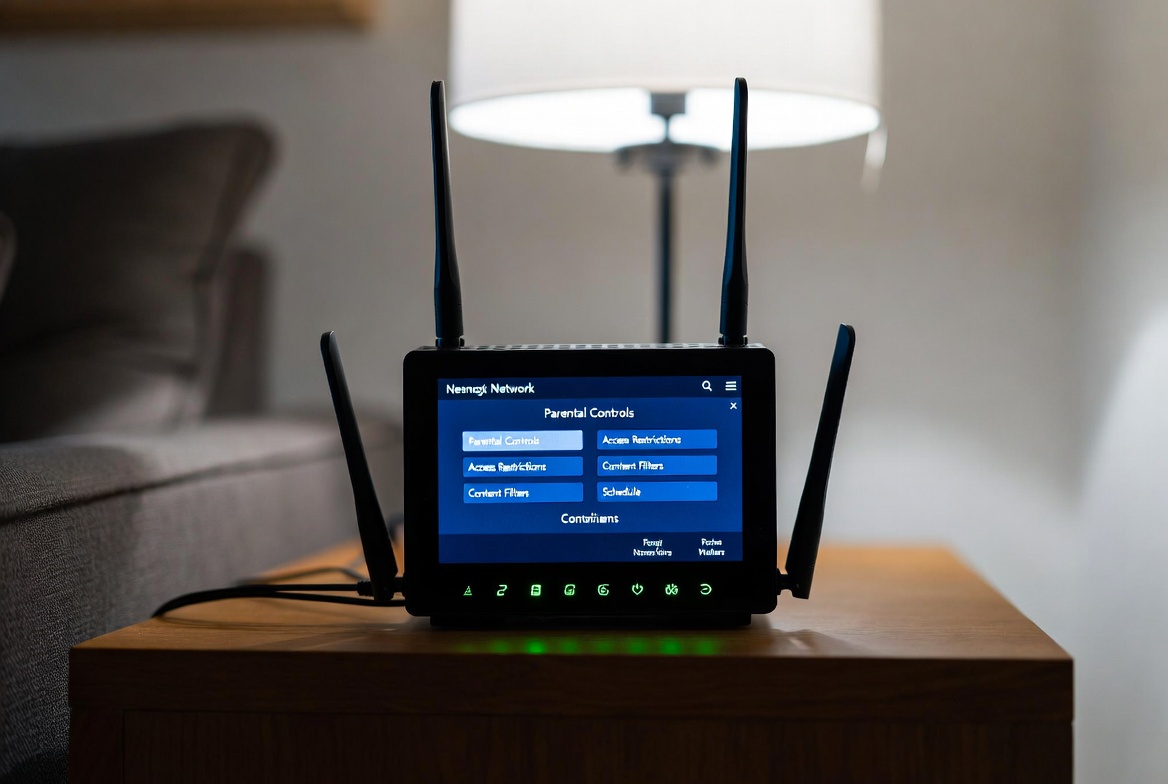
Picture your home’s WiFi signal as a digital front door. It’s the main entry point for everything wonderful the internet has to offer—homework resources, family movies, and video calls with grandparents. But it’s also a potential gateway for content and contacts that are not suitable for children. As a family digital safety consultant for the past ten years, I’ve seen the relief on parents' faces when they realize they can not only lock that door but also control who enters, when, and what they can bring inside.
The good news is that you have more power than you think. Establishing robust parental controls for home wifi is the most effective single step you can take to create a safer online environment for your children. It provides a blanket of protection that covers every device connected to your network, from smartphones and tablets to gaming consoles and smart TVs. This guide will walk you through everything, from accessing your router's hidden settings to leveraging powerful third-party applications, empowering you to take full command of your home’s digital landscape.
Why Your Router is the Best Place to Start
Many parents begin their journey by managing individual devices, which is a good practice. However, this becomes a game of whack-a-mole as your family accumulates more gadgets. Your WiFi router is the central hub for your home’s internet connection, making it the most strategic point for enforcement.
Think of it as setting rules at the source. By implementing parental controls for home wifi at the router level, you create a universal set of guidelines. This means the restrictions you set apply to your child’s laptop, their friend’s phone when they visit, the gaming console in the living room, and any other device that connects. It’s a foundational layer of security that is always on, providing consistent protection without needing to configure each device individually.
Step 1: Accessing and Understanding Your Router's Settings
The first step is to log in to your router’s administrator panel. This might sound technical, but the process is usually straightforward.
Find Your Router's IP Address: On a Windows PC, open Command Prompt and type
ipconfig. Look for the "Default Gateway" address (e.g., 192.168.1.1 or 192.168.0.1). On a Mac, go to System Preferences > Network, select your connection, and click "Advanced" > "TCP/IP".Log In: Open a web browser like Chrome or Firefox and type that IP address into the address bar. You will be prompted for a username and password. If you never changed it, this is often found on a sticker on the router itself (common defaults are "admin" and "password"). If that doesn't work, a quick online search for your router's model number and "default password" will help.
Navigate to Parental Controls: Once logged in, look for a section labeled "Parental Controls," "Access Control," "Security," or "Guest Network." The exact name varies by manufacturer.
Key Router Features to Activate for Immediate Safety
Within your router’s settings, you will find several powerful tools. Here are the most important ones to configure:
Access Scheduling (or Internet Pause): This is one of the most effective features. You can set schedules to automatically turn off internet access for specific devices during chosen times. Imagine automatically pausing the internet on your child’s devices during dinner, homework hours, and after bedtime. This eliminates arguments and ensures healthy offline time.
Website Filtering: This allows you to block specific websites by URL (a "blacklist") or, more effectively, only allow access to a pre-approved list of websites (a "whitelist"). Whitelisting is excellent for younger children, ensuring they can only visit educational and approved fun sites.
Device Prioritization and Grouping: Many modern routers allow you to group devices by user. You can create a "Kids" group and apply a universal set of rules—like a strict bedtime schedule and content filters—to every device in that group with one click.
When You Need More Power: Enhancing Your Controls with Dedicated Software
While router controls are excellent for managing when and where your children can go online, they often lack deeper insight into how the internet is being used. This is where dedicated parental control applications become invaluable. These apps work in tandem with your parental controls for home wifi, providing detailed activity reports, social media monitoring, and real-time location tracking.
Using these tools transparently with older children is crucial—frame them as a safety net for navigating a complex world, not a spying tool. Based on my extensive evaluation, here are three top-tier applications that complement your network management.
1. mSpy: For Comprehensive Social Media and Communication Oversight
mSpy is a feature-rich application designed for parents who need a detailed view of their child's digital communications across various platforms.

Key Features:
Monitors messages, calls, and interactions on WhatsApp, Snapchat, Instagram, and Facebook.
Provides real-time GPS location tracking and geofencing alerts.
Records keystrokes to see what is typed on the device.
Allows remote blocking of specific apps and websites.
Grants access to photos, videos, and browsing history.
Best For: Parents of teenagers who are active on multiple social media platforms and may be at a higher risk of encountering cyberbullying or inappropriate contact.
2. Moniterro: For Centralized Monitoring and Screen Time Management
Moniterro offers a balanced approach, focusing on providing a clear, centralized dashboard for monitoring activity and managing screen time habits effectively.
Key Features:
Tracks social media activity and text messages across major platforms.
Provides detailed screen time reports and app usage statistics.
Allows for remote screen time limiting and scheduling.
Includes a web filter to block inappropriate content directly on the device.
Features a location tracker with history.
Best For: Families looking for a well-rounded tool that combines activity monitoring with proactive screen time management to foster healthy digital habits.
3. Scannero: For Rapid Location Tracking and Peace of Mind
Scannero specializes in providing quick and accurate location information, making it an ideal tool for parents whose primary concern is knowing their child's whereabouts.

Key Features:
Pinpoints the exact real-time location of a cell phone.
Allows you to view location history and set up frequent location updates.
Offers geofencing to receive alerts when your child enters or leaves a designated area.
Works without needing to install an app on the target phone in some configurations.
Simple, user-friendly interface focused on location data.
Best For: Parents who need a reliable, straightforward tool for location tracking to ensure their child's physical safety and know they've arrived at school or home safely.
Creating a Balanced Digital Environment: Beyond Technology
Technology controls are a powerful support system, but they are not a substitute for active parenting. The most effective strategy combines technical tools with open communication.
Establish tech-free zones in your home, like the dinner table and bedrooms, to encourage family interaction and better sleep. Most importantly, lead by example. Model the healthy screen habits you want to see in your children. Discuss online safety regularly, explaining why certain rules are in place. When children understand that restrictions come from a place of love and concern, they are more likely to cooperate and come to you with problems they encounter online.
Conclusion
Securing your family's online experience is not about building a prison; it's about creating a guided, safe playground. By combining the network-wide power of parental controls for home wifi with the detailed insight of dedicated applications like mSpy, Moniterro, or Scannero, you build a multi-layered defense that adapts to your family's unique needs.
You have the knowledge to access your router's settings and the information to choose a monitoring app that fits your concerns. The power to create a safer, healthier digital home is literally at your fingertips.
Your family's digital safety is a priority. Don't wait for an incident to happen. Choose one step from this guide—whether it's logging into your router tonight or researching one of the recommended apps—and take action. The peace of mind that comes from knowing you’ve proactively protected your children is invaluable.
Frequently Asked Questions (FAQs)
1. My child is tech-savvy and knows how to change router settings. What can I do?
This is a common challenge. First, always change the default administrator password for your router to something only you know. For an added layer of security, consider a router with advanced management features or use third-party firmware like DD-WRT that offers more robust access controls and the ability to create a separate, highly restricted network just for your children's devices.
2. Will using these tools damage the trust between me and my child?
It can, if handled poorly. The key is age-appropriate transparency. With teenagers, have an open conversation about online risks and explain that these tools are a safety measure, just like teaching them to look both ways before crossing the street. For younger children, it's more about straightforward protection. The goal is to guide them toward independent and responsible internet use, not to spy.
3. Are the built-in router controls enough, or do I need an extra app?
For young children, robust router controls may be sufficient for several years, as they effectively manage access. However, as children grow into teenagers and use smartphones with cellular data, an app becomes essential. Apps provide insight into social media use and text messages and continue to function even when the device is not on your home WiFi network, offering a more complete picture of their digital life.


