The moment you decide to check your child's phone can feel fraught with tension. You’re balancing your very real safety concerns against the fear of seeming like an overbearing spy, potentially damaging the trust you’ve worked so hard to build. Having guided hundreds of families through this digital tightrope walk over the past decade, I can assure you of one thing: the problem isn't the act of checking, but the how and why behind it.
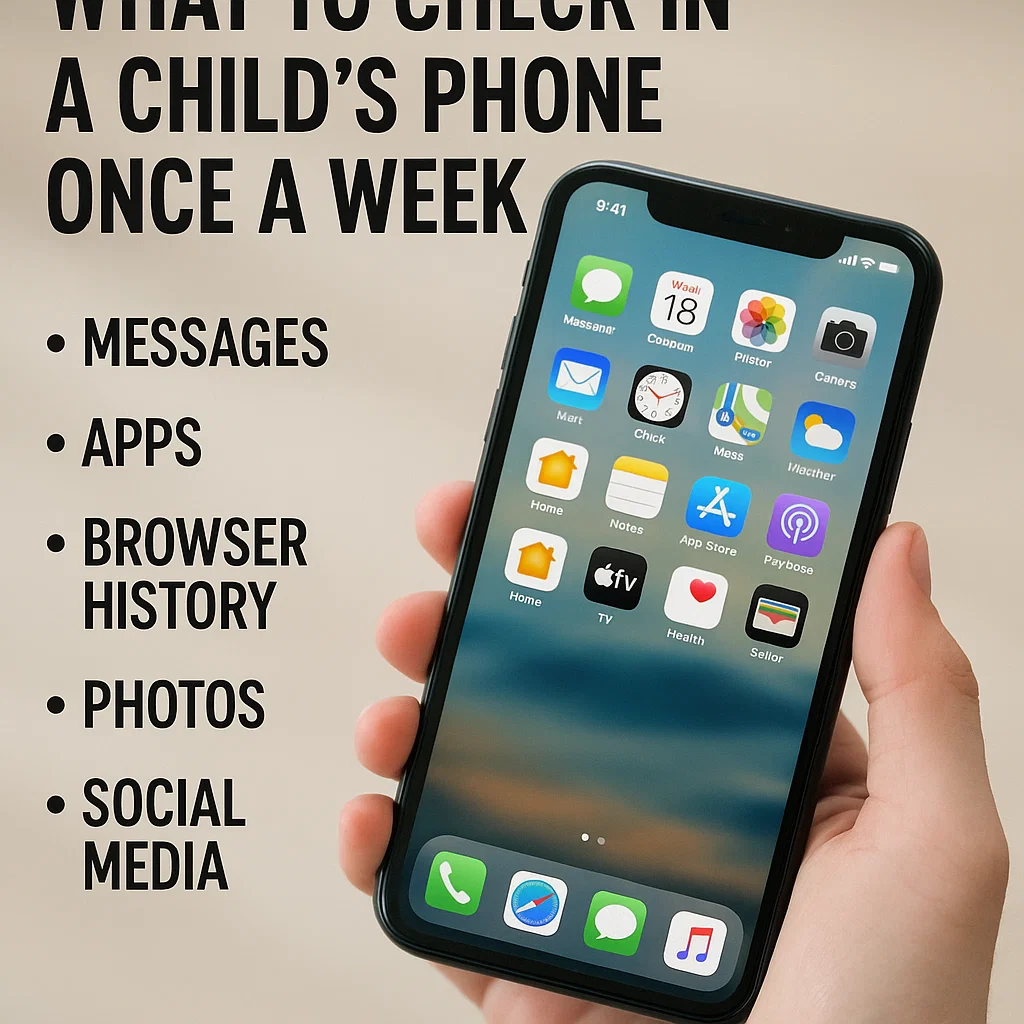
A weekly, transparent phone check-in shouldn't be a surprise inspection or a punitive search for wrongdoing. Instead, it should be a routine, collaborative health check for your child's digital life. It’s your opportunity to coach, guide, and protect. This article will provide you with a clear, actionable checklist for what to check in a child's phone once a week. This process is designed to be efficient, respectful, and focused on fostering open communication while ensuring your child's safety in an increasingly complex online world.
The Foundation: Setting the Stage for a Positive Check-In
Before you even touch the phone, the right mindset and approach are critical. How you frame this process will determine whether it builds trust or breaks it.
Be Transparent: This should not be a secret. Establish from the beginning that having a phone is a privilege that comes with the responsibility of periodic check-ins. Explain that it's similar to you looking over their homework—not because you assume it's wrong, but because you want to help them succeed.
Schedule It: Make it a predictable routine. Say, "Let's do our weekly phone check-in together on Sunday evening." This removes the element of surprise and anxiety.
Make it Collaborative: Sit down with your child. Say, "Let's look at your phone together." This positions you as a guide, not a warden. Encourage them to show you their favorite apps or recent photos. This makes the process less intimidating and more educational.
The Core Weekly Checklist: 6 Key Areas to Review
A focused, 15-minute check is more effective than an hour-long deep dive that feels invasive. Here is a structured checklist for what to check in a child's phone once a week.
1. Installed Apps and Screen Time
This is your high-level overview. It answers the question: "What is on the phone and how much time is being spent there?"
How to Check: On an iPhone, go to Settings > Screen Time > See All Activity. On an Android, use the Digital Wellbeing dashboard. Scroll through the list of installed apps.
What to Look For:
New or Unfamiliar Apps: Ask your child about any app you don't recognize. "What's this one for? Can you show me how it works?"
App Usage Time: Look for apps consuming a disproportionate amount of time. This isn't about punishment, but about starting a conversation on balance. "I see you spent three hours on this game. What do you enjoy about it? How did it make you feel afterwards?"
2. Social Media and Messaging Platforms
This is often the area of highest concern, as it's where much of your child's social interaction—and potential risk—occurs.
How to Check: Open the social media apps they use (e.g., Instagram, Snapchat, TikTok). Don't read every private message with friends, as this can breach trust. Instead, focus on the public-facing elements and new contacts.
What to Look For:
New Followers/Following: Review their new connections. Do they know these people in real life?
Public Comments and Posts: Scan the comments on their posts and the posts they've commented on. Look for signs of cyberbullying, negativity, or inappropriate language.
Direct Message (DM) Requests: Check the "message requests" or "other" folder, which is where messages from people they don't follow land. This is a common entry point for strangers.
3. Photos and Camera Roll
The camera roll is a window into your child's world, showing you what they find funny, important, or worth documenting.
How to Check: Open the Photos app and scroll through recent additions, including screenshots and deleted albums.
What to Look For:
Appropriateness of Content: Ensure photos are age-appropriate.
Screenshots of Conversations: Children often screenshot concerning messages or posts to share with friends. These can be red flags for cyberbullying or other issues.
The "Recently Deleted" Folder: This folder can sometimes reveal content a child has tried to hide. Its presence is a key part of knowing what to check in a child's phone once a week.
4. Web and Search History
A child's search history reveals their curiosity, questions, and what they might be too embarrassed to ask aloud.
How to Check: Open the web browser (Safari, Chrome, etc.) and view the history.
What to Look For:
Signs of Curiosity: Searches about puberty, relationships, or health are normal. Use them as a springboard for conversation.
Red Flags: Look for searches related to self-harm, extreme violence, or adult content. These require a calm, supportive conversation, not immediate anger.
5. Location Services and Check-Ins
This review is about physical safety and verifying their digital footprint isn't exposing their real-world location.
How to Check: On an iPhone, go to Settings > Privacy & Security > Location Services. On Android, go to Settings > Location. Also, check within social media apps for location "check-ins" or tags.
What to Look For: Ensure location services are not enabled for every app. Discuss the danger of "checking in" to locations in real-time, which can announce to a wide audience that they are not at home.
6. Text Messages (SMS and iMessage)
A brief, high-level review of text messages can help you identify who your child is communicating with most frequently.
How to Check: Open the Messages app.
What to Look For: You don't need to read every thread. Instead, scan the list of conversations. Look for:
Unknown Numbers: Contacts saved with strange names or numbers not in their contacts.
The Tone of Previews: Glance at the message previews for any that use aggressive, threatening, or overly adult language.
When a Manual Check Isn't Enough: The Role of Parental Control Apps
While a weekly manual check-in is invaluable, it has limitations. A savvy child can delete incriminating data, and you can't monitor activity in real-time. For many parents, a parental control app serves as a crucial safety net, providing continuous oversight and filling the gaps between weekly check-ins. Knowing what to check in a child's phone once a week is easier when you have a tool that keeps a log.
mSpy: For Comprehensive Digital Oversight
mSpy provides a detailed, behind-the-scenes look at your child's phone activity, capturing data that can be easily deleted before a manual check.

Key Features for Weekly Insights:
Social Media Monitoring: Tracks messages on platforms like Snapchat and Instagram, even if they are deleted.
Keylogger: Records every keystroke, revealing search terms and message drafts you would never see otherwise.
Location Tracking & Geofencing: Provides a history of your child's whereabouts, offering peace of mind between check-ins.
mSpy is ideal for parents who need a detailed, unfiltered view of their child's digital life to inform their weekly conversations.
Scannero.io: For Location and Communication Focus
specializes in core safety features, making it a straightforward tool for verifying your child's location and SMS communication.

Key Features for Weekly Insights:
SMS Tracking: Provides a full log of text messages, which can be cross-referenced during your manual check.
Location Tracking & History: Allows you to verify your child's stated location against the app's data.
Geofencing: Sends automatic alerts if your child enters or leaves a designated area, providing real-time safety assurance.
Scannero is perfect for parents whose primary concerns are physical safety and basic communication monitoring.
Moniterro: For a Balanced, Holistic View
Moniterro offers a wide array of monitoring tools in a user-friendly dashboard, giving you a balanced overview of your child's phone habits.

Key Features for Weekly Insights:
Social Media & Message Tracking: Monitors conversations across multiple platforms from one central location.
Web History & Bookmark Monitoring: Provides a complete log of browsing activity, even if the history is cleared.
Notification Monitoring: Shows all incoming alerts, helping you understand the flow of communication your child receives.
Moniterro is a great all-in-one solution for parents who want a comprehensive picture to review during their weekly check-in.
Turning Findings into Teachable Moments
The goal of this process is not to catch your child being bad, but to guide them toward being better. If you find something concerning, your reaction is everything.
Stay Calm: If you discover inappropriate content, take a breath before reacting.
Ask Open-Ended Questions: Instead of "Why did you search for this?" try "I saw this in your search history. Can you help me understand what you were looking for?"
Reinforce the "Why": Remind them that the rules are in place for their safety. Use the moment to educate, not just punish.
Conclusion
Knowing what to check in a child's phone once a week transforms a potential source of conflict into a routine of connection and guidance. This consistent, transparent practice does more than just protect your child; it teaches them digital literacy and responsibility. It shows them that you are engaged, you care, and you are their safest ally in the digital world.
The small investment of 15 minutes each week can prevent major crises and, more importantly, strengthen the bond of trust between you and your child.
Frequently Asked Questions (FAQs)
1. My child says I'm invading their privacy. How should I respond?
Acknowledge their feelings, but stand firm on your responsibility. You can say, "I understand it feels that way. My most important job is to keep you safe, and that includes online. This isn't about reading your private thoughts; it's about making sure you're safe from people and content that could harm you. As you get older and show consistent good judgment, you will earn more privacy."
2. What if my child deletes their history before the check-in?
Frequent clearing of history is a red flag in itself and warrants a conversation. This is also where a parental control app like mSpy or Moniterro becomes invaluable, as they run in the background and log activity even if it's deleted from the phone itself, ensuring you have an accurate record.
3. At what age should I stop these weekly check-ins?
There is no specific age. The process should be a gradual "phasing out" based on demonstrated responsibility, not a birthday. As your child consistently makes good choices, communicates openly, and adheres to your family's rules over many months, you can shift to bi-weekly or monthly check-ins, eventually moving to a more advisory role.