You’ve set up parental controls on your child’s device. You feel a sense of relief, confident that the digital world is now a safer place for them to explore. But a week later, you find they’ve stumbled upon a website or a video that left them confused and you deeply concerned. How did it happen? The answer often lies in the keywords.
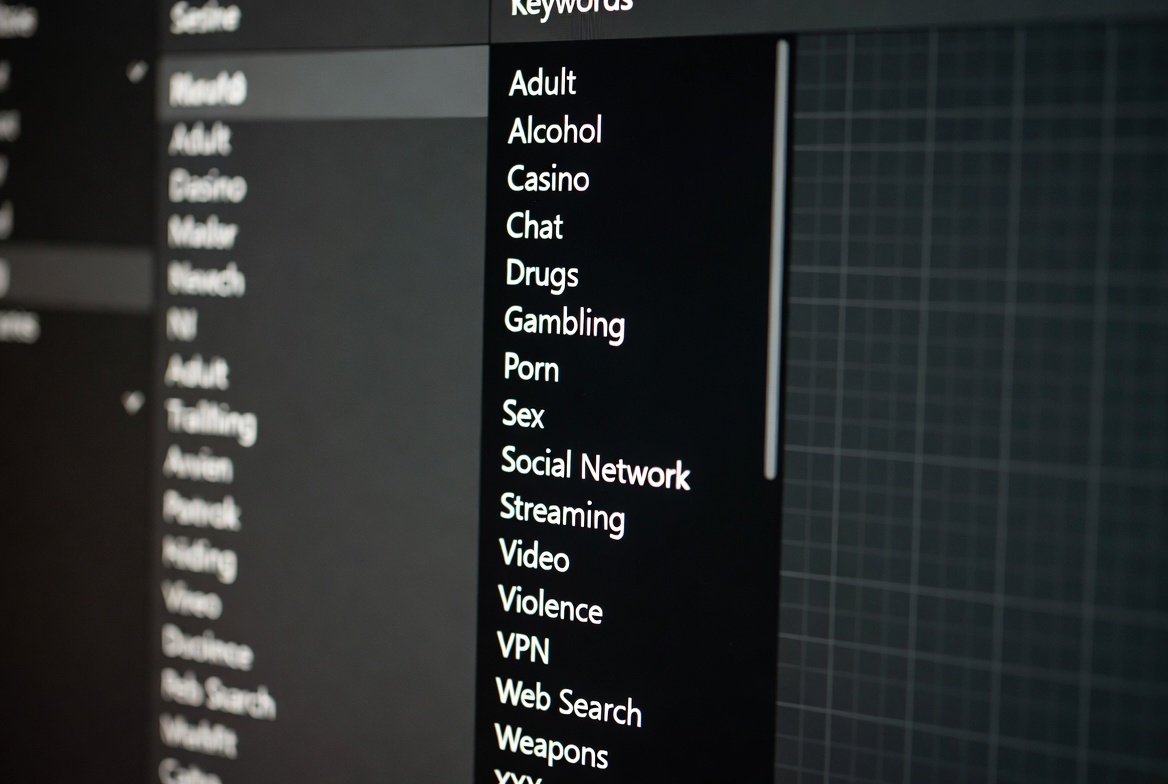
As a digital safety consultant with over ten years of experience, I’ve learned that generic content filters are a good start, but they are not enough. The internet is vast and constantly evolving, with new slang and coded language emerging daily. To build a truly robust defense, you need a proactive, granular strategy. This guide provides you with a foundational list of parental control keywords to block, explains the logic behind it, and shows you how to use this list within powerful monitoring tools.
Why a Keyword Blocklist is Your Secret Weapon
Parental control software typically works in two ways: by blocking entire categories of content (like "Adult Content" or "Violence") and by blocking specific websites or search terms. The category blocks are essential, but they can be both over-inclusive (blocking legitimate health education sites) and under-inclusive (missing new or niche sites).
A custom keyword blocklist acts as a precision filter. It targets the specific language associated with the risks you're most concerned about. When these words are entered into a search engine, app store, or sometimes even within a browser's address bar, access is blocked immediately. This proactive approach is critical because it stops harmful content before it's seen, rather than reacting afterward.
Building Your Foundational Keyword Blocklist
This list is not exhaustive, but it provides a powerful starting point. It's organized by category to help you understand the purpose of each group. You should adapt this list of parental control keywords to block based on your child's age and maturity level.
Category 1: Explicit Adult Content
This is the most common category for parents. Beyond obvious terms, include common misspellings and slang.
Core Terms: porn, xxx, adult, sex, nude, naked, erotic, hentai, porno, hentai
Slang & Platforms: onlyfans, patreon (for adult creators), snapchat nudes, snap nudes, "nsfw"
Actions: hookup, one night stand, fuck, fucking, shag, shagging
Category 2: Violence, Gore, and Weapons
Protect your child from traumatic and violent imagery or instructions.
Weapons: gun, guns, rifle, pistol, ammunition, how to build a bomb, how to make a bomb
Extreme Violence: gore, murder, kill, killing, suicide, torture, massacre, terrorist, terrorism
Graphic Content: beheading, execution, snuff, crime scene
Category 3: Drugs, Alcohol, and Substance Abuse
Block content that glorifies or provides instructions for obtaining and using illegal substances.
Substances: weed, marijuana, cocaine, meth, heroin, LSD, ecstasy, pills, xanax, vape, vaping
Actions: how to get high, how to roll a joint, where to buy weed, binge drinking, get drunk
Category 4: Self-Harm and Dangerous Behaviors
This is a critically important category for safeguarding your child's mental health.
Self-Harm: suicide, suicidal, cut myself, self harm, how to kill yourself, end it all
Eating Disorders: anorexia, anorexic, bulimia, bulimic, pro ana, thinspiration, "thinspo"
Other Risks: how to run away, how to disappear
Category 5: Hate Speech and Discrimination
Shield your child from communities built on racism, bigotry, and intolerance.
Slurs and Ideologies: A list of racial, homophobic, and transphobic slurs (which we will not publish here, but you should add), nazi, kkk, white power, incel
General Hate: hate speech, racist, sexist, homophobe
How to Implement Your Keyword Blocklist Effectively
Simply having a list is not enough; you need to deploy it correctly. Most robust parental control apps have a dedicated section for "Blocked Keywords" or "Custom Filtering."
Start Broad, Then Get Specific: Begin with the core terms from the categories above. You can always add more specific slang later.
Use Variations and Misspellings: Kids are savvy. They will use numbers to replace letters (e.g., "p0rn") or intentional misspellings (e.g., "p0rn0"). Incorporate these variations into your list.
Review Search Histories: If your parental control app provides this feature, regularly review your child's search history. This will reveal new terms you need to add to your blocklist.
Update Regularly: The digital landscape changes. Make it a habit to review and update your keyword list every few months.
The Limits of Keyword Blocking and the Need for Monitoring
It is impossible to block every single problematic term. New slang emerges, and children can sometimes find ways to circumvent filters. This is why a list of parental control keywords to block is most effective when paired with comprehensive monitoring tools that give you visibility into your child's actual digital activity—the messages they send, the apps they use, and the websites they visit.
Top Parental Control Apps for Keyword Filtering and Beyond
Here are three leading applications that allow for robust keyword blocking and provide the additional monitoring necessary for complete peace of mind.
mSpy: For Unmatched Insight into Communications and Social Media
mSpy is a powerhouse for parents who need deep visibility. Beyond standard keyword and website blocking, its strength lies in monitoring social media and communication apps like Instagram, Snapchat, and WhatsApp.

You can see sent and received messages, even if they are later deleted. This allows you to understand the context of your child's interactions, identifying risks like cyberbullying or contact with predators that a simple keyword block might miss.
TRY NOW
Parentaler: Straightforward Monitoring with Key Safety Features
Parentaler offers a balanced and user-friendly approach to digital safety. It includes powerful keyword filtering for web content and searches, allowing you to implement your custom list easily.
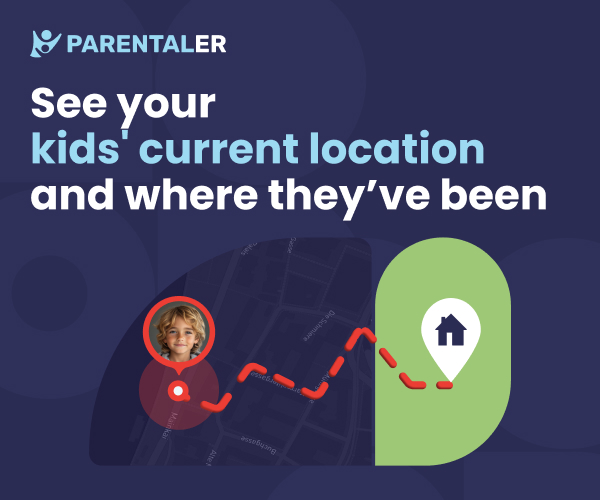
Additionally, it provides screen time management, app blocking, and real-time location tracking with geofencing alerts. It’s an excellent all-around choice for parents who want effective, comprehensive oversight without an overly complex interface.
BUY NOW
Eyezy: The All-in-One Family Safety Suite
Eyezy consolidates nearly every monitoring tool a parent could need into a single platform. Its keyword blocking is part of a broader set of features that includes monitoring across 30+ social media and messaging apps, tracking browsing history, and using a keylogger to record every keystroke made on the device.
This is the ultimate tool for parents who want maximum visibility and control, providing a second layer of defense that captures risky behavior even if a keyword is missed by the primary filter.
BUY NOW
A Balanced Approach: Combining Technology with Conversation
No app can replace open, honest communication. Use these tools not as a spying device, but as a conversation starter.
Be Transparent: For older children and teens, explain that you are using these controls to keep them safe, just as you teach them to look both ways before crossing the street.
Create a Family Contract: Establish clear rules about internet use and the consequences for breaking them. This builds trust and understanding.
Encourage Reporting: Promise your child that they will never be punished for coming to you with a problem they encounter online. Make yourself their safest resource.
Conclusion
Building a safe online environment for your child is an ongoing process. It requires layers of protection. A thoughtfully curated list of parental control keywords to block is a critical, proactive layer that stops explicit and harmful content at the source. When this list is powered by a sophisticated tool like mSpy, Parentaler, or Eyezy, you gain not just filtering power, but also the insight needed to guide your child through the complexities of the digital age.
Don't wait for an incident to happen. Take action today. Review the list, choose the tool that fits your family's needs, and start building a safer digital future for your child.
Frequently Asked Questions (FAQs)
1. Won't keyword blocking prevent my child from accessing legitimate health information?
It can, and that's a valid concern. For example, blocking "suicide" might prevent access to a crisis helpline. This is why many advanced apps allow you to create "Allowed Websites" (e.g., suicidepreventionlifeline.org) that bypass the keyword block. It requires a bit more setup but offers a more balanced approach.
2. How often should I update my keyword blocklist?
You should review your list at least every three to four months. The most effective way to find new terms to block is by periodically checking your child's search history (if your app provides it) to see what new words and phrases they are encountering.
3. Is it better to block by category or by specific keyword?
You should use both. Category blocking (e.g., "Adult Content") provides a wide net to catch the vast majority of inappropriate sites. Specific keyword blocking allows you to target the gaps in that net, catching newer sites, specific slang, and content that might not be correctly categorized by the software. They work best in tandem.


