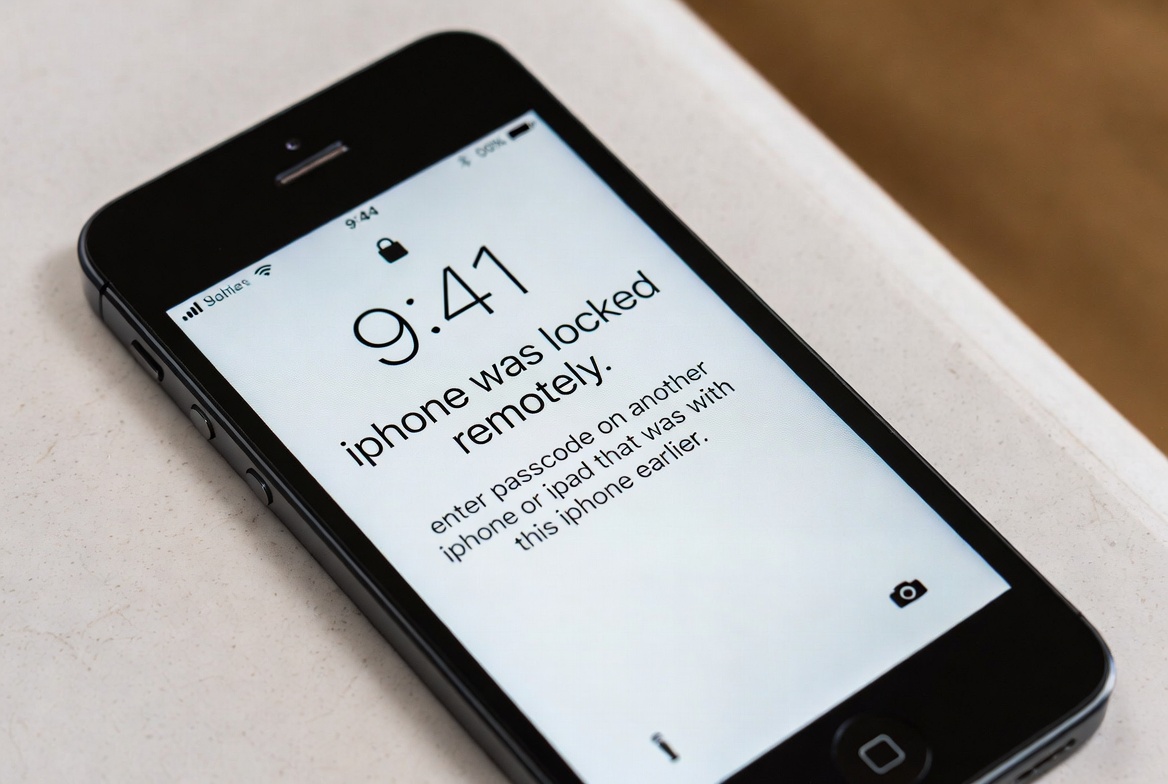
It’s every modern parent’s dilemma. You see your child’s face illuminated by their iPhone screen long after bedtime, or you watch them scroll through social media instead of engaging with family. You’ve set rules, but enforcing them in the moment feels like a constant battle. What if you could press a button on your own phone and instantly make their screen go dark? As a child safety and technology consultant with a decade of experience, I can confirm that this is not only possible but has become an essential tool for responsible digital parenting. The ability to remotely lock your child's iPhone is a powerful way to translate family rules into immediate, non-negotiable action.
This guide will provide you with a clear, step-by-step path to achieving this level of control. We will first explore the free, built-in tools Apple provides through its Screen Time feature. Then, we will address the limitations of this system and introduce you to sophisticated third-party applications that offer a more robust and immediate solution. By the end of this article, you will know exactly how to choose and implement the right method to protect your child’s time, focus, and well-being.
Why the Need for Remote Locking is Greater Than Ever
The statistics on teen and child phone use are staggering. A recent study from the American Academy of Child & Adolescent Psychiatry found that children aged 8-12 spend an average of 4-6 hours a day on screens, while teenagers spend up to 9 hours. This constant connectivity can impact sleep, academic performance, and mental health. The ability to remotely lock a child's iPhone is not about surveillance; it's about providing structure. It allows you to:
Enforce Digital Curfews: Ensure phones are not used during sleep, homework, or family meals.
Promote Balance: Encourage real-world activities and face-to-face interaction.
Intervene Instantly: In situations requiring immediate attention, you can eliminate the digital distraction with one action.
Reduce Conflict: It turns a potential argument into a simple, pre-established consequence.
Your Foundation: Using Apple's Screen Time and Family Sharing
Apple has integrated powerful parental controls directly into iOS. For many families, this is the perfect starting point. The system revolves around two key features: Screen Time and Family Sharing.
Setting Up Screen Time for Your Child's iPhone
To begin, you need to configure your child's device through your own iPhone using Family Sharing.
On your iPhone, go to Settings > [Your Name] > Family Sharing.
Tap Add Member and follow the prompts to create an Apple ID for your child or invite them if they already have one.
Once added, go back to Settings > Screen Time.
Scroll down and tap your child’s name under the "Family" section.
You will now have access to the controls for their device. The two most important features for managing access are Downtime and App Limits.
Scheduling Access with Downtime and App Limits
Downtime: This feature allows you to set a schedule that blocks nearly all apps on the device. During Downtime (e.g., from 9 PM to 7 AM), only apps you explicitly allow and phone calls will be accessible. This is your primary tool for creating a "phone lock" schedule.
App Limits: This lets you set a daily time allowance for specific app categories, like Social Networking or Games. Once the time is up, the apps are blocked for the rest of the day.
Crucially, you must set a Screen Time Passcode that is different from your child's device passcode. This prevents them from approving more time or changing the settings.
The Critical Gap in Apple's Native Solution
While Screen Time is a valuable tool, it has a significant limitation for parents seeking true remote control: you cannot instantly lock the phone from your own device outside of the pre-set schedules.
If you notice your child using their phone when they shouldn't be, your only recourse with native tools is to verbally instruct them to put it away. There is no "panic button" within Screen Time to force an immediate lock. Furthermore, determined children can sometimes find ways to bypass these limits or use alternative browsers. This is where dedicated parental control applications fill the void.
Advanced Solutions: Third-Party Apps for Immediate Control
For parents who need real-time, instant intervention, third-party apps are the answer. They are specifically designed to provide a level of remote management that Apple’s built-in system does not offer.
1. mSpy: For Comprehensive Monitoring and Instant Action
mSpy is a powerhouse in the parental control space, known for its extensive feature set that goes far beyond simple locking. It provides a comprehensive overview of your child's device activity and gives you the power to intervene at any moment.

Key Features for Remote Locking:
Instant Remote Lock: A single click in your mSpy web dashboard will immediately lock the target iPhone, rendering it unusable.
App-Specific Blocking: Remotely block individual apps, like games or social media, without affecting the entire device.
Custom Schedules: Create detailed locking schedules that operate independently of Apple's Downtime.
Website Filtering: Block access to inappropriate websites on all browsers, including Safari.
Location Tracking & Geofencing: Receive alerts if your child leaves a designated safe area.
Best For: Parents who need the highest degree of control and detailed insight, especially for older, more tech-savvy children.
How to Get Started with mSpy:
For the most powerful remote control and monitoring, mSpy is the industry standard.
TRY NOW
2. Scannero: Innovative Location-Based Locking
Scannero introduces a unique approach by focusing on location-based triggers. This is ideal for parents who want the phone to automatically manage itself based on where the child is, such as at school.
Key Features for Remote Locking:
Geofencing: Draw a virtual boundary on a map (e.g., around your child's school) and set the phone to lock automatically when they enter the zone.
Remote Lock Button: Manually lock the device from your own phone with one tap, just like mSpy.
Number Lookup & Safety Features: Includes tools for identifying unknown callers and sending panic alerts.
User-Friendly Interface: The app is designed for simplicity and ease of use.
Best For: Parents who want automation based on location and a straightforward tool for manual remote locking.
How to Get Started with Scannero:
For smart, location-aware control, Scannero offers a unique and effective solution.
BUY NOW
3. Moniterro: All-in-One Insights and Control
Moniterro positions itself as a complete digital wellness suite, offering both powerful remote control and deep insights into how the device is being used. It helps you make informed decisions about your child's screen time.
Key Features for Remote Locking:
Remote Device Locker: Instantly lock the iPhone from your secure online dashboard.
Screen Time Scheduling & Reports: Set limits and view detailed breakdowns of app usage.
Social Media & Message Monitoring: Keep tabs on interactions across popular platforms (requires child's knowledge for ethical use).
Web Activity Filtering: Block harmful and distracting websites in real-time.
Best For: Parents who are data-driven and want to combine the power to remotely lock a child's iPhone with a deep understanding of their digital habits.
How to Get Started with Moniterro:
For comprehensive insights and robust control, Moniterro is an excellent all-in-one choice.
TRY NOW
Balancing Control with Communication and Trust
Technology is a tool, not a replacement for parenting. The most effective approach combines these powerful apps with open, honest communication. Discuss with your child why these controls are necessary—frame it as a matter of health and safety, not punishment. The goal is to guide them toward developing their own self-regulation skills, with your support and the safety net of these tools.
Conclusio
The journey to learning how to remotely lock your child's iPhone leads to two clear paths: the structured, scheduled control of Apple's Screen Time, or the immediate, powerful intervention of apps like mSpy, Scannero, and Moniterro. Your choice depends on the level of real-time control and insight your family needs.
Don't let screen time management be a source of daily conflict. You have the knowledge and the tools to create a healthier digital environment for your child. Take the first step today by choosing the solution that fits your family and enjoy the peace of mind that comes with being in control.
Frequently Asked Questions (FAQs)
1. Can my child tell that I've installed a monitoring app like mSpy or Moniterro?
Most of these apps are designed to operate in stealth mode, meaning the icon can be hidden from the home screen. However, it is always best to check the specific features of the app you choose. Many parenting experts recommend being transparent with older children about the use of such tools to maintain trust.
2. Is it possible for a child to remove these apps without my permission?
On an iPhone, third-party apps like mSpy, Scannero, and Moniterro require a configuration profile to be installed for full functionality. To remove this profile, the child would need your device's passcode or the restrictions passcode you set during installation. This makes it very difficult for them to uninstall the app without your knowledge.
3. Can I lock the phone based on its real-time location, like when it arrives at school?
Yes, this is a key feature of Scannero and is also available in mSpy and Moniterro. It's called "Geofencing." You can draw a virtual boundary on a map, and the app will automatically execute a pre-set action—like locking the device or blocking specific apps—as soon as the phone enters or leaves that area.